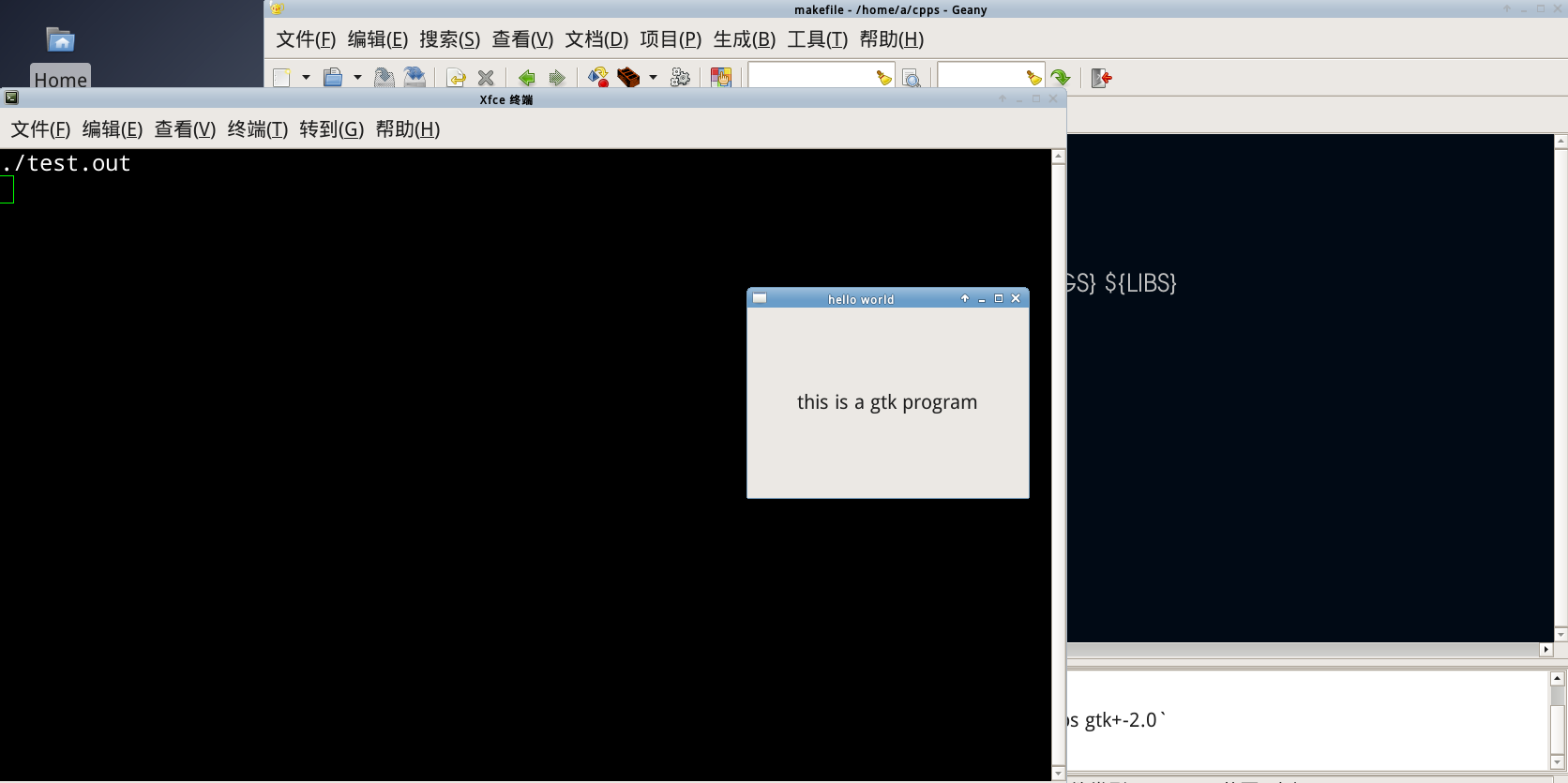
一条命令安装gtk开发环境和Geany
sudo apt-get install intltool gtk+-2.0-dev geany
启动Geany
geany
新建文件,输入gtk helloworld程序
#include<gtk/gtk.h>

int main(int argc,char* argv[]){

    GtkWidget* window;

    GtkWidget* label;

    gtk_init(&argc,&argv);


    window=gtk_window_new(GTK_WINDOW_TOPLEVEL);

    gtk_window_set_title(GTK_WINDOW(window),"hello world");

    gtk_window_set_default_size(GTK_WINDOW(window),300,200);

    label=gtk_label_new("hello world!!");

    gtk_container_add(GTK_CONTAINER(window),label);

    g_signal_connect(G_OBJECT(window),"destroy",G_CALLBACK(gtk_main_quit),NULL);

    gtk_widget_show_all(window);


    gtk_main();


return 0;

}
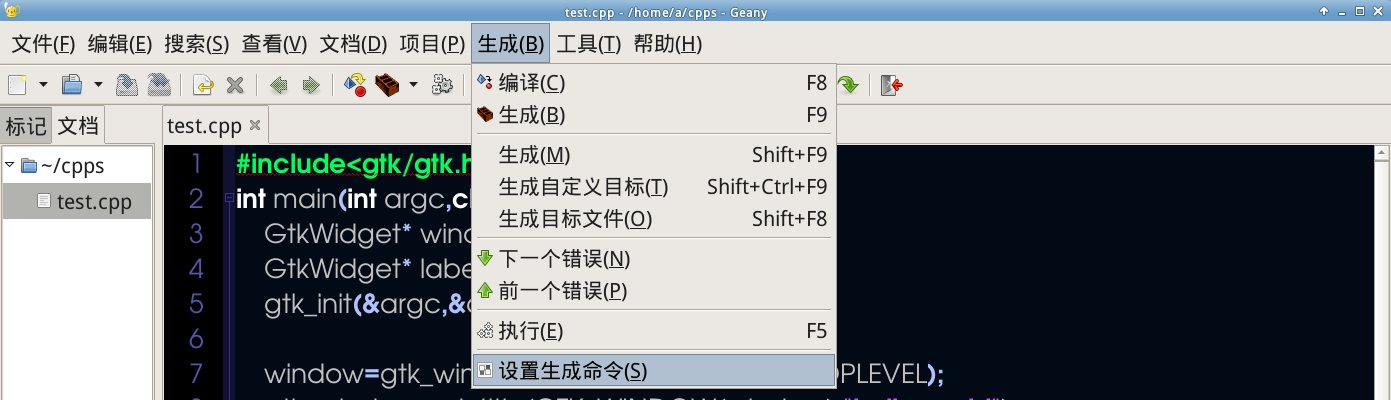
配置编译参数。点击生成,设置生成命令
可以设置生成菜单对应的命令,可以看到编译过程是使用g++生成.o文件,而生成是直接生成目标程序。
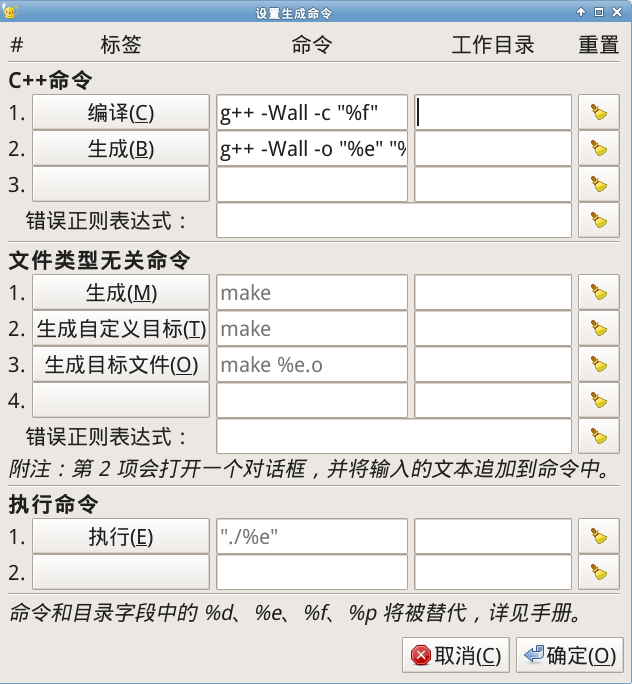
对于%d等字符的解释。可以在帮助手册中找到,%f是代表当前文件完整名称,而%e是去除文件扩展名的文件名称
Substitutions in commands and working directories


The first occurence of each of the following character sequences in each of the command and working directory fields is substituted by the items specified below before the command is run.


    %d - substituted by the absolute path to the directory of the current file.

    %e - substituted by the name of the current file without the extension or path.

    %f - substituted by the name of the current file without the path.

    %p - if a project is open, substituted by the base path from the project.


Note


If the basepath set in the project preferences is not an absolute path , then it is taken as relative to the directory of the project file. This allows a project file stored in the source tree to specify all commands and working directories relative to the tree itself, so that the whole tree including the project file, can be moved and even checked into and out of version control without having to re-configure the build menu.
对于编译命令我们可以改成
g++ -Wall -c "%f" `pkg-config --cflags gtk+-2.0`
而对于生成命令可以改成
g++ -Wall -o "%e" "%f" `pkg-config --cflags --libs gtk+-2.0`
其中pkg-config --cflags --libs gtk+-2.0是确定g++的编译链接参数
之后确认保存,点击生成就可以生成gtk程序了

点击执行就可以运行gtk程序
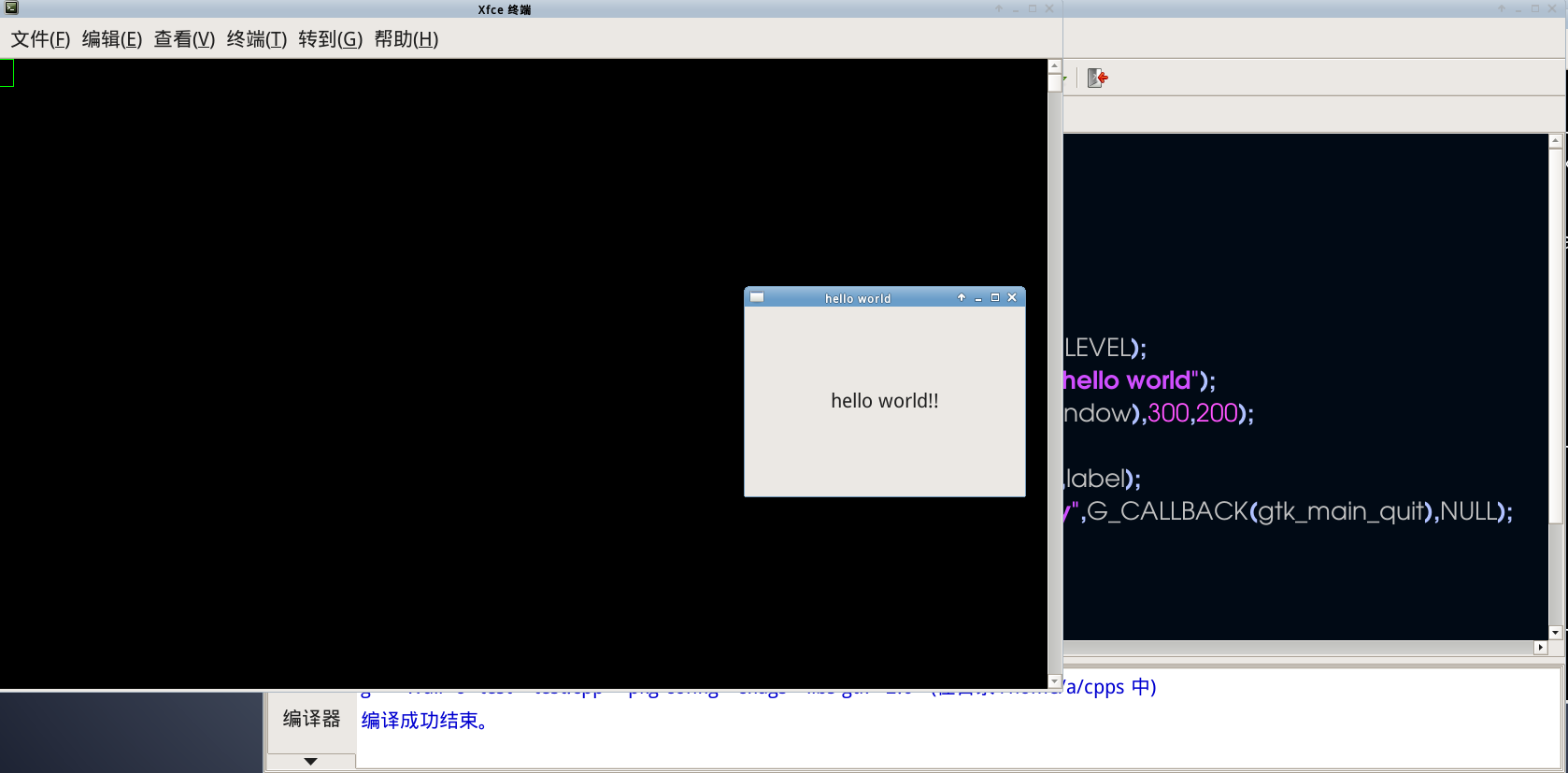
在Geany中,对于多个文档的编译,一般我的方法是自己编写makefile,使用make选项进行编译和运行
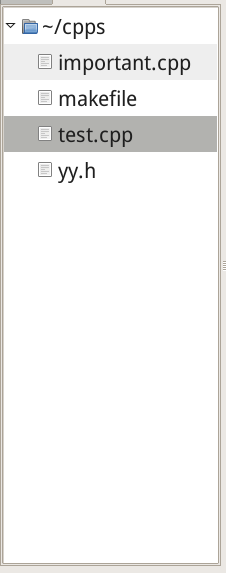
在工程中有四个文件,important.cpp、test.cpp、yy.h和makefile
important.cpp
test.cpp
#include <gtk/gtk.h>

#include "yy.h"

int main(int argc,char* argv[]){

    GtkWidget* window;

    GtkWidget* label;

    gtk_init(&argc,&argv);


    window=gtk_window_new(GTK_WINDOW_TOPLEVEL);

    gtk_window_set_title(GTK_WINDOW(window),"hello world");

    gtk_window_set_default_size(GTK_WINDOW(window),300,200);

    label=gtk_label_new(strShow);

    gtk_container_add(GTK_CONTAINER(window),label);

    g_signal_connect(G_OBJECT(window),"destroy",G_CALLBACK(gtk_main_quit),NULL);

    gtk_widget_show_all(window);


    gtk_main();


return 0;

}
yy.h
编辑makefile文件,由makefile文件为make工具指明如何编译它们。在makefile设置run段,在执行make run命令时会启动生成的程序
CFLAGS = `pkg-config --cflags gtk+-2.0`

LIBS = `pkg-config --libs gtk+-2.0`


test.out: important.o test.o

    g++ -o test.out \

    important.o test.o \

    ${CFLAGS} ${LIBS}

important.o: important.cpp

    g++ -c important.cpp \

    ${CFLAGS}

test.o: test.cpp

    g++ -c test.cpp  \

    ${CFLAGS}


run:

    ./test.out
在makefile文件中设置生成命令,可以发现与普通源文件的界面不一样,可见geany可以识别makefile。这里只需要将执行那里改为make run就可以了。
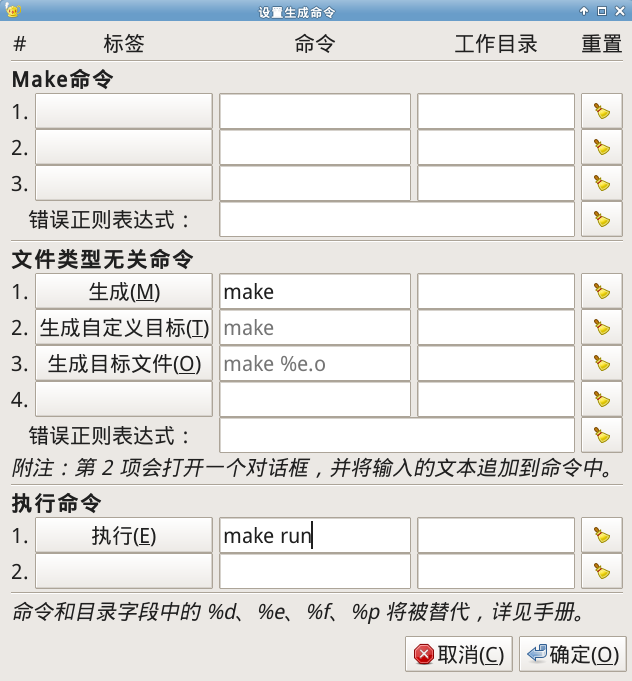
在项目生成时,转到makefile,直接shift+f9使用make生成,然后f5运行就可以了