My cloud server is running a Debian Linux system. I need to enable FTP service so that local Windows devices can access the files on it. The Linux cloud server uses vsftpd to start the FTP service. The Windows client uses WinSCP to access it.
Linux Server
Install vsftpd
sudo apt update
sudo apt install vsftpd -y
Check if the service is running
sudo systemctl status vsftpd
You should see that the service has started
● vsftpd.service - vsftpd FTP server
     Loaded: loaded (/usr/lib/systemd/system/vsftpd.service; enabled; preset: e>
     Active: active (running) since Sat 2026-08-08 15:53:19 CST; 2s ago
 Invocation: 9241a397a95a46678d56248f89d28482
    Process: 51888 ExecStartPre=/bin/mkdir -p /var/run/vsftpd/empty (code=exite>
   Main PID: 51889 (vsftpd)
      Tasks: 1 (limit: 1955)
     Memory: 900K (peak: 1.7M)
        CPU: 36ms
     CGroup: /system.slice/vsftpd.service
             └─51889 /usr/sbin/vsftpd /etc/vsftpd.conf
If the service isn't running, start it manually
sudo systemctl start vsftpd
Set to start on boot
sudo systemctl enable vsftpd
The most important part: editing the config file
sudo mousepad /etc/vsftpd.conf
This is a usable configuration file, with detailed explanations in the file itself.
listen=YES

listen_ipv6=NO

anonymous_enable=NO

local_enable=YES

write_enable=YES

local_umask=022

chroot_local_user=YES

allow_writeable_chroot=YES

idle_session_timeout=600

data_connection_timeout=120
restart service
sudo systemctl restart vsftpd
Note: You need to allow port 21 in the cloud host's security rules. It's the port that FTP service needs to expose.
Trying to access the FTP service
I found that when I log in using WinSCP, it says access denied.
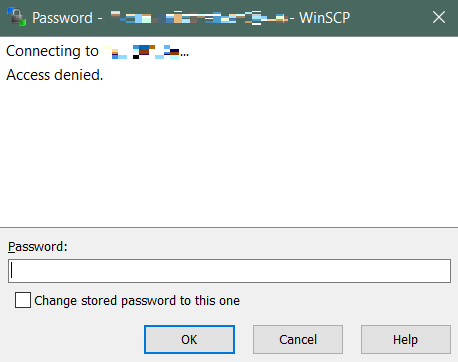
The reason is that I logged in using the root user. The root user is blocked in the /etc/ftpusers file. You can switch to a regular user to log in, or edit this file and comment out the root user to log in.
sudo cat /etc/ftpusers

# /etc/ftpusers: list of users disallowed FTP access. See ftpusers(5).

root
daemon
bin
sys
sync
games
man
lp
mail
news
uucp
nobody
Later, when I connected again, I found WinSCP stuck at 'Reading remote directory...' This is because FTP has two connections (control connection and data connection), and the data connection was blocked, causing it to freeze when listing the directory.
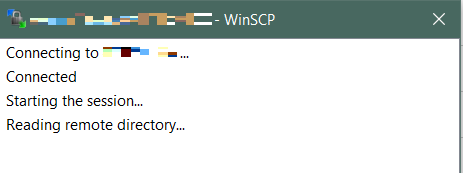
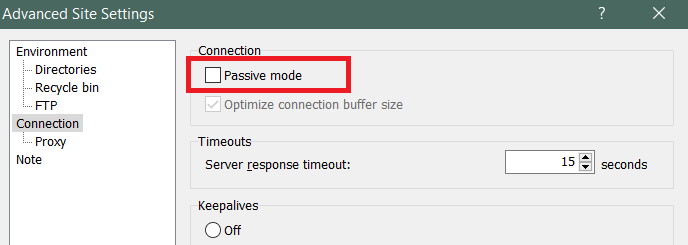
Some FTP clients like WinSCP default to passive mode. You can try changing the connection to active mode by unchecking Passive mode.
Or continue to stay in passive mode for the connection, but you'll need to enable passive mode for vsftp and open the ports. Edit the server configuration file /etc/vsftpd.conf
Add the following at the end of the file
# Enable passive mode
pasv_enable=YES
# Set the passive mode port range (10000-10100 is enough)
pasv_min_port=10000
pasv_max_port=10100
# Specify the public IP of the cloud server (needed if the cloud server is behind NAT)
pasv_address=xx.xx.xx.xx
Setting pasv_address is really necessary when using a cloud server. This is because if the cloud server is behind the hosting provider's NAT network, it sees its own IP as something like 10.0.0.5, not the real public IP. It would tell the client to connect using this wrong IP, which would make the client unable to connect. Setting pasv_address can let the client know the correct public IP of the cloud server.
restart service
sudo systemctl restart vsftpd
Note: In the cloud server's security rules, you need to allow the port range for passive mode (like 10000-10100).
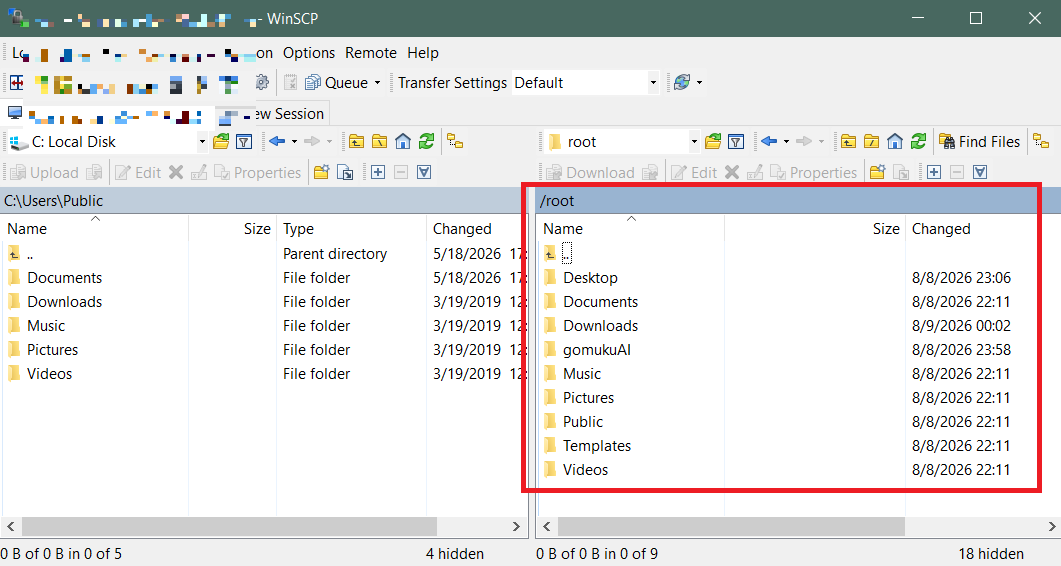
I was able to successfully access the cloud host FTP directory again after reconnecting with WinSCP.
Explanation of active and passive modes in FTP services
Active Mode (PORT)
Process:
Control Connection: The client connects from a random port (like 1025) to the server's port 21 and sends commands.
Tell Port: The client informs the server, "I'm listening, my data port is 1026, please connect to me."
Data Connection: The server actively initiates a connection from its own port 20 to the client's port 1026.
Passive Mode (PASV)
Process:
Control Connection: The client connects from a random port (like 1025) to the server's port 21 and sends commands.
Getting the Port: The client asks to go into passive mode. The server then opens a random port (like 6000) and says, "Hey, connect to my port 6000."
Data Connection: The client then connects from its own random port (like 1027) to the server's port 6000.
Summary
Nowadays, clients are usually behind an ISP's internal network and a home router. What the client tells the server is the ISP's shared IP address or a home network IP (like 192.168.x.x), so an FTP server can't find the client using active mode. Even if the server knows the client's address and tries to connect, the client's firewall will block connections initiated by external servers. So it's really hard to set up FTP access in active mode.
In FTP passive mode, the data connection is initiated by the client, which is exactly like regular internet usage (browsers accessing web pages). Firewalls usually allow connections that are 'initiated internally, responded to externally.' But on the server side, you still need to open a range of passive connection ports (like 6000-6100) to make sure the client can connect.