On the Windows system, I use FileZilla to set up an FTP service. First, you need to download FileZilla. You can download it from any of the addresses below.
sourceforge:https://sourceforge.net/projects/filezilla/
official website:https://filezilla-project.org
After the download is complete, install it. Once the installation is finished, three shortcuts will appear on the desktop, which are:Administer FileZilla Server,Start FileZilla Server,Stop FileZilla Server
Click Start FileZilla Server to start the service. Click Administer FileZilla Server to enter the management interface. The first time you log in, you will be prompted to create a login password and port information. However, these are unrelated to the FTP service. They are the login port and password.
After logging into the management interface, you need to configure the service. Click Server, configure.
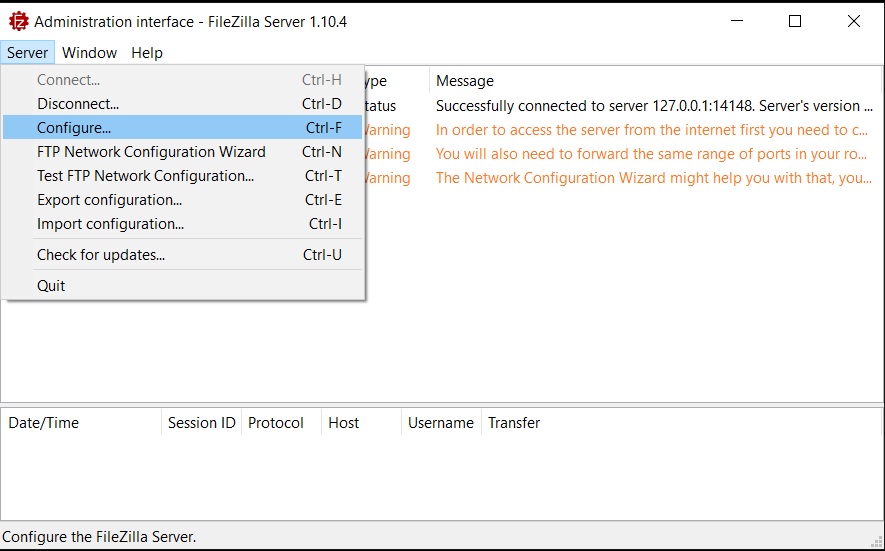
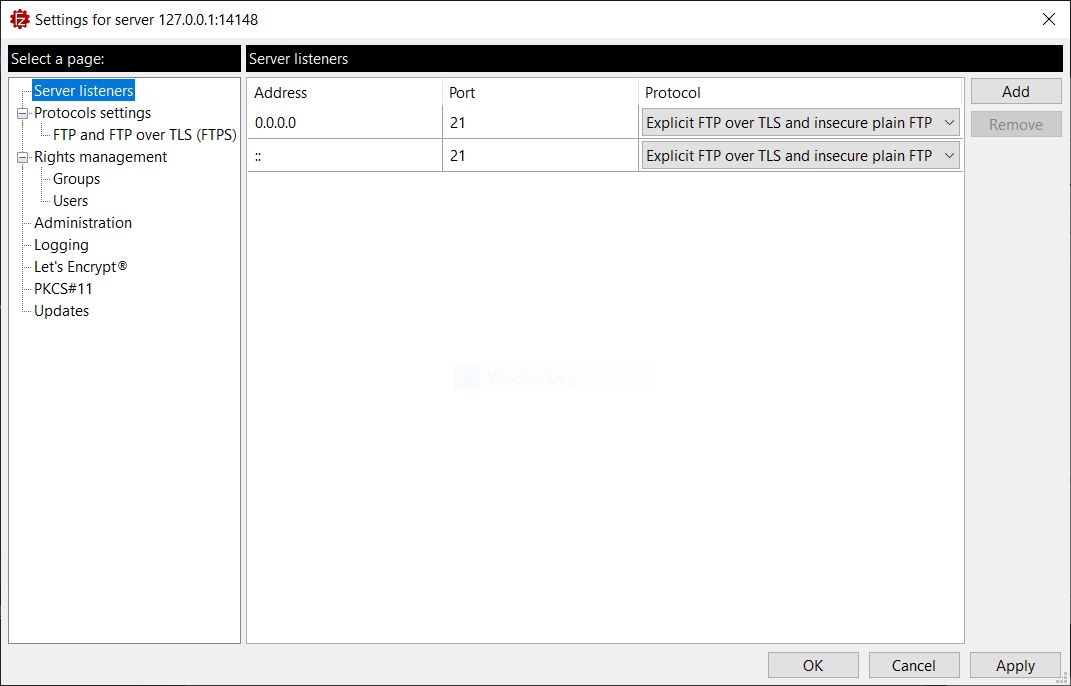
Set up server listeners, where you can configure the listening IP and port, and choose Explicit FTP over TLS or insecure plain FTP.
Choosing other options may require additional configuration, and I found that I couldn't connect to the FTP service directly during testing.
Protocols settings,FTP and FTP over TLS,Passive mode,check 'Use custom port range' and set a range. I just specified a small range for simplicity.
I don't need to fill in the following Public IP because I am deploying it in a local area network.
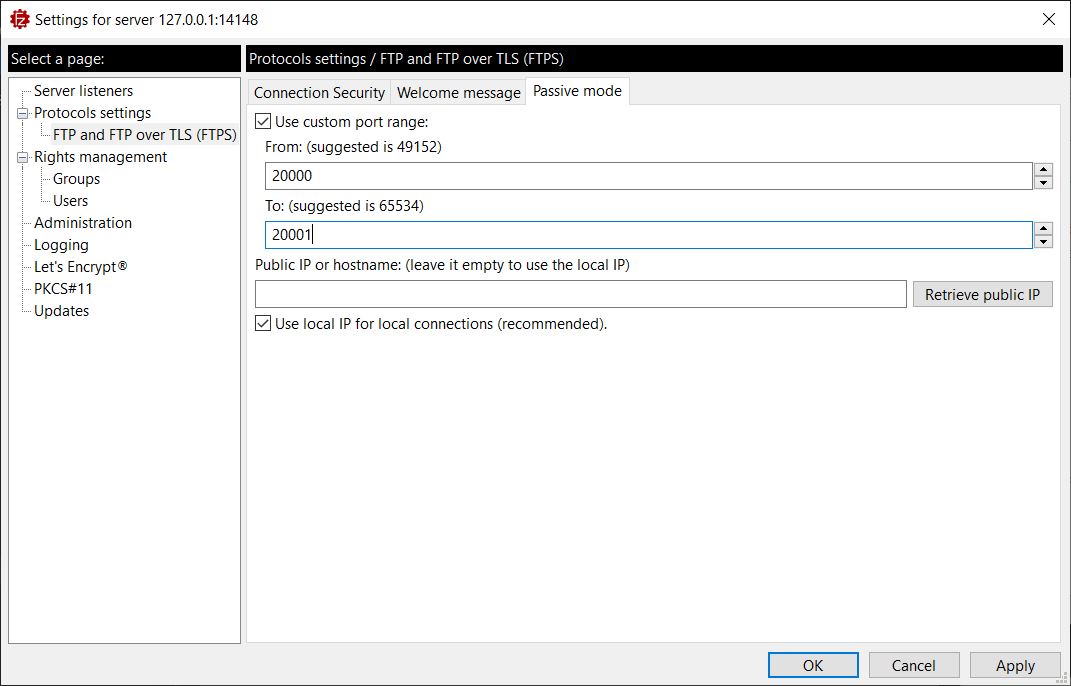
To explain, an FTP client can connect to a server in either Active Mode or Passive Mode. In Active Mode, after the server receives commands from the client on port 21, it actively connects to the client on data port 20. In Passive Mode, after the server receives commands from the client on port 21, it randomly opens a high-numbered port and notifies the client, passively waiting for the client to connect. This can help avoid issues with the client's firewall blocking the connection.
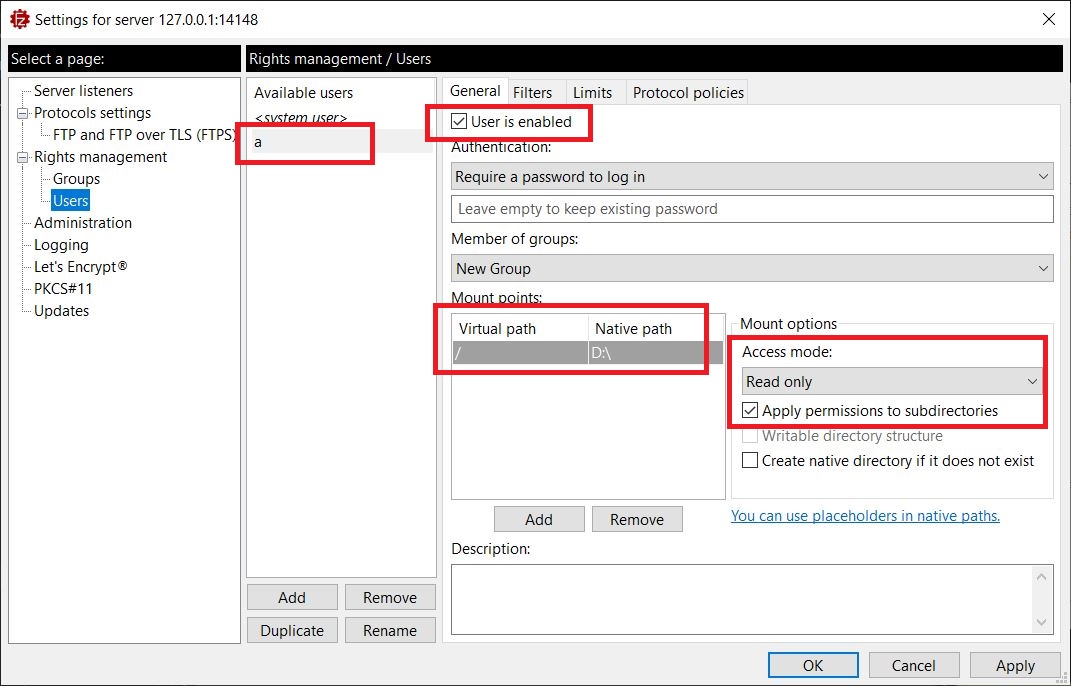
A new user needs to be created, with a password, physical path and virtual path set, and user permissions configured.
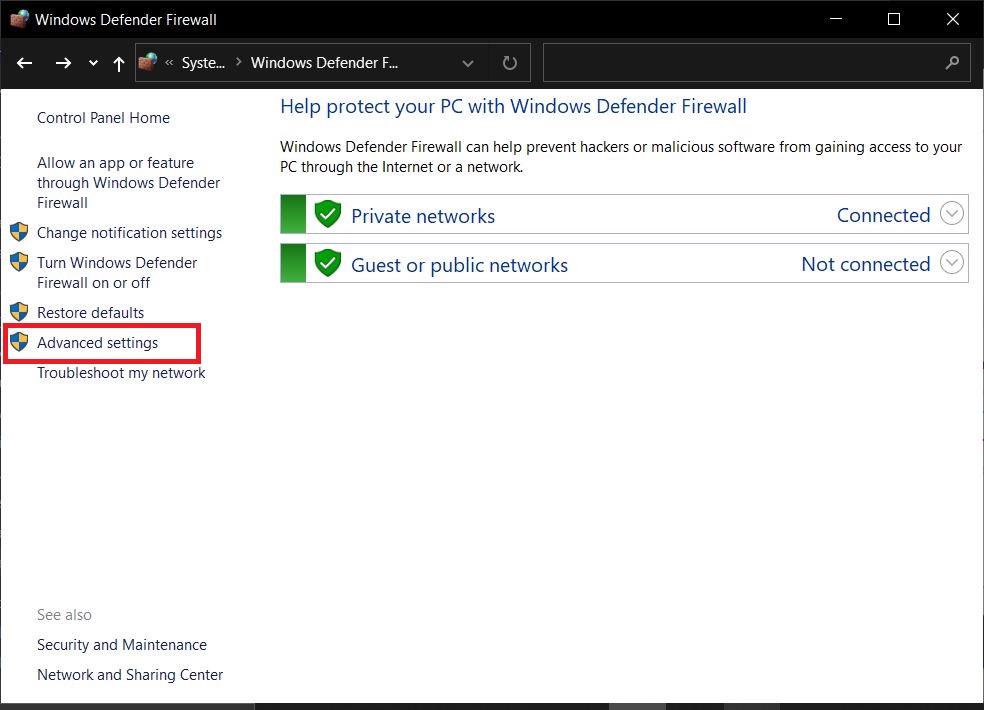
Finally, you need to allow the port through the Windows firewall by clicking Advanced settings.
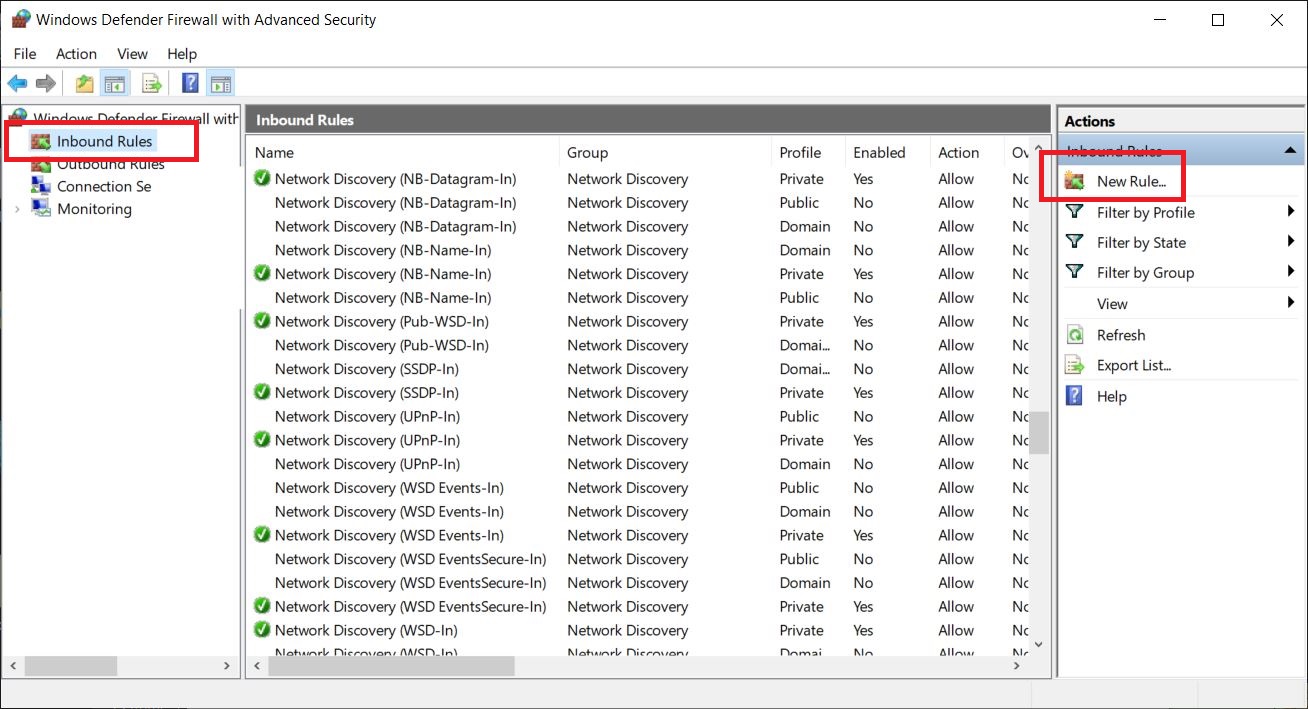
Inbound Rules,New rule
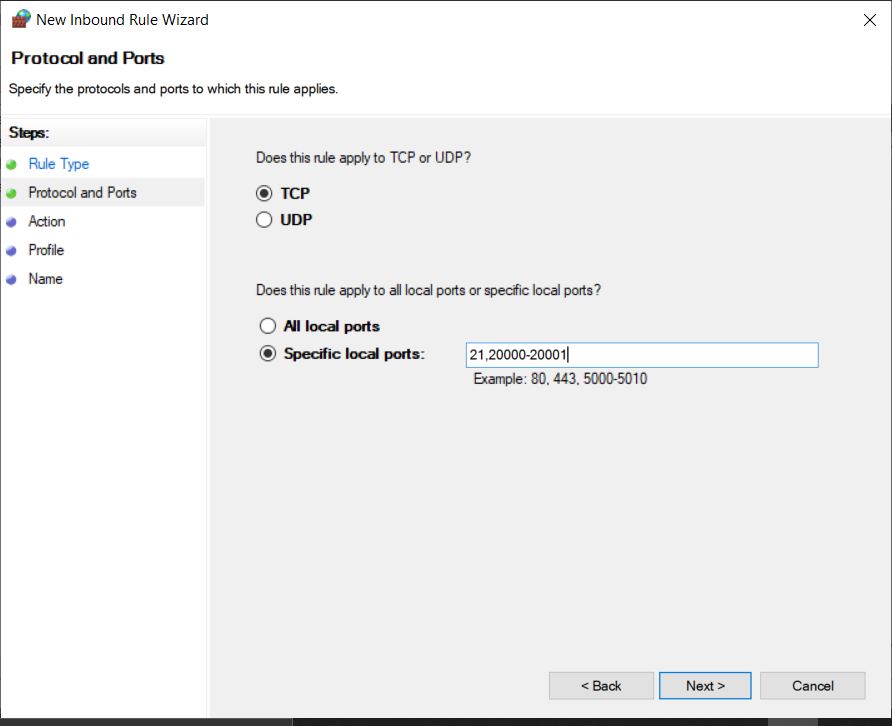
Select 'Rule Type' as 'Port' and allow all TCP ports needed by FileZilla. Pay special attention that it's not just the FTP service port 21, but also the port range specified earlier for Passive mode custom ports.
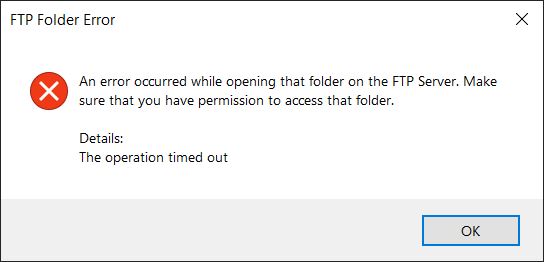
Many times, when an FTP client cannot access the FTP server and the following error occurs, it is because the Passive mode port range has not been properly set and these ports have not been allowed through.
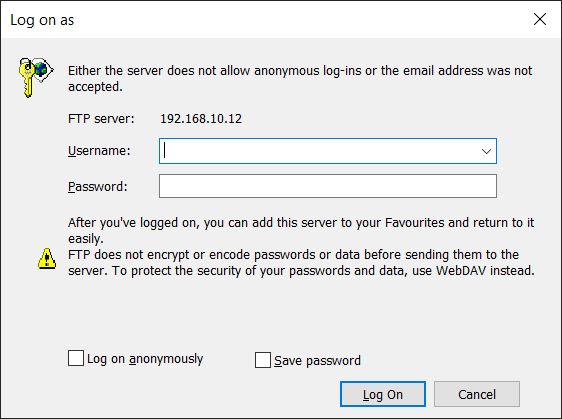
Afterwards, access the server IP ftp://192.168.10.12 in Windows Explorer, and you should see a username and password login prompt.
Configuration Complete.