The usual requirement is to mount cloud server storage to a local machine for use. Since cloud servers have public IPs, this is relatively simple to achieve—just enable the corresponding service on the cloud server, and the local machine can connect to the cloud server's IP.
However, what I'm doing is mounting local machine storage onto the cloud server. The purpose of this is to expand the small hard drive space of the cloud server and to make the local machine's files accessible to the public via the cloud server's public IP, thereby providing certain file service functions.
You need to use the FRP tool to achieve reverse proxy. It can forward traffic to internal network hosts that don't have a public IP. The basic principle is roughly as follows:
The FRPC on the internal computer actively initiates a connection to the FRPS on the cloud server. Once this connection is established, it will remain active, waiting for instructions. This forms the foundation of the entire penetration process.
Users access the cloud server with a public IP. When FRPS on the cloud server receives the request, it uses the already established tunnel to inform the internal FRPC: someone wants to connect to your XX port. Upon receiving the instruction, FRPC connects to the internal computer's port XX.
Once the connection is successful, data begins to be transmitted bidirectionally between the two. For users, it feels as if they are directly connected to the internal computer, completely unaware that a relay has occurred in between.
Why must the client initiate the connection?
Because machines on a private network are behind a firewall/router, devices on the public internet cannot directly initiate a connection to the private network. Therefore, the FRP client in the private network must actively connect to the public server. Once this connection is established, the tunnel is formed.
Why is it called a 'reverse' proxy?
A regular proxy is when the client requests the proxy server to access the external network, whereas here, public internet users want to access machines on the private network, so the direction is reversed, which is why it's called a reverse proxy.
frp download link:https://github.com/fatedier/frp
Both the cloud server and the local host need to download and extract.
Edit frps.toml in the frp directory on the cloud server.
bindPort = 7000               # port for frp clients to connect

# authentication
auth.method = "token"
auth.token = "your_strong_token"
Then run it using cmd
./frps.exe -c frps.toml
Edit frpc.toml on the client side
serverAddr = "your_vps_public_ip"
serverPort = 7000
auth.token = "your_strong_token"

[[proxies]]
name = "ftp_port"
type = "tcp"
localIP = "127.0.0.1"
localPort = 21
remotePort = 21

[[proxies]]
name = "ftp_passive_port_0"
type = "tcp"
localIP = "127.0.0.1"
localPort = 20000
remotePort = 20000

[[proxies]]
name = "ftp_passive_port_1"
type = "tcp"
localIP = "127.0.0.1"
localPort = 20001
remotePort = 20001
This configuration maps the remote host's ports 21, 20000, and 20001 to the corresponding ports 21, 20000, and 20001 on the local host.
Port 21 is required for the FTP service. Ports 20000 and 20001 are the port range I opened on the FTP server for passive mode. To make configuration easier, I only opened these two ports.
In other words, all the ports used by the FTP service need to be mapped one by one.
Afterward, the local host starts the client, which will connect to the cloud host server.
./frpc.exe -c frpc.toml

...
start proxy success
I have already set up an FTP service on the local host, so I won't go into the details of setting up an FTP service here again.
At this point, if you enter the FTP address ftp://127.0.0.1:21 in the explorer on the cloud host, since FRP has forwarded the cloud host's local FTP port to the local host's FTP port, you should be able to see the local host's FTP service directory here.
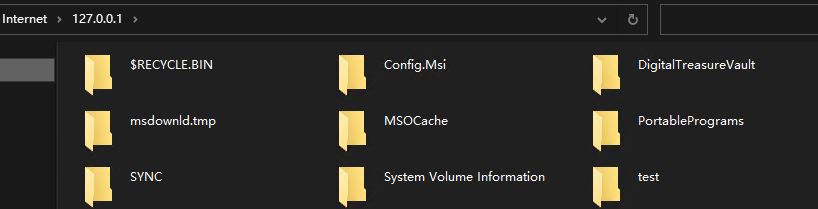
However, this is not enough for most programs, as many programs cannot directly access network locations and only recognize physical disks. Therefore, it is still necessary to simulate an FTP network location as a physical disk to make the FTP location accessible to other programs.
A tool is used for this: ftpuse, and its download address is:https://www.ferrobackup.com/download.html#ftpuse
After downloading, install it on the cloud server, then open cmd and enter the command to mount the FTP location as a local drive.
FTPUSE F: 127.0.0.1 your_password /USER:user_name /PORT:21
After execution, you will find that a new drive letter F: has been added to your system. Opening it gives you access to the files in the FTP directory.
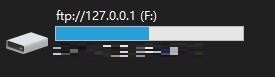
The command to unmount F: is
FTPUSE F: /delete
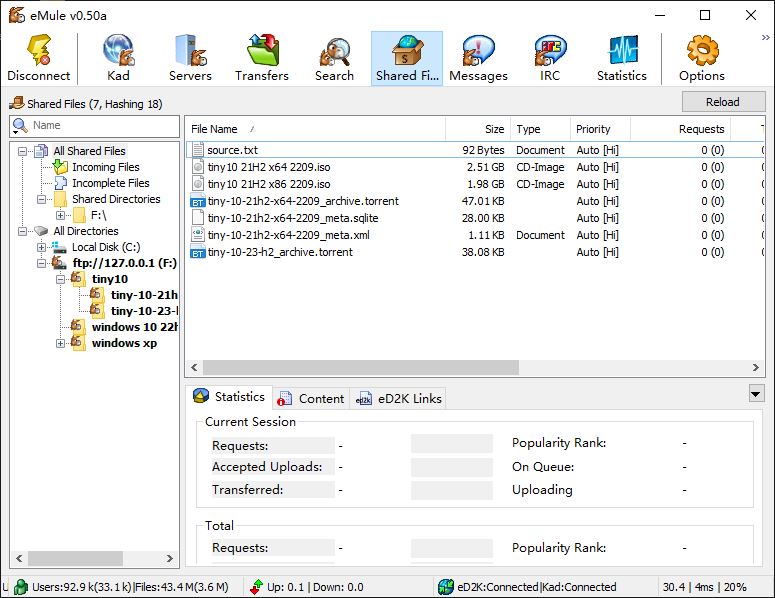
In fact, I’m doing this to run eMule on a cloud server and be able to access files on my local machine, and then share them with others.
Running eMule on a cloud server will result in a high ID on the eD2K network, and the KAD network will also be in an Opened state.This ensures that eMule can share files with others to the maximum extent, avoiding transmission issues caused by being in a complex internal network.
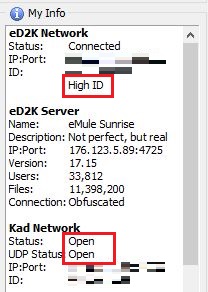
eMule on the cloud host successfully accessed the local host's hard drive and was able to share files leveraging the HighID advantage.