Set the control background using CSS
In Gtk3, you can use CSS to set the appearance and style of widgets. For example, for a GtkButton widget, first create a CSS file.
style.css
GtkButton {
    background-image: none;
    border-image: none;
    background-color: rgba(120, 170, 110, 0.3);
    border-radius: 10px;
}
The code below is important because it removes the native button styles. I tested it without them, and even if the button has a background color, the original styles still cover it. But you can see a bit of the background.

background-image: none;
border-image: none;
Then import the CSS in your code. You need to modify the location of your CSS file in the code.
GtkCssProvider *provider = gtk_css_provider_new();
GError *error = NULL;

if (!gtk_css_provider_load_from_path(provider, "/path/to/style.css", &error)) {
    g_printerr("load css failed %s\n", error->message);
    g_error_free(error);
}else{
     gtk_style_context_add_provider_for_screen(gdk_screen_get_default(), GTK_STYLE_PROVIDER(provider), GTK_STYLE_PROVIDER_PRIORITY_APPLICATION);
}
g_object_unref(provider);
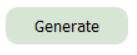
Afterwards, the button changed to look like the settings.
The method above works for all buttons. You can also set different styles for different buttons. For example
.button-style-0 {
    background-image: none;
    border-image: none;
    background-color: rgba(220, 170, 110, 0.3);
    border-radius: 10px;
}
.button-style-1 {
    background-image: none;
    border-image: none;
    font: Comic Sans 12;
    background-color: rgba(20, 170, 10, 0.7);
    border-radius: 5px;
}
Then, import the CSS in the code as before. Then, set different classes for each button.
GtkWidget *btn0 = gtk_button_new("b0");
gtk_style_context_add_class(
        gtk_widget_get_style_context(btn0),
        "button-style-0"
    );
GtkWidget *btn1 = gtk_button_new("b1");
gtk_style_context_add_class(
        gtk_widget_get_style_context(btn1),
        "button-style-1"
    );
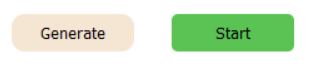
This way, they will display different styles.
Tried to set the control background with code (failed)
Controls like GtkFrame do not support directly setting the background color with CSS. I tried to use custom drawing in code to set the background for the GtkFrame control.
At first, I used the draw signal of GtkFrame and drew the background image in the callback function. This was very simple to implement.
callback function
static std::string g_bgImgPath;
static GdkPixbuf *g_bgPixbuf = NULL;

gboolean on_draw_event(GtkWidget *widget, cairo_t *cr, gpointer data) {
    if(!g_sizeChanged){
        return false;
    }
    // load image
    if(g_bgPixbuf == NULL){
        if(g_bgImgPath.size()==0){
            return false;
        }
        g_bgPixbuf = gdk_pixbuf_new_from_file(g_bgImgPath.c_str(), NULL);
    }
    if (!g_bgPixbuf) {
        return false;
    }

    // get widget size
    GtkAllocation allocation;
    gtk_widget_get_allocation(widget, &allocation);
    int width = allocation.width;
    int height = allocation.height;

    // scale image
    GdkPixbuf *scaled = gdk_pixbuf_scale_simple(g_bgPixbuf, width, height, GDK_INTERP_BILINEAR);

    // draw image
    gdk_cairo_set_source_pixbuf(cr, scaled, 0, 0);
    cairo_paint(cr);

    g_object_unref(scaled);

    return false;  // Continue with other drawings
}
I have implemented the drawing of the background image, but I noticed some lag during operation because the draw signal is triggered very frequently. This causes the background image to be redrawn repeatedly.
So I used the size-allocate signal, trying to draw the background only when the widget's size changes. This is because the purpose of redrawing the background is to make the background image fit the widget's size changes.
Callback function modification
static bool g_sizeChanged = true;
int g_lastWidth = 0;
int g_lastHeight = 0;

void on_size_allocate(GtkWidget *widget, GtkAllocation *allocation, gpointer data) {
    //allocation->width, allocation->height
    //allocation->x, allocation->y
    if(g_lastWidth!=allocation->width||g_lastHeight!=allocation->height){
        g_lastWidth=allocation->width;
        g_lastHeight=allocation->height;
        g_sizeChanged = true;
    }
}
gboolean on_draw_event(GtkWidget *widget, cairo_t *cr, gpointer data) {
    if(!g_sizeChanged){
        return false;
    }
    ...

    g_sizeChanged = false;
}
I found that it no longer lags. However, the background image often disappears during operations. This is because the draw signal is frequently emitted to redraw during operations. Since the size of the widget hasn't changed, the background image is not drawn, causing it to be overwritten.
Not all GTK3 widgets cannot have their background images and colors set in code. Some widgets have official functions that directly support changing the background style. I just tested one that is the hardest to implement.
GtkEventBox
GtkEventBox makes it easy to set a background color. It can be used as a parent container for other widgets that cannot have a background color, such as GtkFrame, to provide them with one.
You can directly use the code below to implement it.This is the gtk2.0 method, I tested it and it works.
GtkWidget *eventBox = gtk_event_box_new();
GdkColor color;
gdk_color_parse ("red", &color);
gtk_widget_modify_bg(eventBox, GTK_STATE_NORMAL, &color);
However, according to the GTK3 documentation, you should use the new functions to set the background color:
Warning
gtk_widget_modify_bg has been deprecated since version 3.0 and should not be used in newly-written code. Use gtk_widget_override_background_color() instead
Or directly setting the style of GtkEventBox in the CSS file is the recommended way. Using CSS allows you to set many other appearance styles, such as setting a background image.
GtkEventBox {
    background-image: url('resource/background_0.jpg');
    background-size: cover;
    background-position: center;
    background-repeat: no-repeat;
}
GtkButton {
    background-image: none;
    border-image: none;
    background-color: rgba(120, 170, 110, 0.3);
    border-radius: 10px;
}
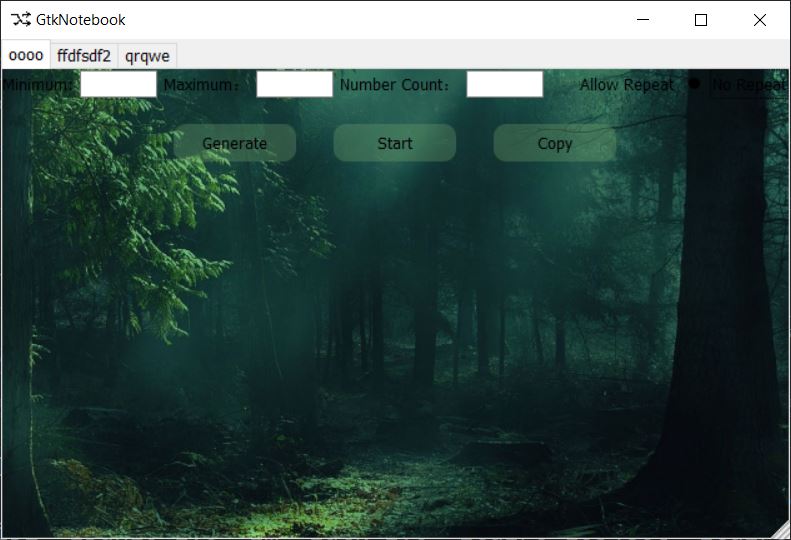
As a result, the background of the entire GtkEventBox container became an image, and the button has a semi-transparent effect on top of it.