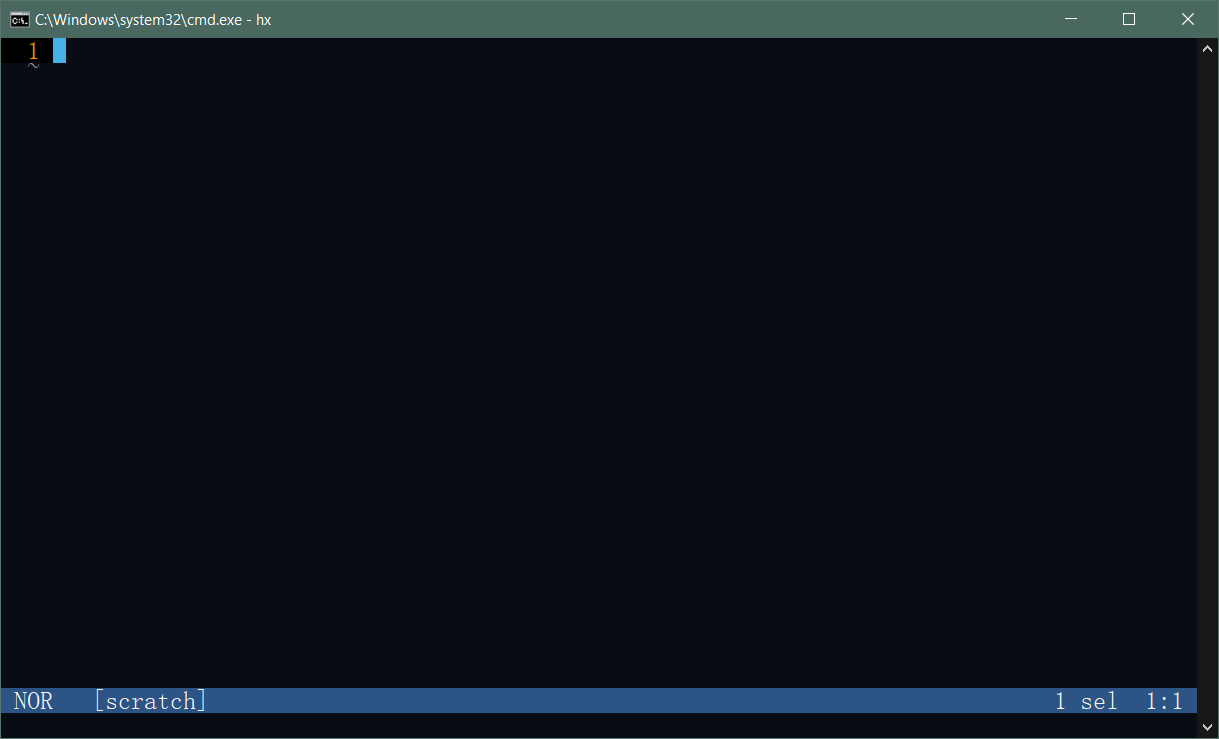
helix-editor is an open-source code editor. As of now, it has 45k stars on GitHub. Project link: https://github.com/helix-editor/helix/
After downloading, just unzip it and open hx.exe to start editing. Or you can add the directory where hx.exe is located to the Windows system environment variable PATH, then open Windows cmd and type hx to enter the program.
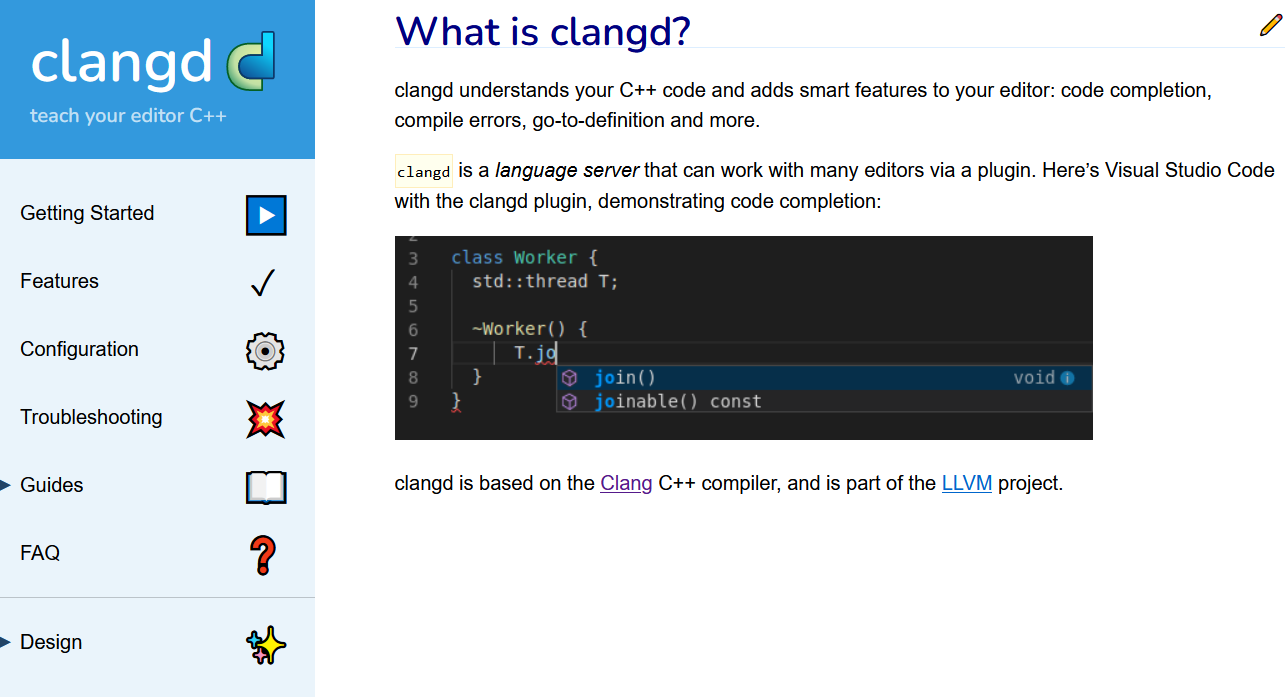
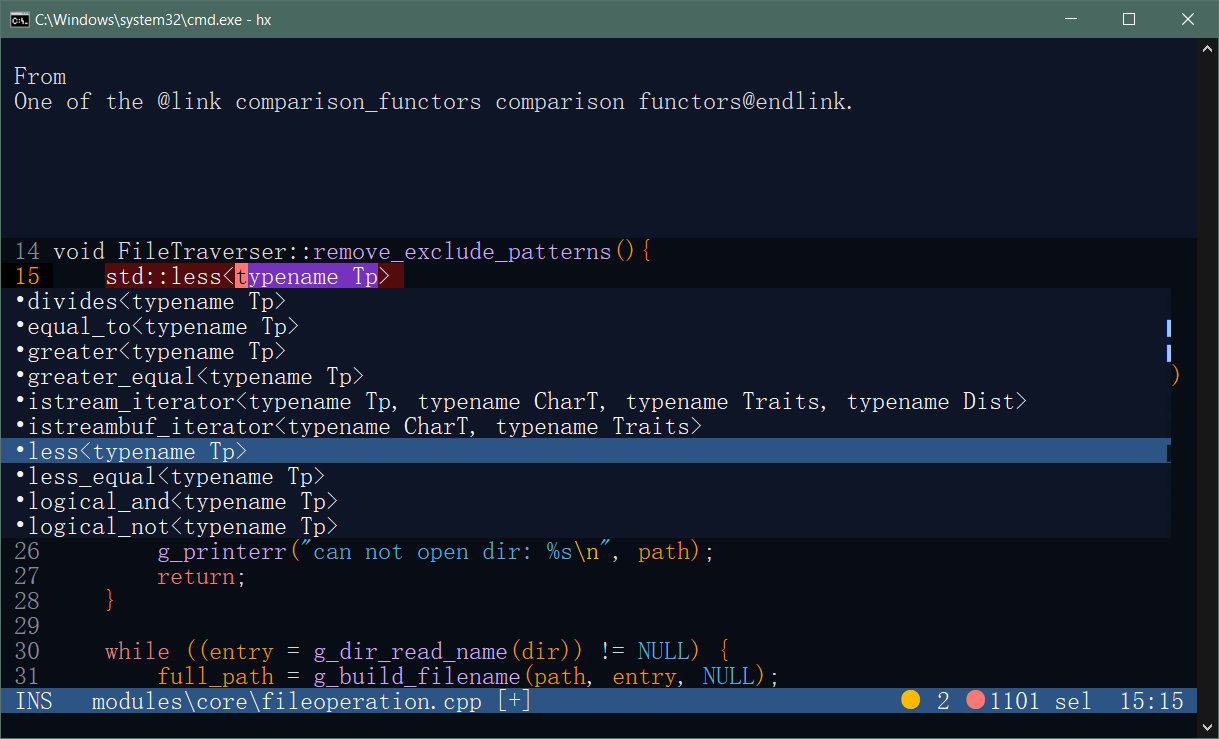
You also need to install clangd to use as an LSP code completion server, Helix will automatically call it for code completion: https://github.com/clangd/clangd/releases/latest
Besides that, you also need to install mingw along with makefile to compile the program: https://www.mingw-w64.org/
It seems that Helix has issues when you zoom in and out in the command line window. After frequently resizing the window, it often crashes. So the best approach is to set the cmd size at the start and not adjust the window size during development.
In cmd, you can specify the working directory with the startup parameter hx --working-dir xxx. Or just type hx to enter the program, and the default working directory will be the current directory of cmd. When selecting files, it will list files from the working directory by default.
In the Helix editor, there are 6 main modes in total. This is the core design of Helix, similar to Vim, but a bit simpler.
| Mode | How to Enter | Primary Purpose |
|---|---|---|
| Normal | Press Esc (return from any mode) |
Move cursor, execute commands, copy/paste/delete, enter other modes |
| Insert | Press i (insert before cursor) Press I (insert at beginning of line) Press a (insert after cursor) Press A (insert at end of line) Press o (insert on next line) Press O (insert on previous line) |
Input and edit text |
| Select | Press v (character selection) Press V (line selection) Press Ctrl + v (block selection) |
Highlight selected text, then perform operations like copy, delete, indent, etc. |
| Command | Press : |
Execute Ex commands, such as save :w, quit :q, search :search, replace :replace |
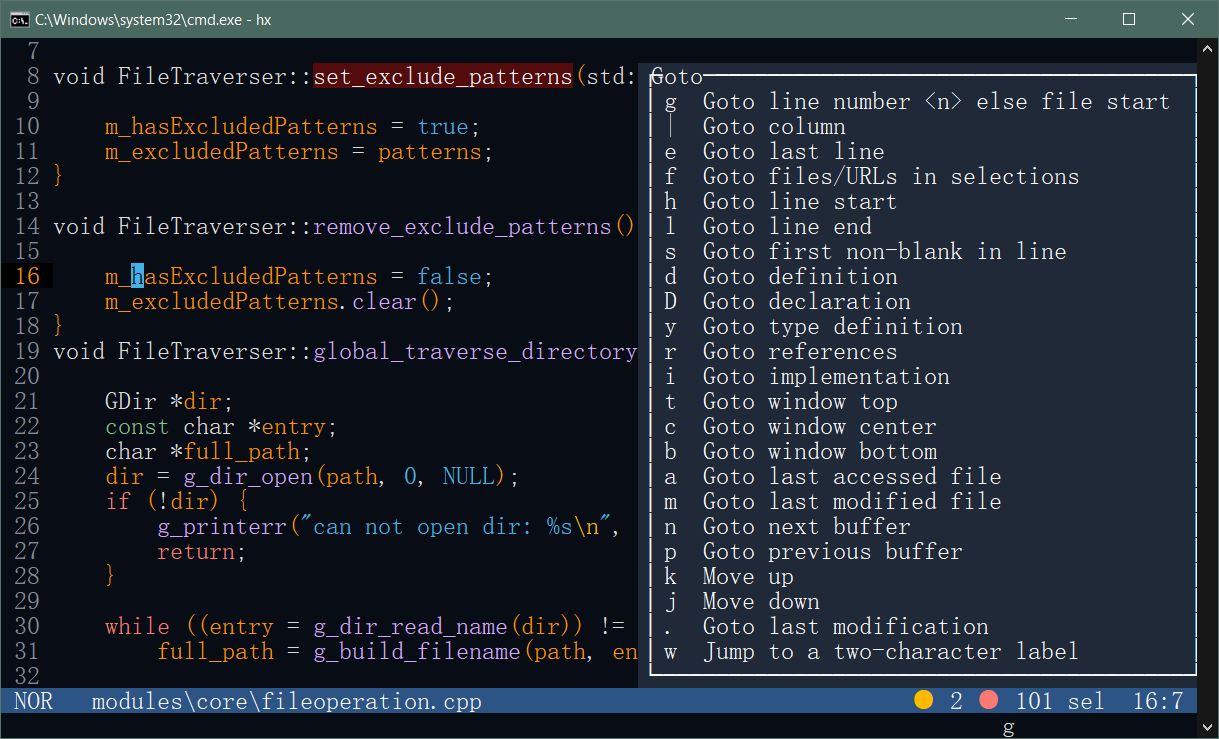
| Goto | Press g (in Normal mode) |
Quickly jump to the beginning/end of a file, line numbers, function definitions, references, etc. |
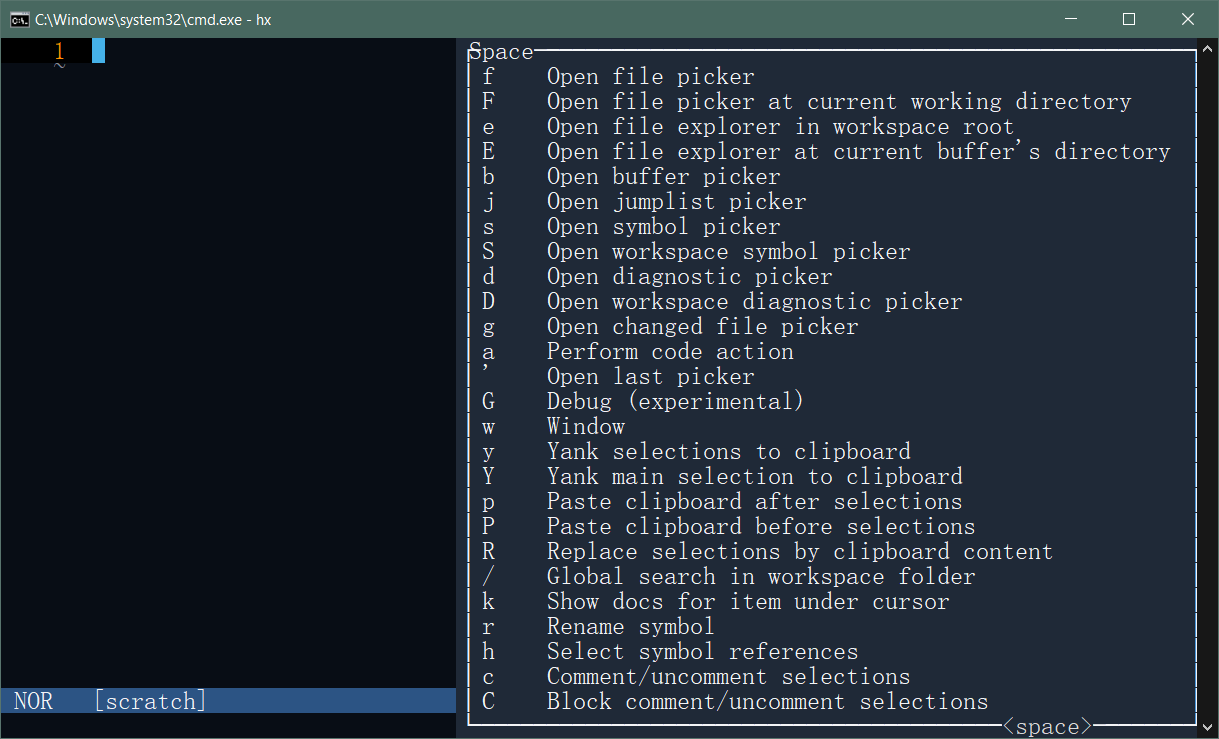
| Space | Press Space (in Normal mode) |
Open feature menus, such as file tree, global search, buffer list, diagnostics, etc. |
Space is Helix's 'command center', used to access all sorts of advanced features
g is mainly used to quickly jump to files, code definitions, or other specific locations
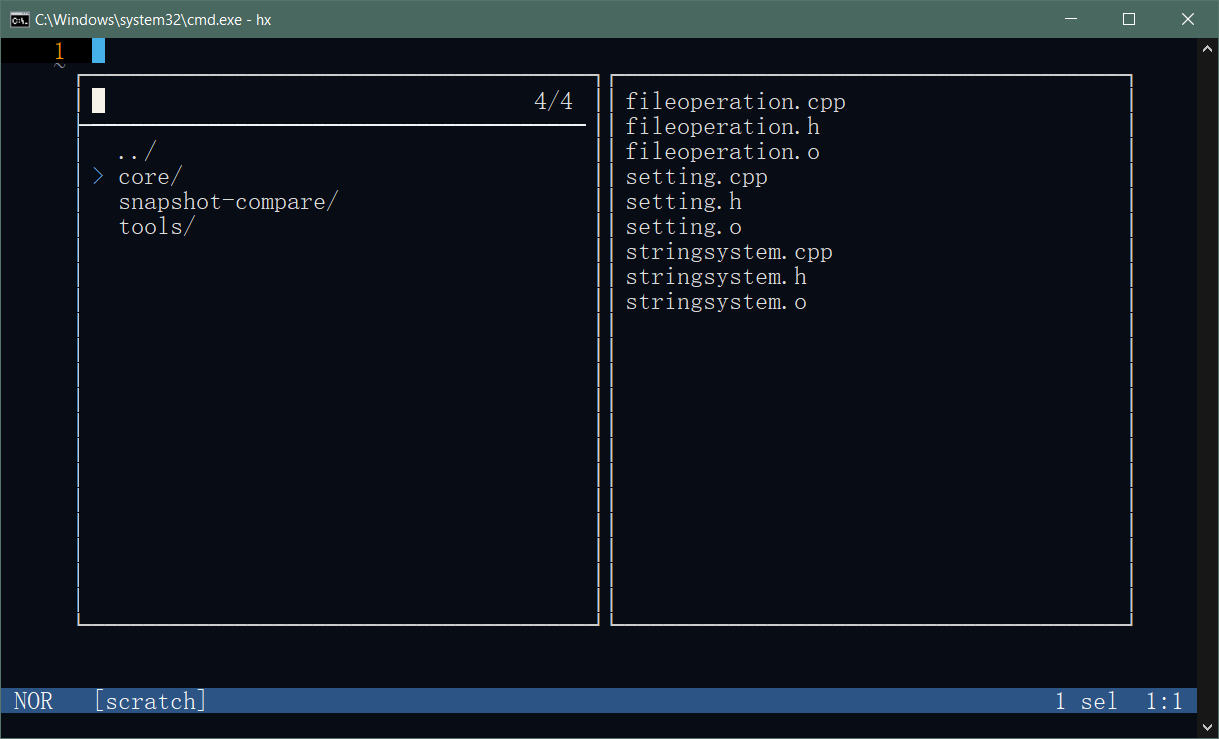
Helix has a feature for visual file and buffer selection.
If you have clangd installed, you'll get code completion suggestions
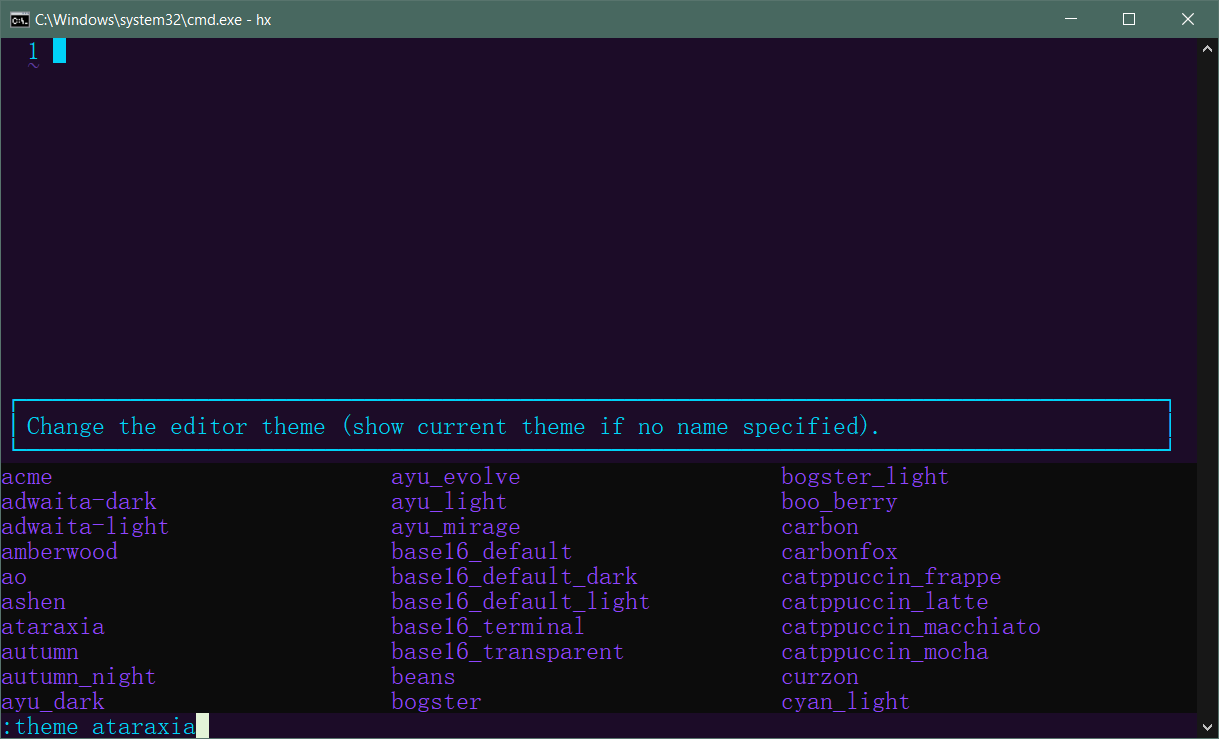
In normal mode, typing theme lets you preview and choose themes.
Helix is a terminal code editor, and it seems you can't set the font size directly. You need to right-click the window in Windows CMD, go to Properties, and set the font there.
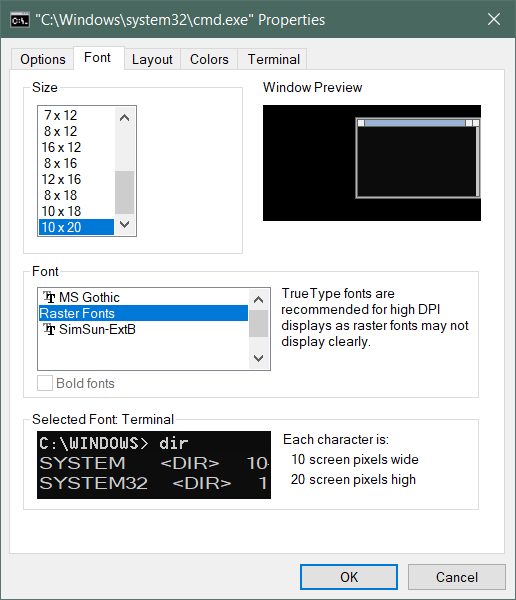
Its configuration file directory is
Linux / macOS  ~/.config/helix/config.toml
Windows %AppData%\helix\config.toml
If there's no such file, it needs to be created manually. Its configuration is pretty simple. I only set up the theme and the display settings for the gutter.
theme = "ao"
[editor]
gutters = ["line-numbers", "spacer"]
Its default gutter setting is
["diagnostics", "spacer", "line-numbers", "spacer", "diff"]
This way, when using clangd for completion, it will perform code diagnostics. There used to be these annoying little dots on many lines, which caused some visual inconvenience. For example, the line numbers could be misleading, and the characters at the beginning of the code could have formatting errors. So I just removed 'diagnostics'.
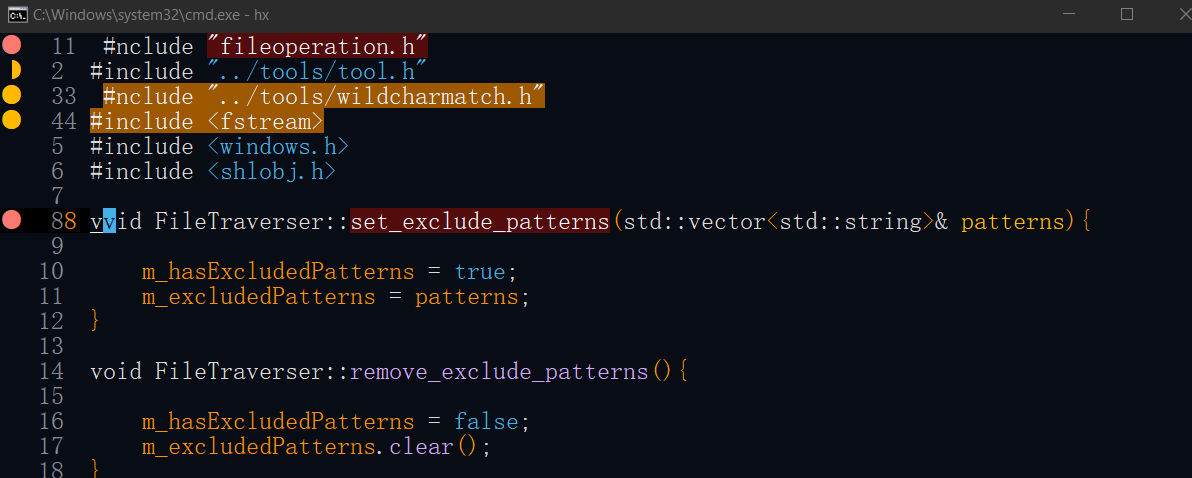
So, my final development C++ tools is: mingw+makefile+clangd+helix
I hate the complicated scripting syntax of traditional Vim/Neovim, the hard-to-remember and numerous shortcuts, and the reliance on various plugins just to get basic completion and highlighting features. You have to remember commands for every action without any real hints, and when you have multiple files open, you also need to remember their relative order and positions to decide whether to type bn, bp, b#, or b1, b2, or b8.
I like how Helix works right out of the box, following conventions over configuration, with built-in LSP and syntax highlighting. It shows visual hints whenever you press any shortcut key. You don’t need to deliberately remember certain commands, opened file lists, or their order, which eases the mental load while coding.