First, download Geany from the Geany official website and then install it:https://www.geany.org/download/releases/
After installation, the default style is white.
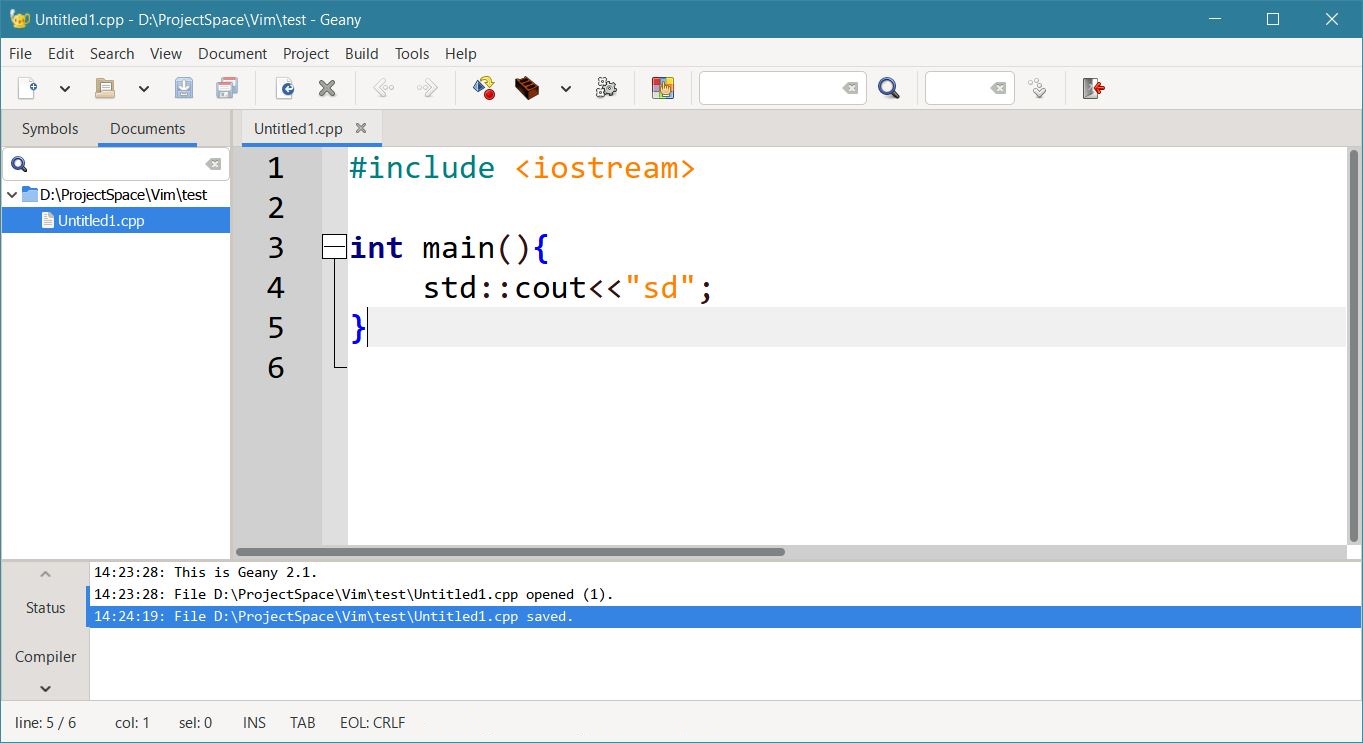
Through the menu bar, view, change color scheme, you can switch the editor theme.
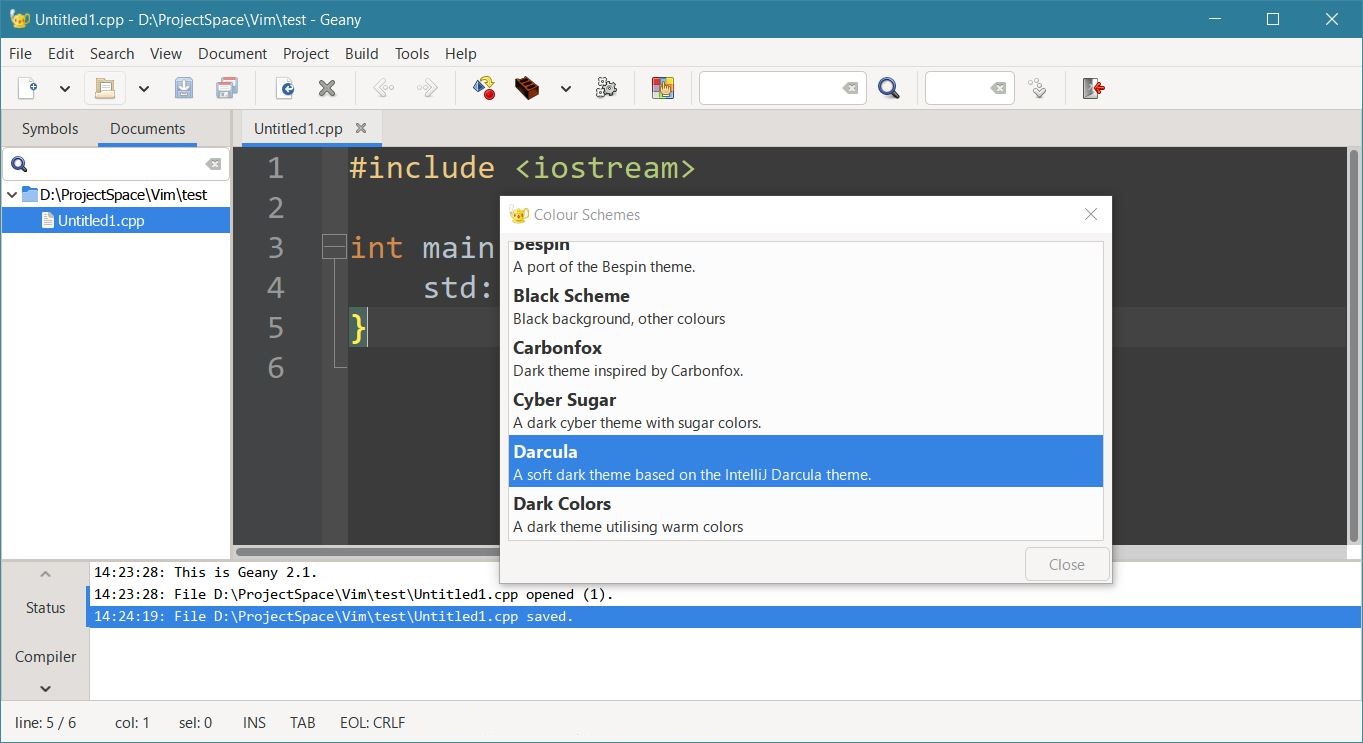
But the other UI theme colors of the software do not change.
You need to change the GTK theme to switch the software UI theme. The official website provides a method:https://www.geany.org/documentation/faq/#how-to-change-the-gtk-theme
This is the original text:
How to change the GTK theme?
The GTK theme defines the look and feel of Geany. Many different themes, including dark ones, are available on the net, for example from https://www.gnome-look.org/.
Note that changing the GTK theme will not affect the syntax highlighting color scheme within Geany.
To change this, see Color Themes.
On Windows
To change the GTK theme, perform the following steps:
- find and download a GTK theme
- unpack its contents into the directory
c:\Users/<YOUR_USERNAME>\AppData\Local\themes\(create if it does not exist yet) - create the directory
c:\Users/<YOUR_USERNAME>\AppData\Local\gtk-3.0\if it does not already exist - create a file
settings.iniin this directory with the following contents:
[Settings]
gtk-theme-name=Prof-Gnome
- adjust the gtk-theme-name setting to match the folder name of the unpacked GTK theme
Themes you may like:
- "Prof-Gnome" from Geany https://github.com/geany/geany-osx/tree/master/Prof-Gnome/gtk-3.0 (used in Geany for macOS)
- "Windows 10" https://github.com/B00merang-Project/Windows-10
- "Windows 10 Dark" https://github.com/B00merang-Project/Windows-10-Dark
- "Chicago95" https://github.com/grassmunk/Chicago95
On macOS
Geany releases for macOS have the "Prof-Gnome" theme pre-installed and depending on the macOS theme used, the light or dark variant is used automatically.
If desired, the theme can be changed by replacing the folder contents of Geany.app/Contents/Resources/share/themes/Prof-Gnome in the Geany.app bundle. Note that the folder name Prof-Gnome must be kept and only the contents should be replaced.
On Linux/Unix systems
Geany will follow the GTK theme set by the normal desktop tools so changing the GTK theme on Linux and Unix distributions is done differently depending on the desktop environment you use.
Please refer to the documentation of your desktop environment (Xfce, KDE, Gnome, ...).
I tried the method on Windows. I went to https://www.gnome-look.org/ and downloaded a theme called Andromeda.
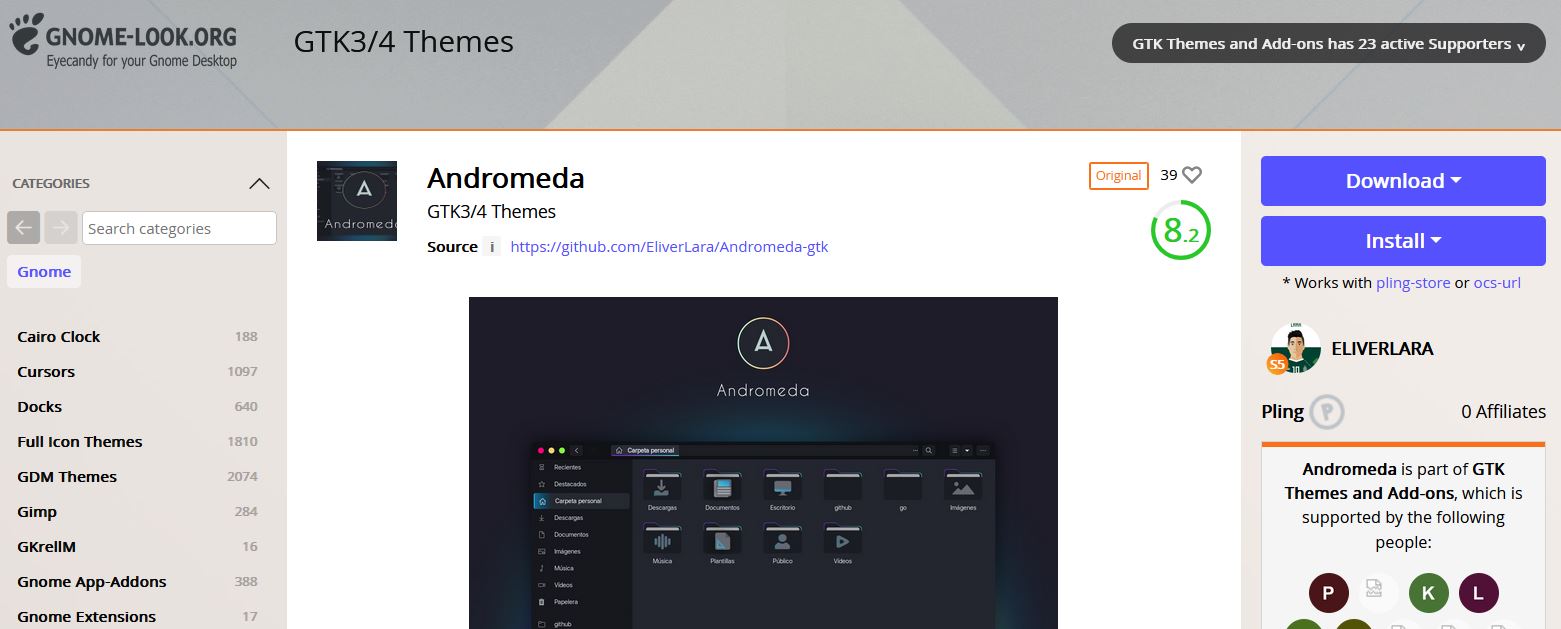
I unzipped it. I put it in folder c:\Users/<YOUR_USERNAME>\AppData\Local\themes\ , and then created a file settings.ini inside folder c:\Users/<YOUR_USERNAME>\AppData\Local\gtk-3.0\, then enter the following content
[Settings]
gtk-theme-name=Andromeda
I restarted Geany, and the theme did change. It turned into a dark style, and I changed the editor's theme style again. This way, it looks consistent with the ui theme style.
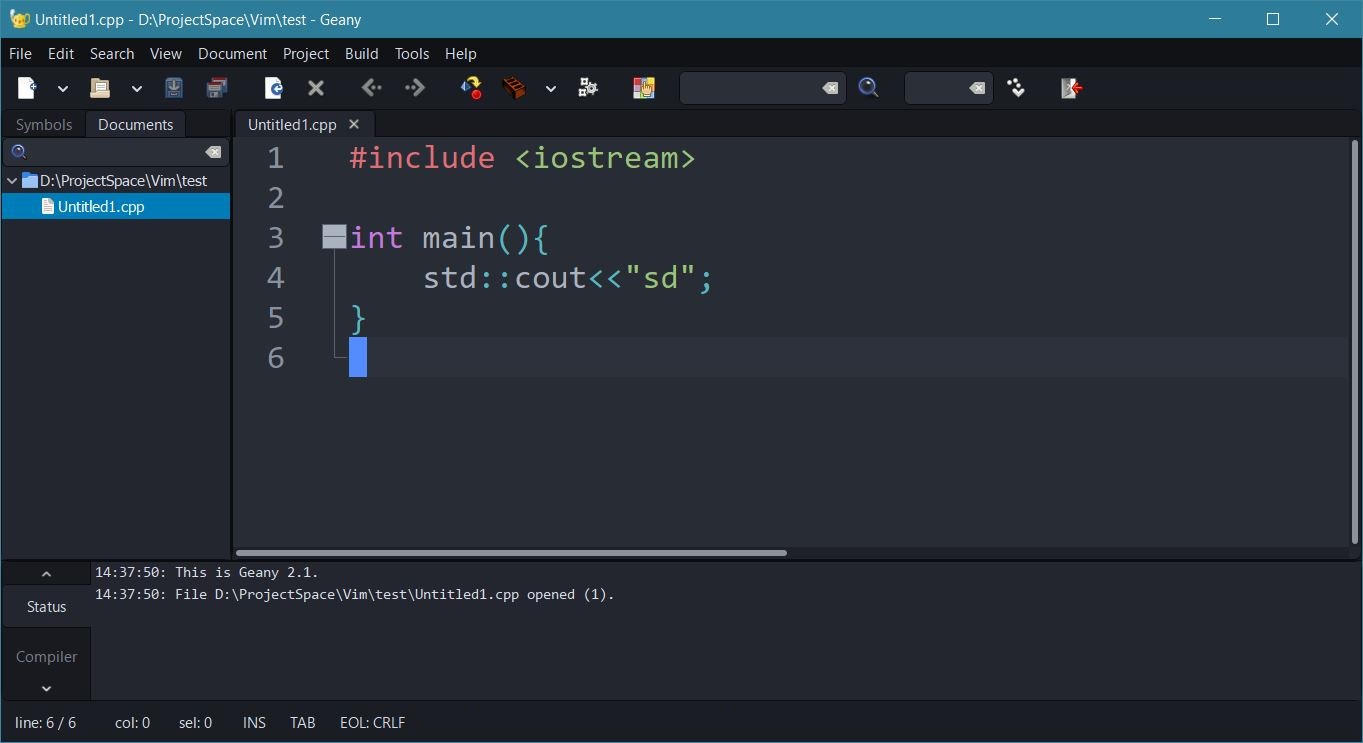
But there is a problem with this. Other GTK programs on the computer also have their interfaces changed when the theme is applied. If you want to apply this theme only to Geany, you need to make changes in the software's installation directory, not in the directory described on the official website.
You just need to change the directory introduced on the official website to the directory of the Geany installation folder:
change c:\Users/<YOUR_USERNAME>\AppData\Local\themes\ to geanyinstalldir\share\themes\
change c:\Users/<YOUR_USERNAME>\AppData\Local\gtk-3.0\ to geanyinstalldir\etc\gtk-3.0\
The effect achieved this way is the same, but it only works for the Geany program.