ed2k link introduction
An ed2k link is a peer-to-peer file sharing link format based on the eDonkey2000 network (eDonkey network), starting with "ed2k://" and usually containing identifying information such as file hash value, size, and name. Users can open this link with software that supports the ed2k protocol (such as eMule) to download files from other users on the network.
Download eMule
eMule is an open-source file sharing client software based on the eDonkey2000 network and Kad network. It was created in 2002 and is one of the most famous early P2P download tools. eMule centers around ed2k links, supporting search and download of files from a distributed network composed of users around the world, and features functions such as resumable downloads, automatic backup, download prioritization, and spam filtering. Compared with the early eDonkey, eMule has a more efficient transmission algorithm and a more user-friendly interface, often regarded as the benchmark of P2P file sharing in that era.
You can download eMule from the eMule official website: https://www.emule-project.com/
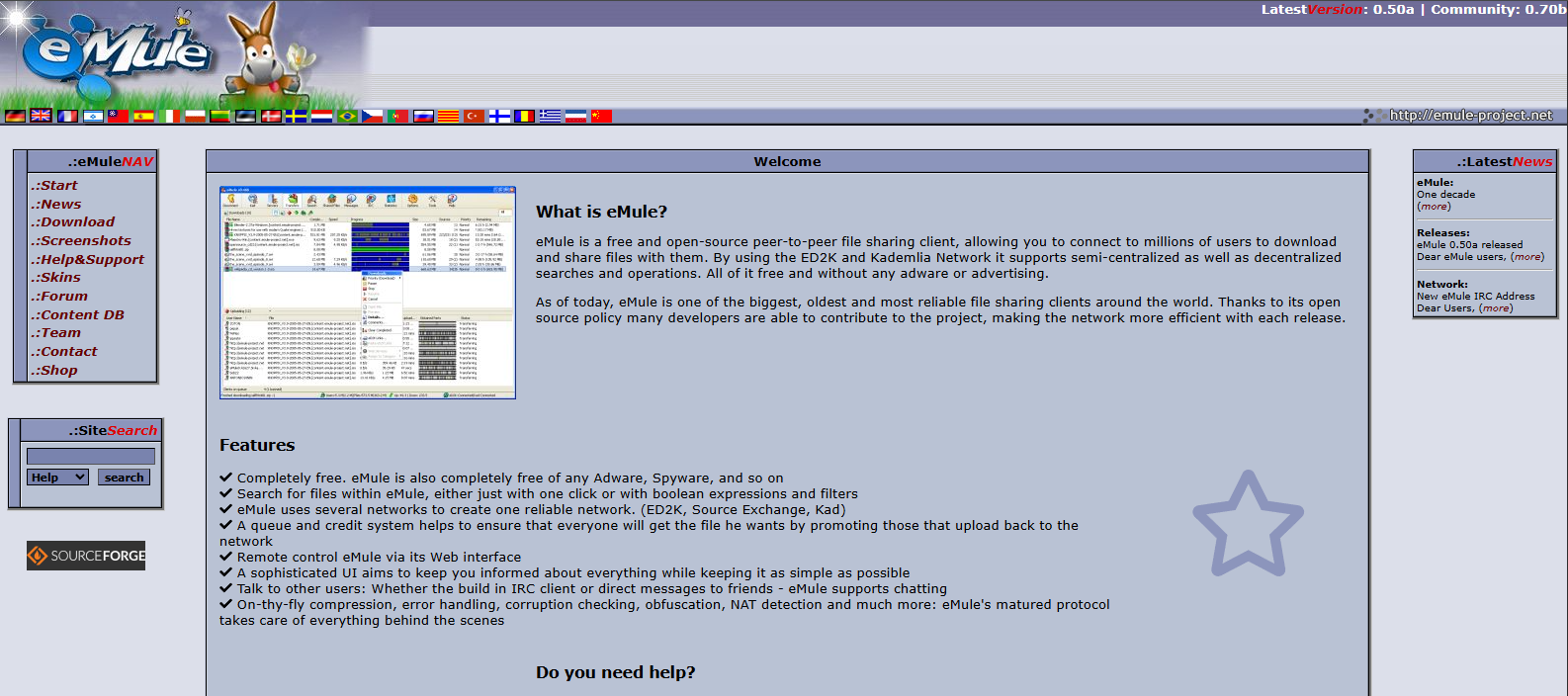
It should be noted that eMule only supports Windows systems. If you are using a Linux system, you can use aMule to download ed2k links. aMule is an eMule-like client for the eD2k and Kademlia networks, supporting multiple platforms. Its official website address: https://www.amule.org/
Connect eMule to the P2P network
After you download eMule, install and open it. First, you need to connect to the eDonkey2000 network and the Kad network, so that you can find and download files from other users.
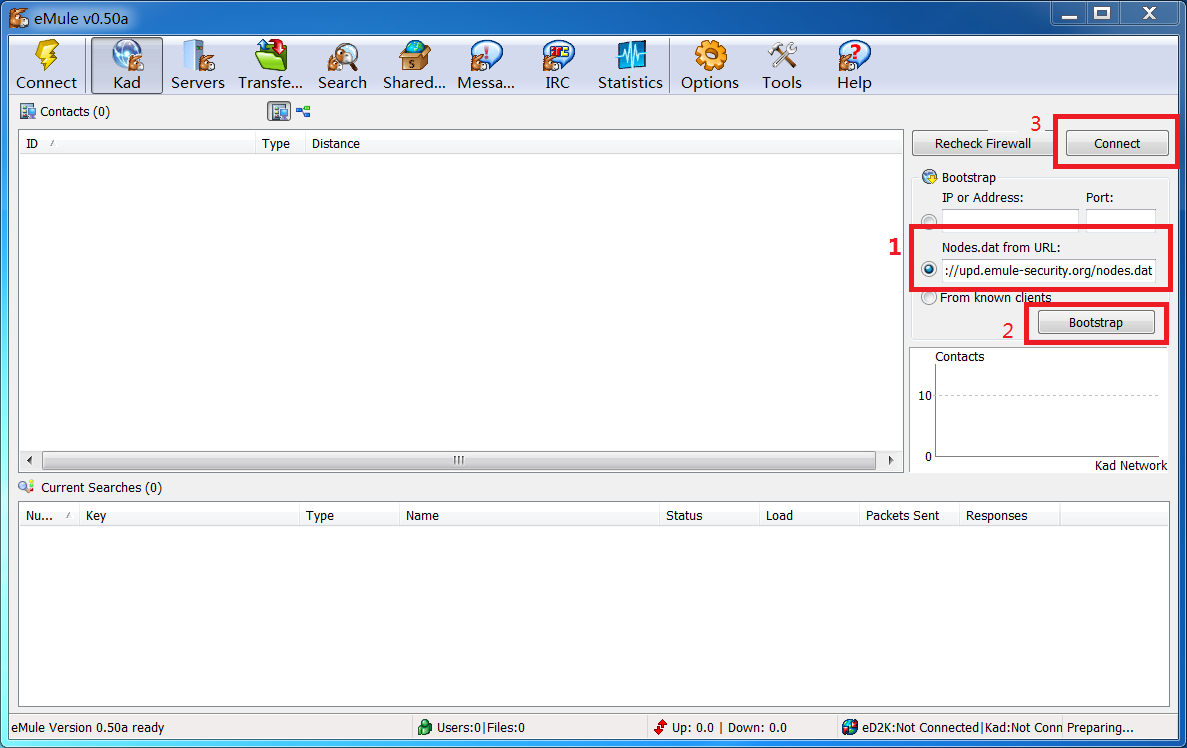
Switch to the Kad page, enter the address https://upd.emule-security.org/nodes.dat on the right, then click Bootstrap to get the kad node list, and then click connect to link to the kad nodes. If you can't get the node list, you can try changing the URL protocol from https:// to http://.
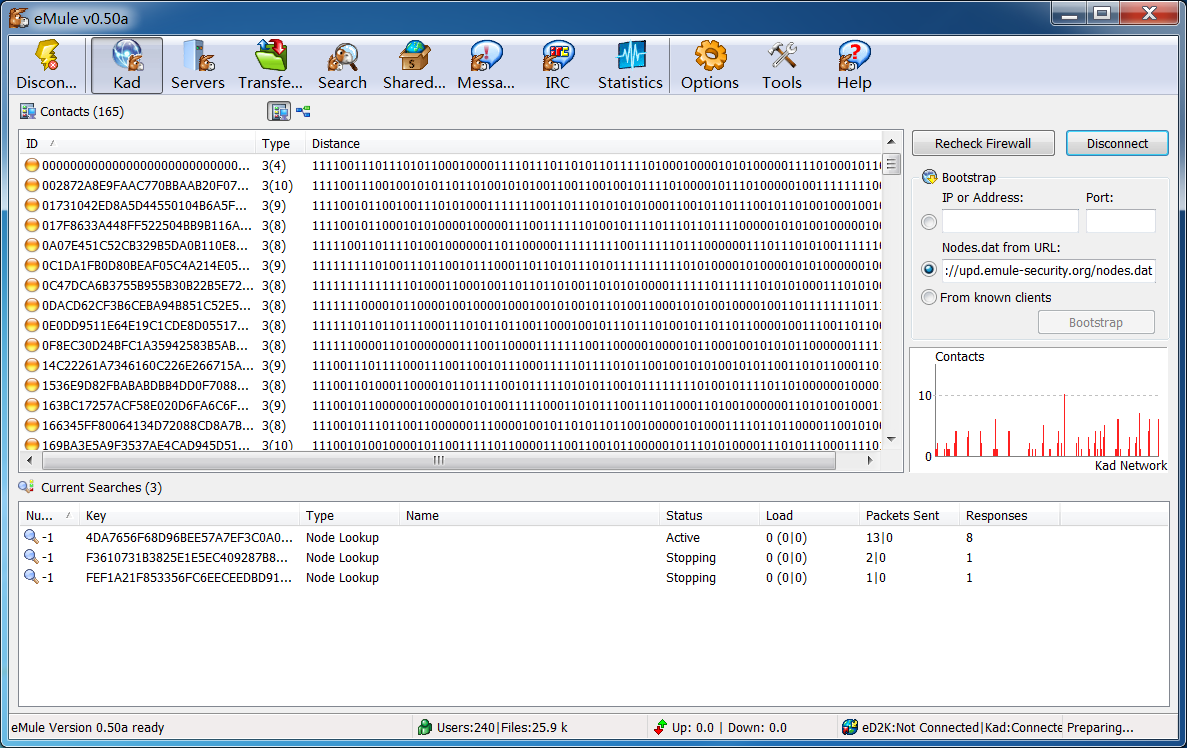
When you successfully connect to the KAD network, you will see a lot of node list information.
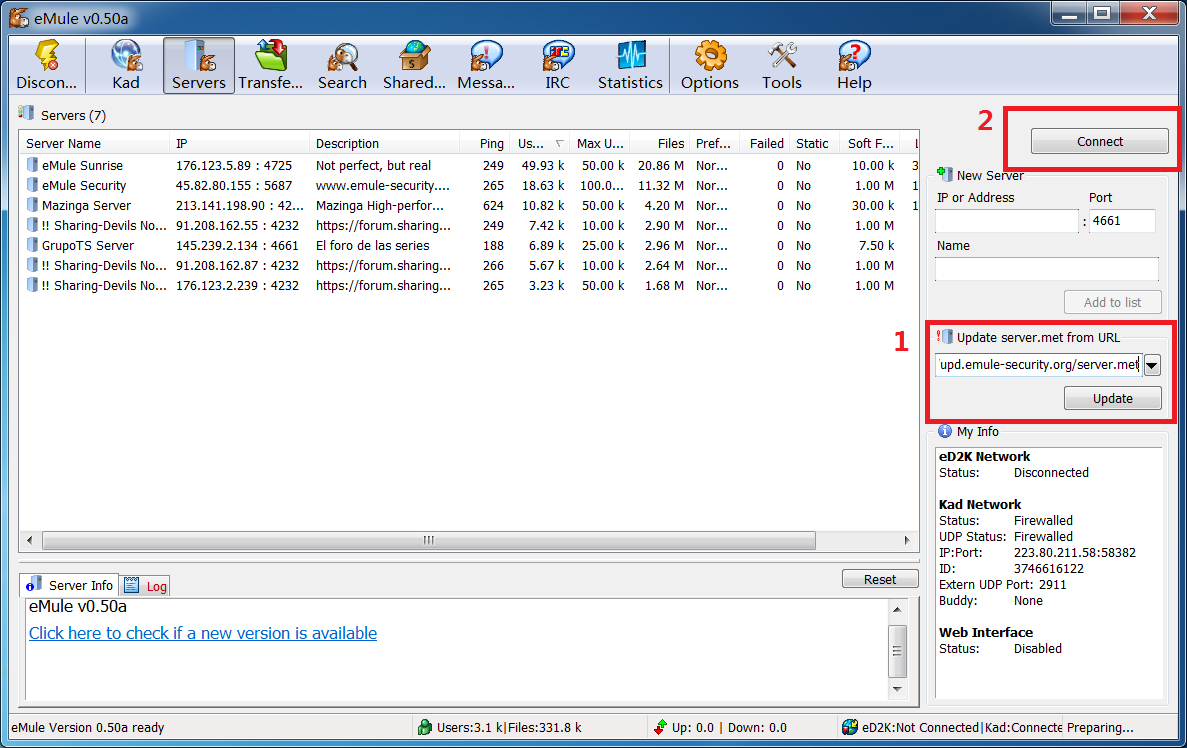
Switch to the Servers page ,enter the server update address https://upd.emule-security.org/server.met on the right side, then click "Update" to refresh the list. If you can't update, you can try changing the URL protocol from https:// to http://.
After the server list is updated, select a server and click "Connect" to establish a connection.
When you are connected to the server, you should see your connection information in the lower right corner.
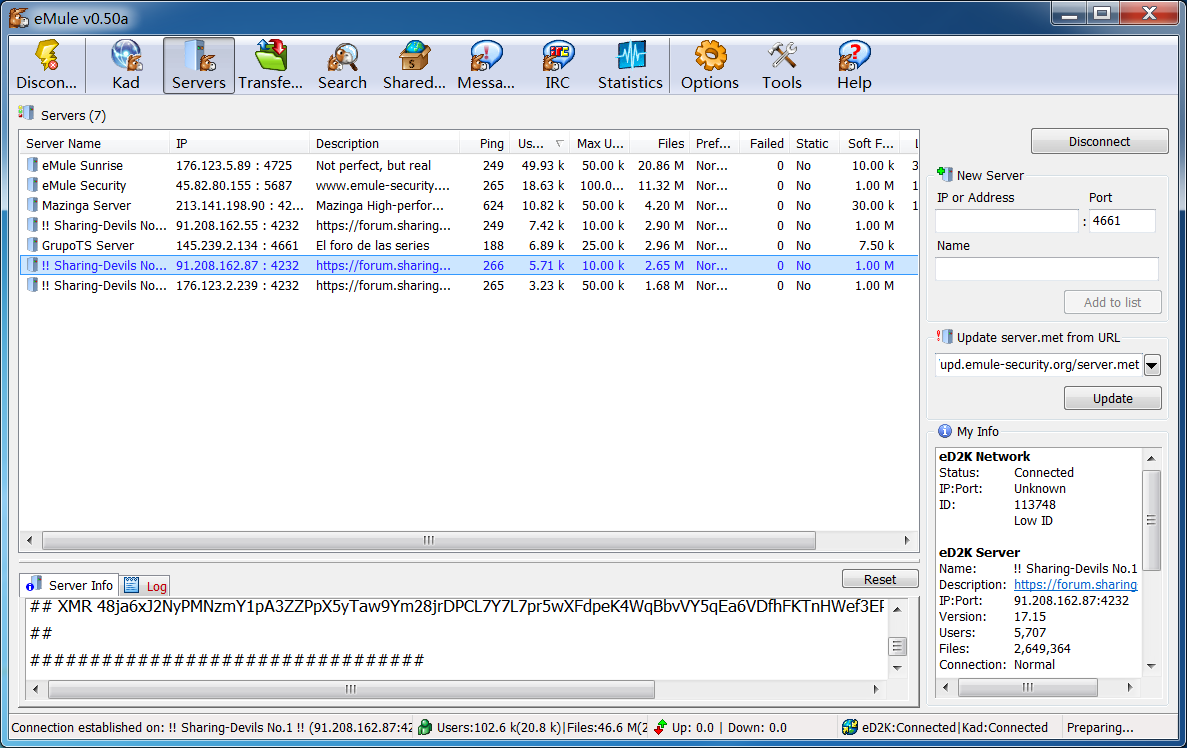
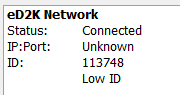
You can check your own network connection information. If it shows that you are a LowID, your transfer speed will be heavily restricted: you can only download files from a few HighID users, and can hardly upload files to other users. Therefore, you need to try to obtain a HighID. Having a HighID will allow you to connect to more users, which will make your download/upload speeds faster.
Download files via ed2k link
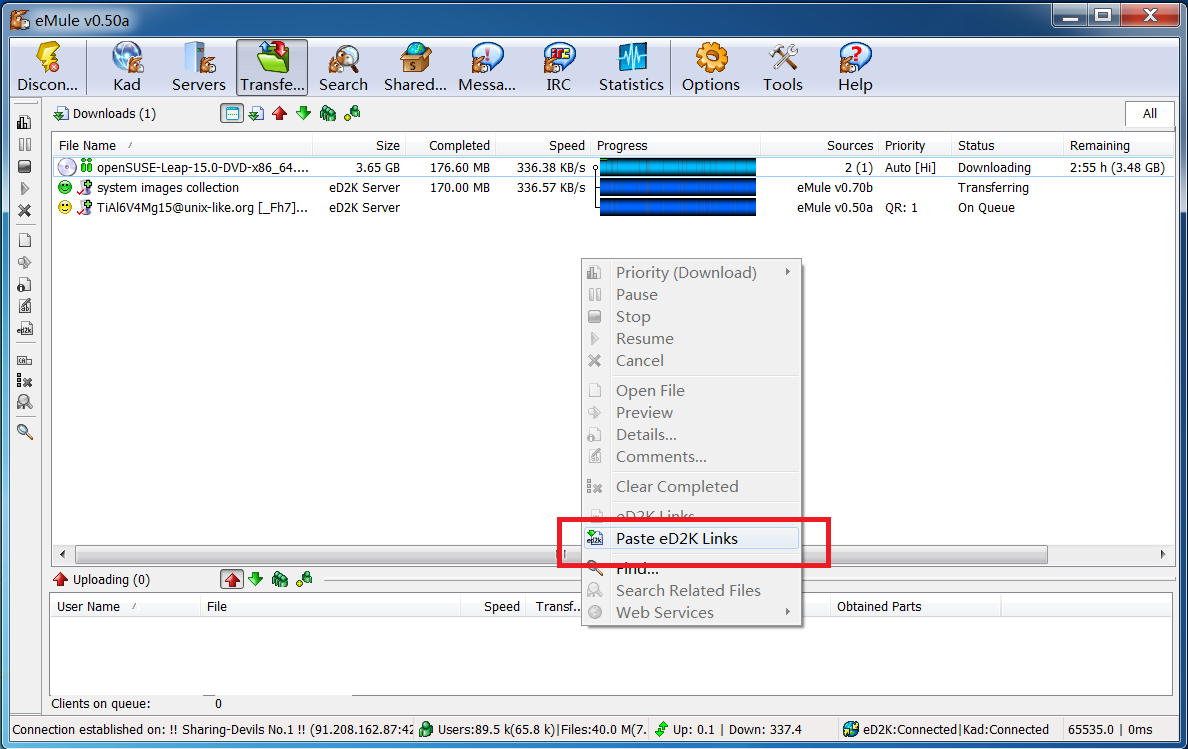
Once you have successfully connected to the eDonkey2000 network and the Kad network, you can start downloading files. Switch to the Transfers page, right-click in the blank area of the download section, click Paste eD2K Links, and then you will see the files added to the download list and downloading.