Introduction to Torrent Files and Magnet Links
A torrent file is a small file that contains the metadata of files, storing the hash value of the target file, file structure, piece information, and the address of the Tracker server (used to coordinate downloaders as a central server). Users need to download this file first and then open it to start the download task.
A Magnet link is an address that does not rely on a central server or a specific torrent file, but instead locates and downloads resources directly through the hash value of the file content (a kind of digital fingerprint). After a user clicks the link, the client searches for other downloaders through DHT (Distributed Hash Table) and the P2P network, and directly obtains data from them.
Download tools
There are many download tools that support downloading magnet links and torrent files. You can download them from their official websites. For example:
BitComet: https://www.bitcomet.com
BitTorrent: https://www.bittorrent.com
Deluge: https://deluge-torrent.org
qBittorrent: https://www.qbittorrent.org
Transmission: https://transmissionbt.com
µTorrent: https://www.utorrent.com
I recommend you use qBittorrent, Deluge, and Transmission; they are all open-source and free products.
Download method
Taking qBittorrent as an example, after installation, open it and first use a torrent file to download.
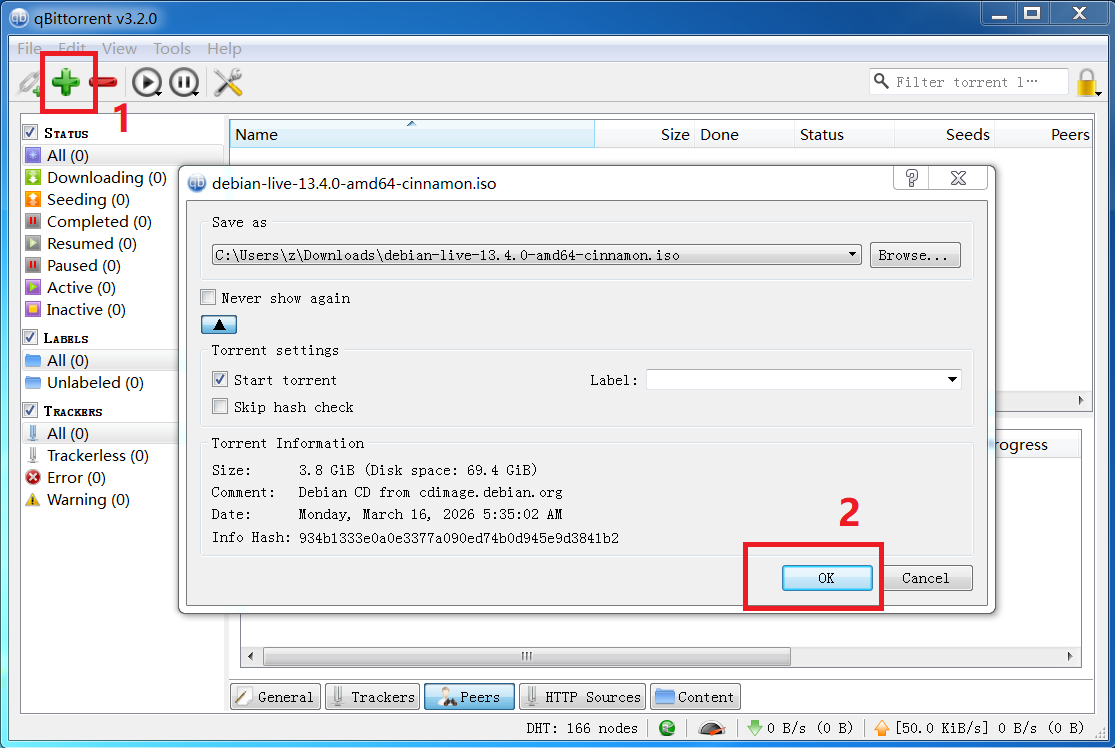
Click the green '+' icon on the toolbar, select the torrent file in the file browser. Then the download task panel will pop up, where you can make some settings, such as changing the download directory, and click OK to start the download.
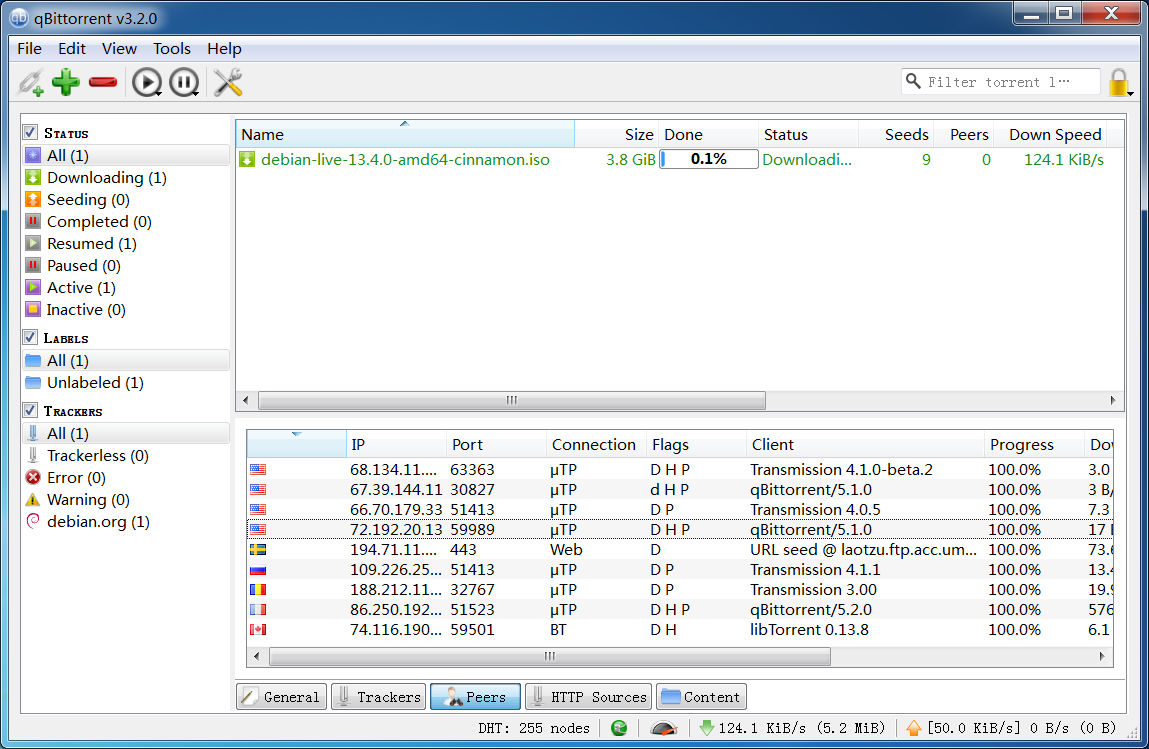
This is the interface that is downloading
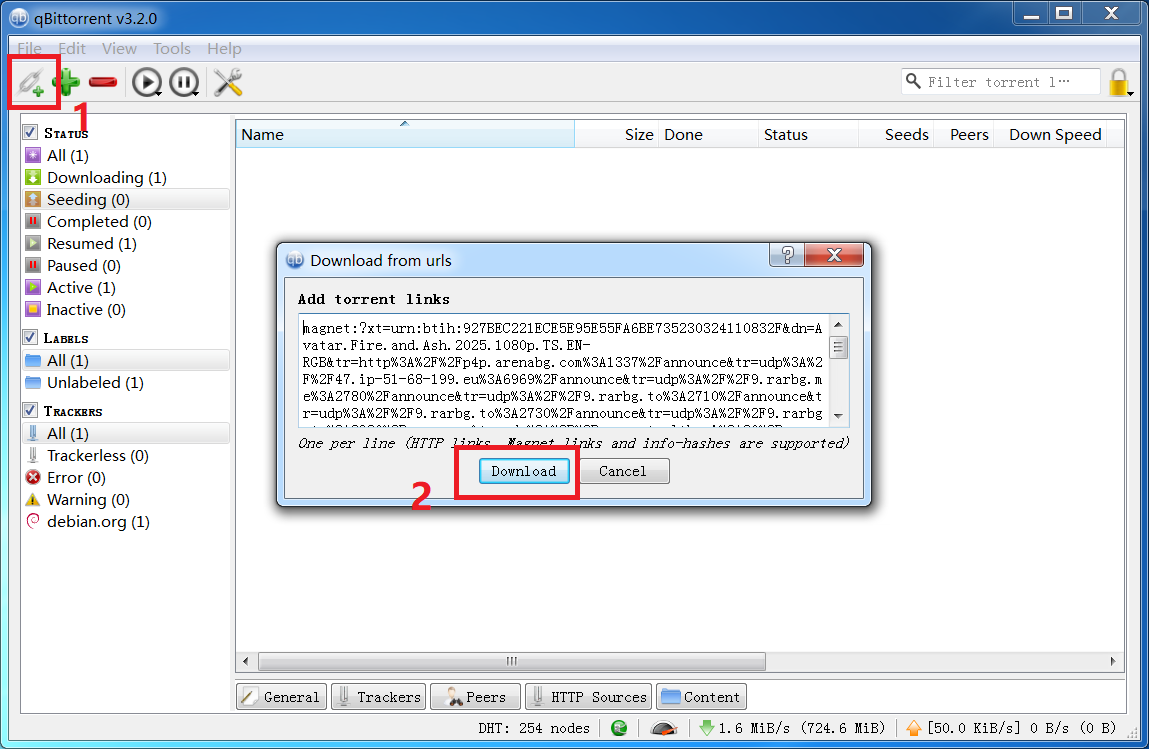
Downloading using a magnet link is also very simple. Click the gray link icon on the toolbar, and it will pop up the link input panel. After entering the magnet link, click OK to create the download task.
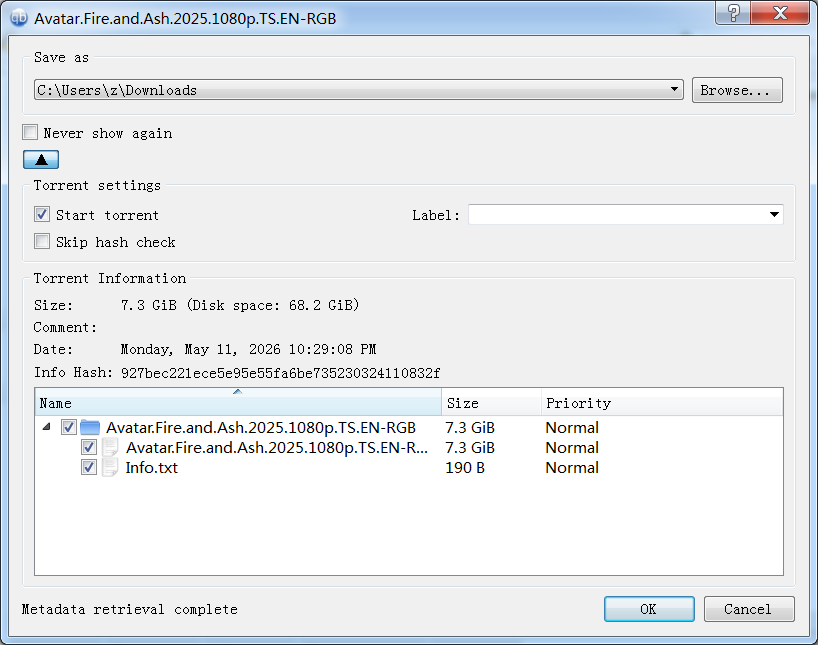
A download task panel will appear later. Unlike downloading directly via a torrent file, it takes some time to fetch metadata from the P2P network. If you don't want to wait, you can click OK to download immediately. You can configure some settings in the task panel and then click OK to start the download.
This is the interface that is downloading
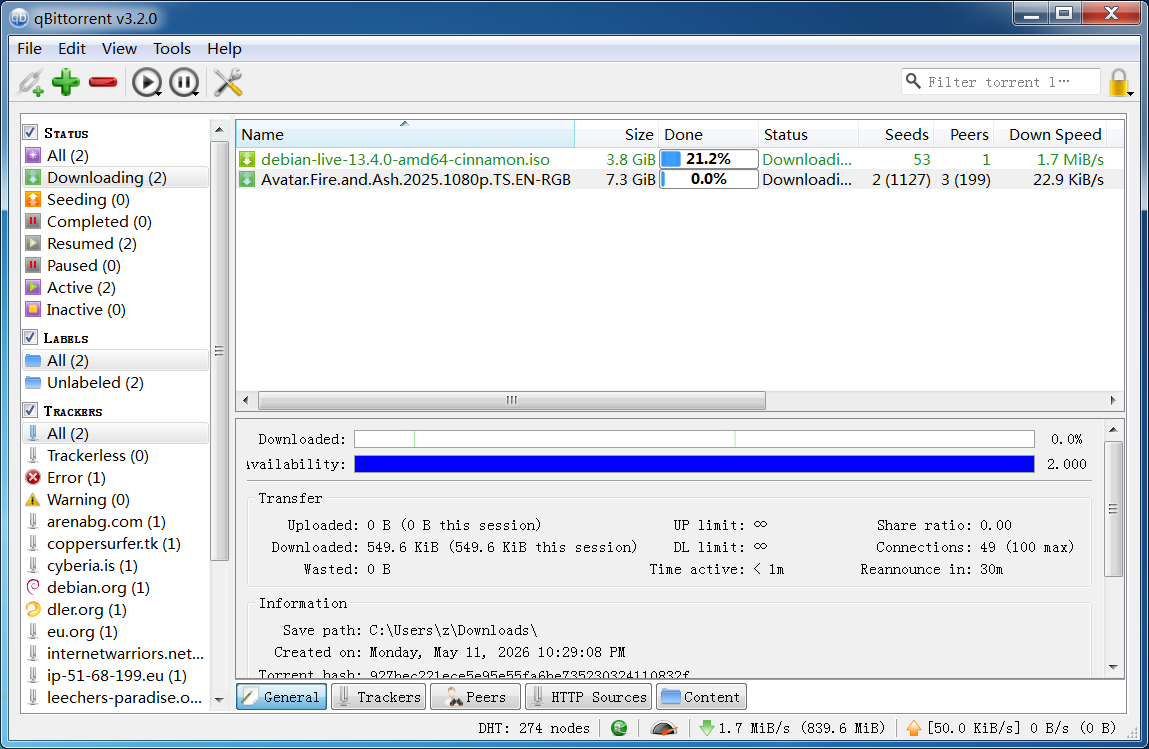
tracker servers
Manually adding high-quality trackers can help you find more peers, thereby improving download speeds. Some BT software allows you to set a unified list of additional trackers or specify additional trackers when creating a task.
For example, in BitComet, you can set it to automatically add some trackers to the torrent.
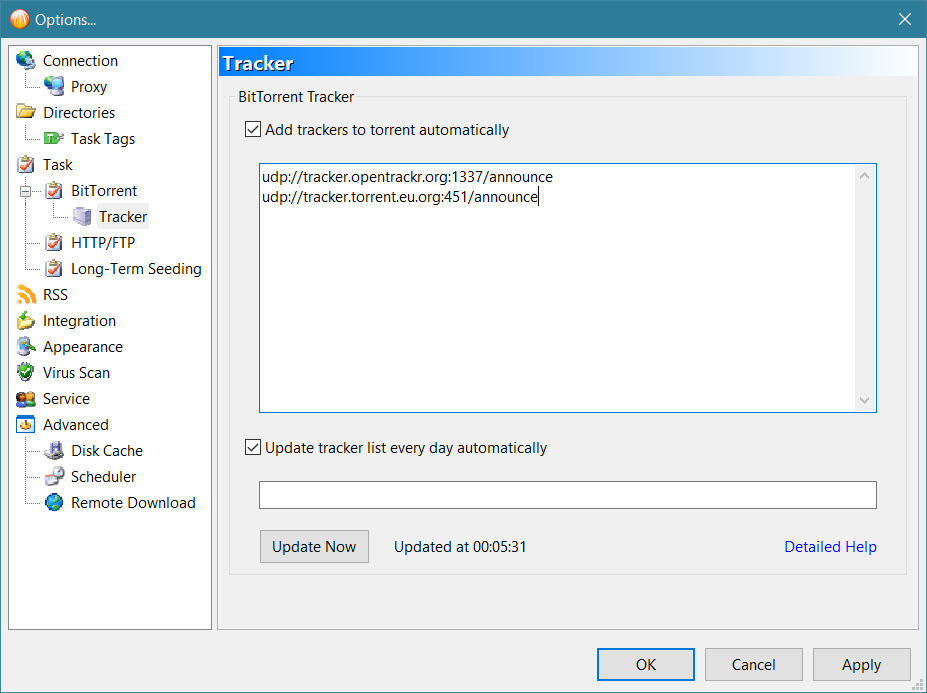
In a magnet link, you can specify multiple trackers through the &tr= parameter. For example:
magnet:?xt=urn:btih:xxxxxxxxxxxx&tr=udp://tracker.opentrackr.org:1337/announce&tr=udp://tracker.torrent.eu.org:451/