Introduction to GnuPG
GnuPG official website:https://gnupg.org/
GnuPG (GNU Privacy Guard) is a completely free and open-source implementation of the OpenPGP standard, used for encrypting, decrypting, and digitally signing data and communications. It uses asymmetric encryption technology (public/private key pairs), which can ensure the confidentiality of file transfers (preventing unauthorized viewing) and verify the integrity and authenticity of files through digital signatures (preventing tampering). As a command-line tool, it forms the core of many graphical front-ends (such as Kleopatra and GPA) and email encryption systems (such as Enigmail), and is widely used in code signing, software release verification, and secure email communications.
The core function of GnuPG in verifying file signatures is to confirm that the file you received indeed comes from the 'claimed publisher' and has not been tampered with or corrupted during transmission.
Specifically, it provides two crucial security guarantees:
Prevents files from being tampered with, ensuring that the file you download is exactly the same as the one the author originally signed.
Prevents identity forgery by verifying the public key corresponding to the private key, confirming that the file was indeed signed by the person holding the specific private key (for example, the official developer), and not by an impostor.
Below, I will explain how to use GnuPG to verify a file's signature.
Download the test file for verification
Taking VeraCrypt as an example, its official download address is:https://veracrypt.io/en/Downloads.html
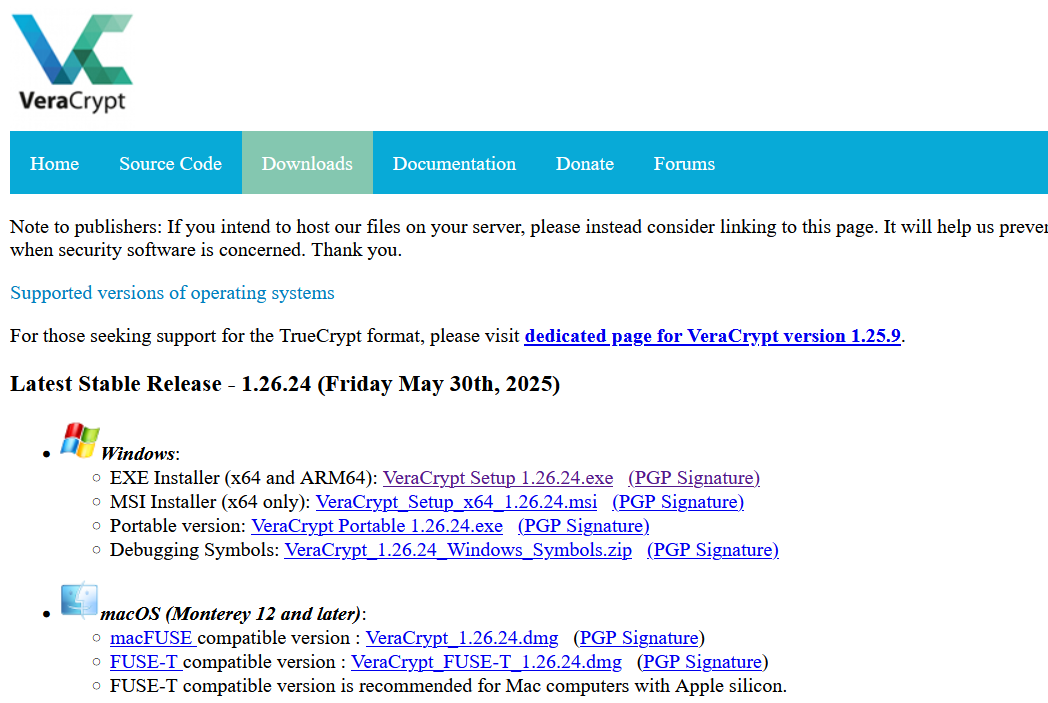
The official website provides the installation package and the corresponding PGP files. I downloaded the two files VeraCrypt Setup 1.26.24.exe.sig and VeraCrypt Setup 1.26.24.exe.sig.
Among them, VeraCrypt Setup 1.26.24.exe.sig is the main file, and VeraCrypt Setup 1.26.24.exe.sig is the detached signature file used to verify the file. Its format is .sig, while some software, such as nginx, provides detached signature files in .asc format.
.sig and .asc are both files used by GnuPG to store digital signatures, and they are used in the same way. The difference is that .sig is in binary format and will appear as garbled text when opened, while .asc is in text format and will show the textual content of the signature data when opened. GnuPG automatically recognizes the format during use.
In addition, you also need to download the public key provided on the software's official website. Only by importing the software author's public key can you verify the signature. VeraCrypt provides a link to download the public key at the very bottom of the download page.

The downloaded file is a VeraCrypt_PGP_public_key.asc file. It can be opened directly to view, and it contains content similar to this.
-----BEGIN PGP PUBLIC KEY BLOCK-----

mQINBFuYEsMBEAC8ZmZ+8qUKVw9DZ/jaeeuqicYLhPYLklbLWrKuPej7mtMSudCn
vyCeo6uIY4ARhoelGaIc4Gp2aG7E1xlPfMNln3z7xmnoLR421ir/yEaLrQU9h/W0
Q3t4hqYDcNhHrHNvehKpDbyWc0AVOwrzLi/peVcrs+p6rh7djPyuEopJ2DzeaF4t
xyRdlHqUpqAiTxEvLd/9L2hz5JE7E7w42Ae5rG9suOMxdK42RrQozQuyp2JcbMzx
ITH8Ut77u0637Uif/jliYmW59+fX3HJsN5qfHtbaeb44M7a1OQ5Sqp1+9OFm0Pap
...

-----END PGP PUBLIC KEY BLOCK-----
Using Gpg4win to verify signatures on Windows
gpg4win (for Windows system) official website: https://www.gpg4win.org/
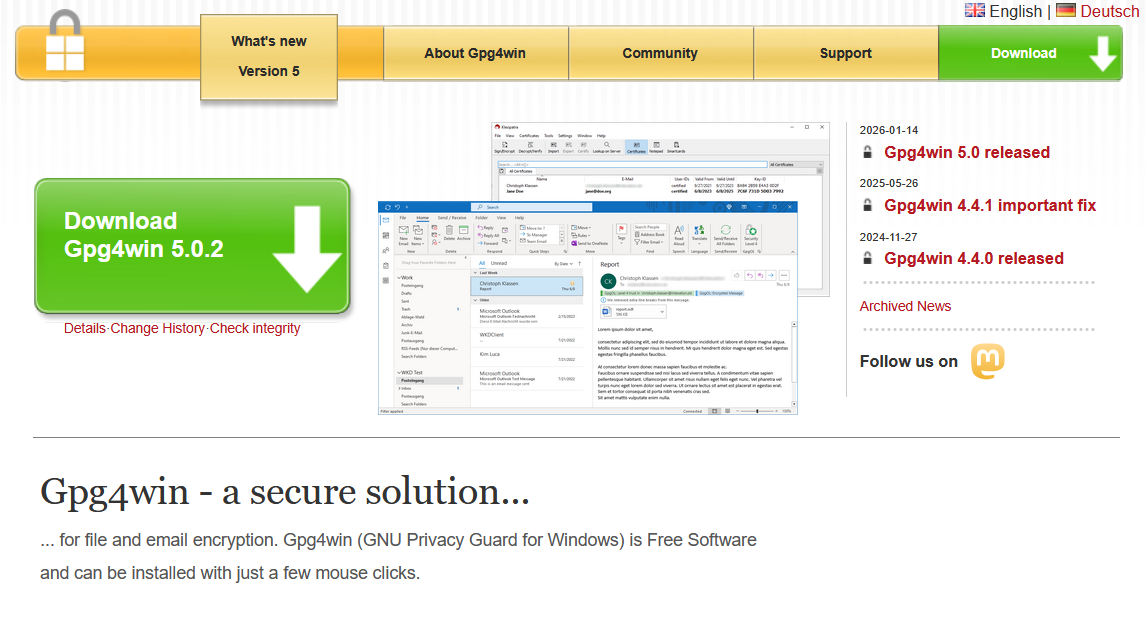
For Windows systems. Download Gpg4win from the official website, then install it. The detailed installation tutorial is available on the official website: https://wiki.gnupg.org/Gpg4win/Tutorials/Installation
As long as you ensure that the installation file you downloaded is correct, you just need to follow the installation prompts to install it.
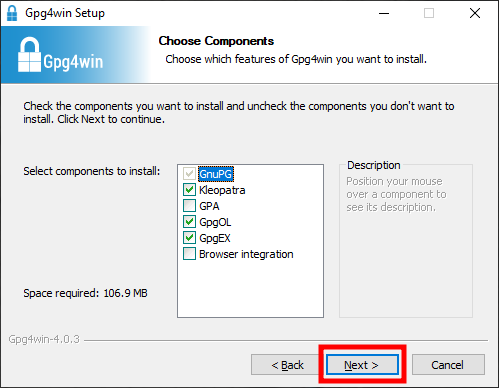
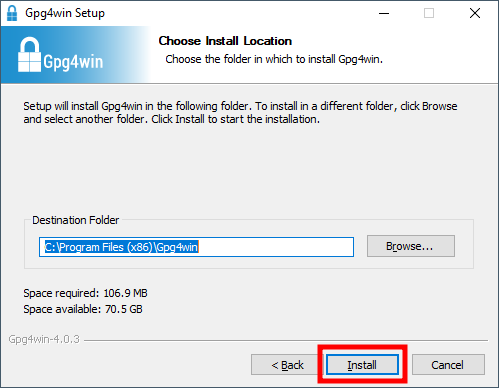
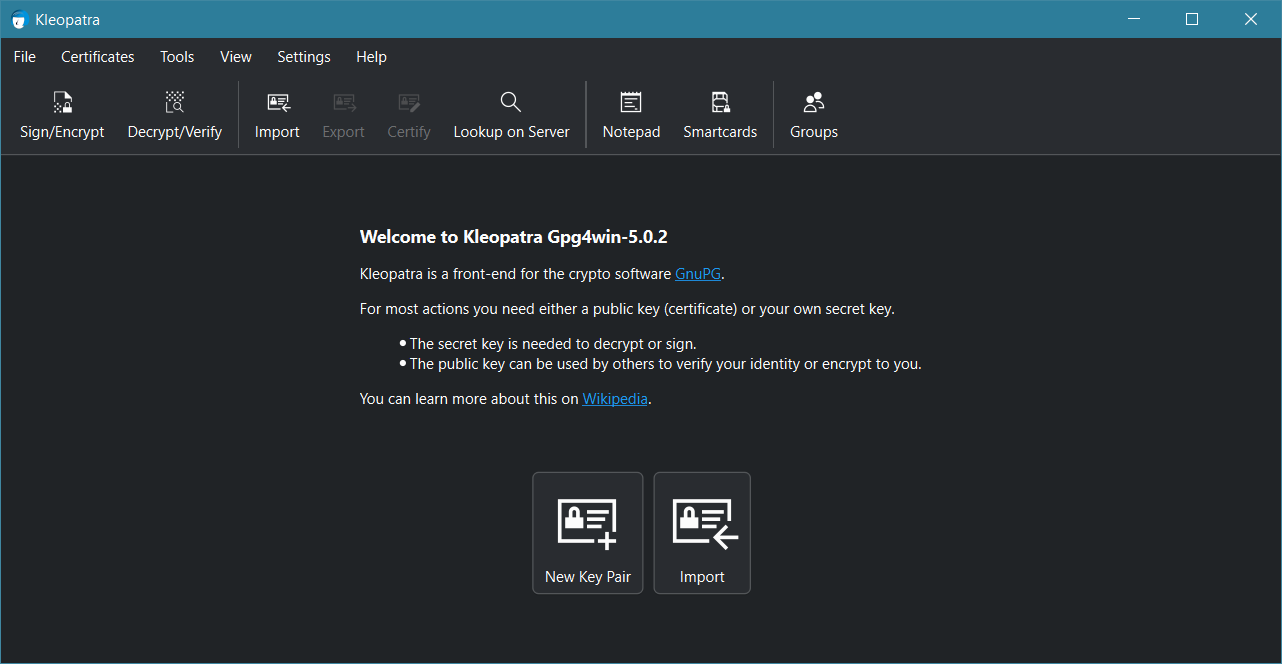
Open it directly after installation. This is the interface for the first run.
Import the public key provided on the VeraCrypt official website into the software.
Open the downloaded VeraCrypt_PGP_public_key.asc file and copy its contents to the clipboard. Then open gpg4win, click Tools, Clipboard, Certificate Import
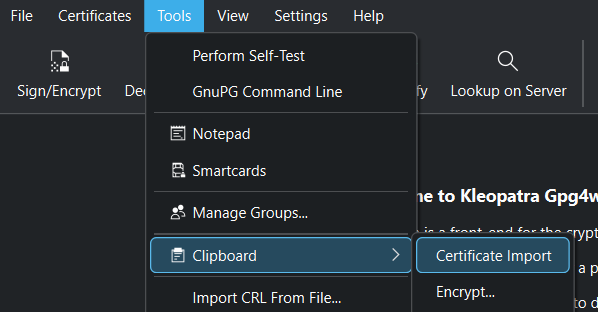
gpg4win will automatically recognize the public key content in the clipboard and import it.
Alternatively, you can also click the Import button on the interface and directly select the VeraCrypt_PGP_public_key.asc file for import.
After the import is complete, you will receive a prompt.
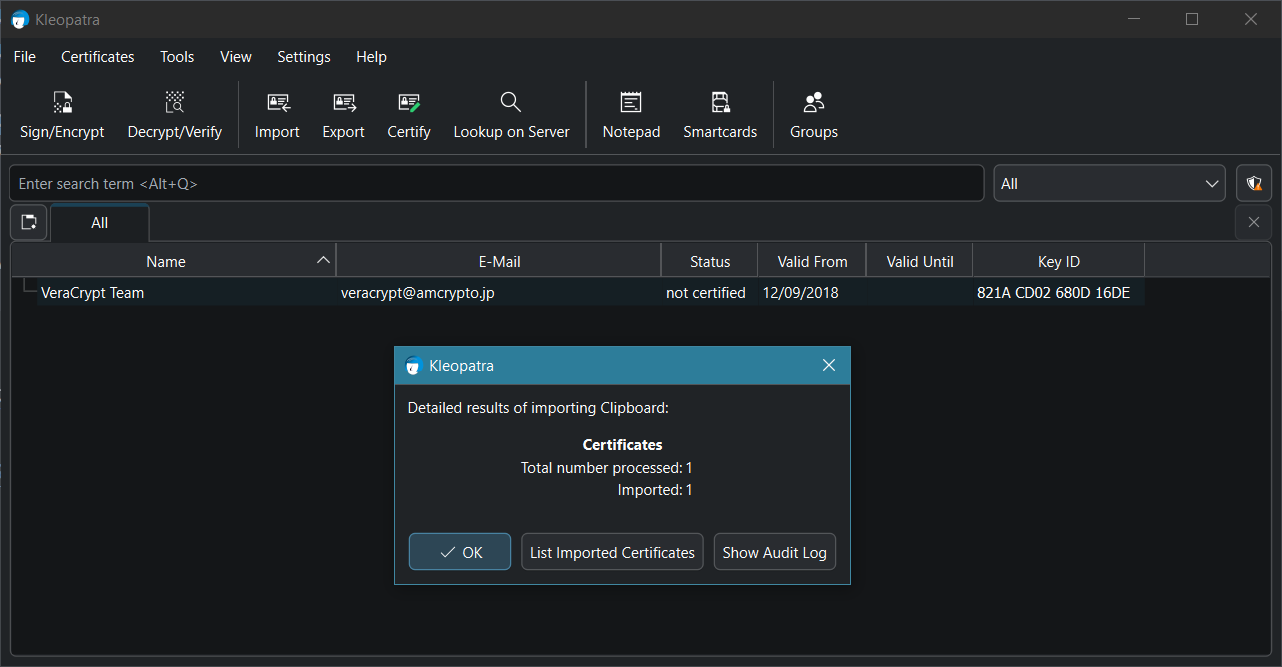
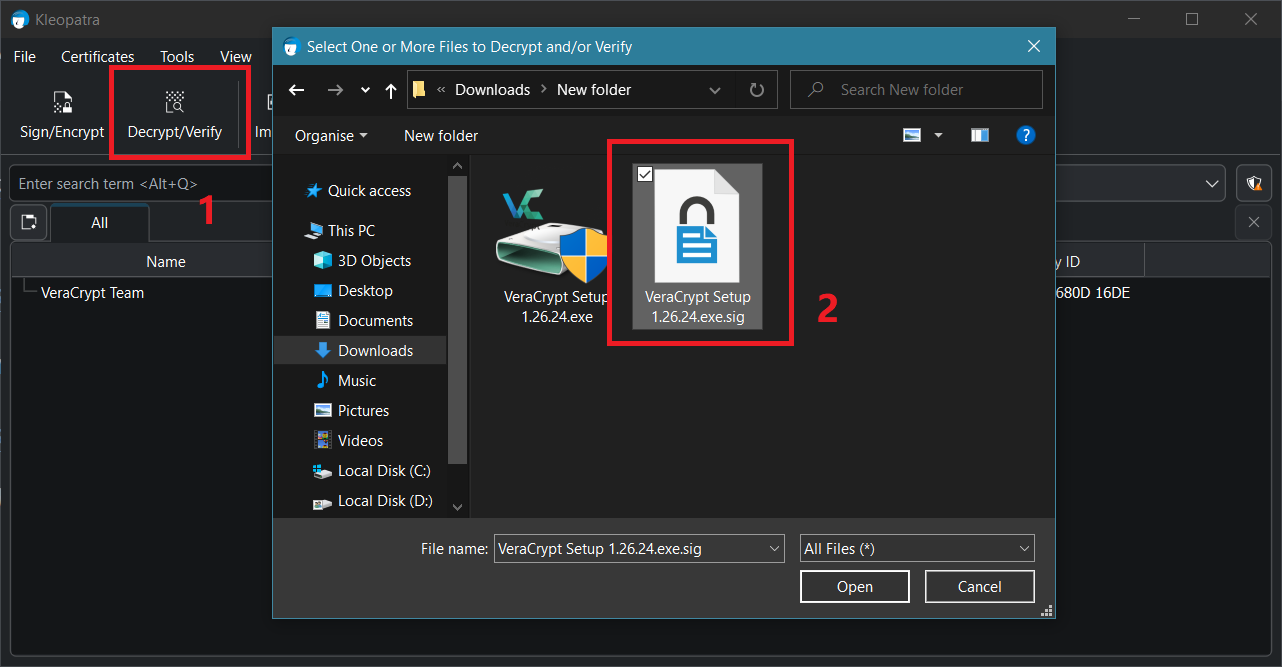
At this point, you can perform a signature verification on the file. Click Decrypt/Verify, and a file selection dialog will pop up. Here, you can choose an .asc or .sig file for verification. I selected the file VeraCrypt Setup 1.26.24.exe.sig. The program will then automatically look for a file with the corresponding name in the same directory for verification.
The verification result shows that the verification was successful. The signature itself is valid (it was indeed signed with the private key corresponding to that public key), and the file has not been tampered with. However, a warning: it cannot be confirmed that this public key truly belongs to the author. It is uncertain whether this public key is genuinely officially published.
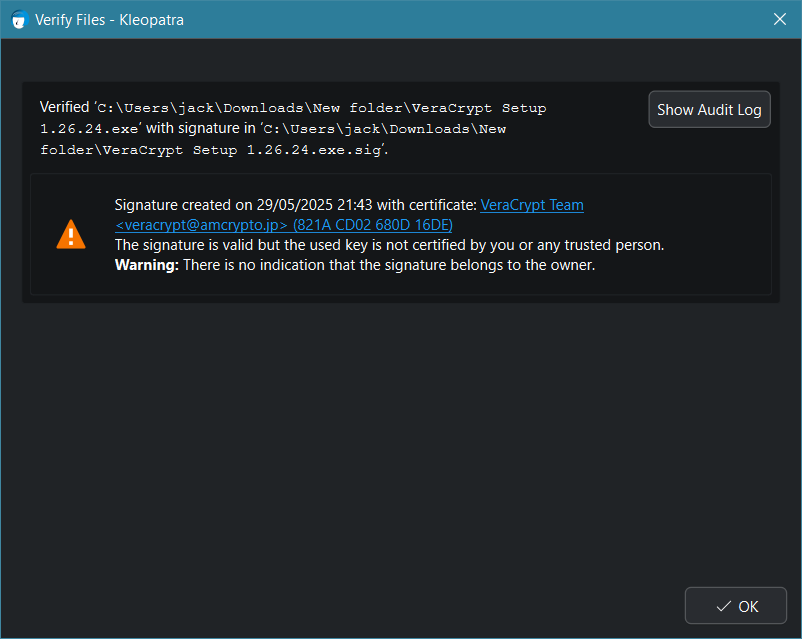
For you, the public key you just obtained from the official website channel is sufficient as long as you personally confirm that the public key you obtained comes from the official author.
Verify signatures using GnuPG on Linux
For Linux systems, such as Debian, you can install GnuPG through the package manager:
sudo apt update
sudo apt install gnupg
Import public key file
[liveuser@localhost Downloads]$ gpg --import VeraCrypt_PGP_public_key.asc

gpg: /home/liveuser/.gnupg/trustdb.gpg: trustdb created
gpg: key 680D16DE: public key "VeraCrypt Team <veracrypt@amcrypto.jp>" imported
gpg: Total number processed: 1
gpg:               imported: 1  (RSA: 1)
gpg: no ultimately trusted keys found
Display the full fingerprint of the public key. Here, 680D16DE is the public key ID shown on the official website.
[liveuser@localhost Downloads]$ gpg --fingerprint 680D16DE

pub   4096R/680D16DE 2018-09-11
      Key fingerprint = 5069 A233 D55A 0EEB 174A  5FC3 821A CD02 680D 16DE
uid                  VeraCrypt Team <veracrypt@amcrypto.jp>
uid                  VeraCrypt Team (2018 - Supersedes Key ID=0x54DDD393) <veracrypt@idrix.fr>
sub   4096R/26878A32 2018-09-11
sub   4096R/5483D029 2018-09-11
Check the part after the final Key fingerprint =, it should match the fingerprint provided in the official website's public key download section.
(ID=0x680D16DE, Fingerprint=5069A233D55A0EEB174A5FC3821ACD02680D16DE)
Verify file signature
[liveuser@localhost Downloads]$ gpg --verify "VeraCrypt Setup 1.26.24.exe.sig" "VeraCrypt Setup 1.26.24.exe"

gpg: Signature made Thu 29 May 2025 09:43:40 AM EDT using RSA key ID 680D16DE
gpg: Good signature from "VeraCrypt Team <veracrypt@amcrypto.jp>"
gpg:                 aka "VeraCrypt Team (2018 - Supersedes Key ID=0x54DDD393) <veracrypt@idrix.fr>"
gpg: WARNING: This key is not certified with a trusted signature!
gpg:          There is no indication that the signature belongs to the owner.
Primary key fingerprint: 5069 A233 D55A 0EEB 174A  5FC3 821A CD02 680D 16DE
The result shows that the signature is valid and the file has not been tampered with. However, the public key is not trusted locally.
Previously, the public key fingerprint was verified with --fingerprint and it matches the official website. So you can trust this public key.