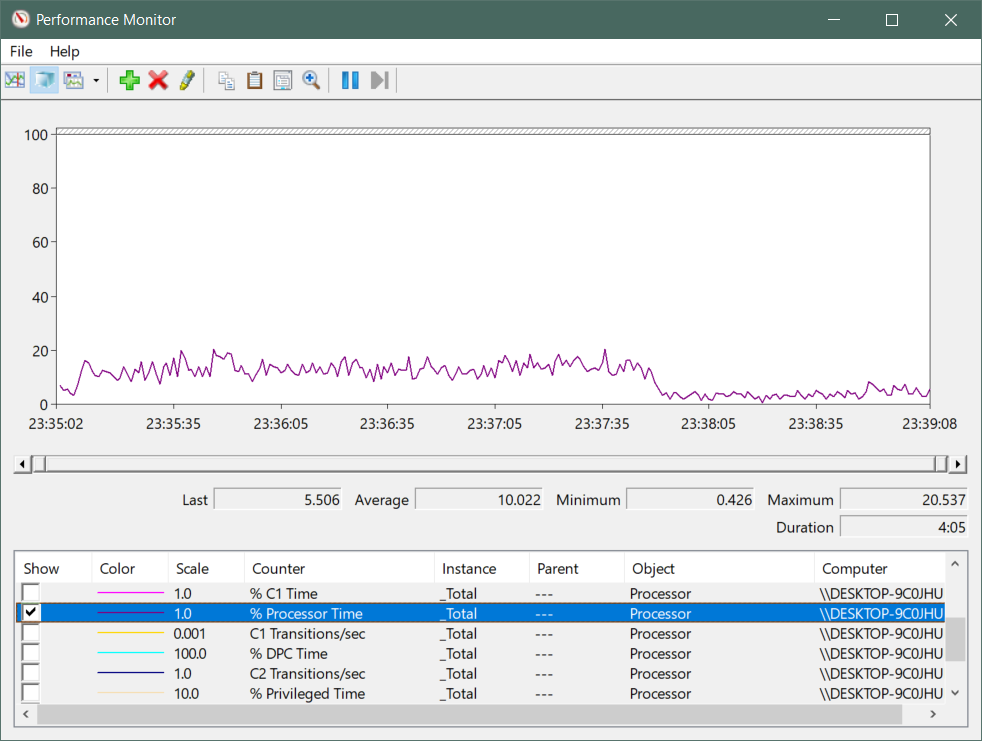
I want to test the CPU load when recording gameplay with screen recording software. I need to monitor CPU usage, and this can be done using Windows Performance Monitor.
Press Win + R, type perfmon and hit Enter to open Performance Monitor. Go to Data Collector Sets -> User Defined, right-click on the right side, and select New -> Data Collector Set.
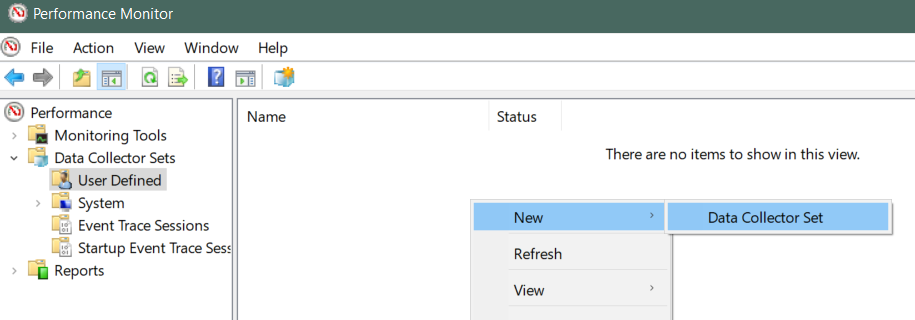
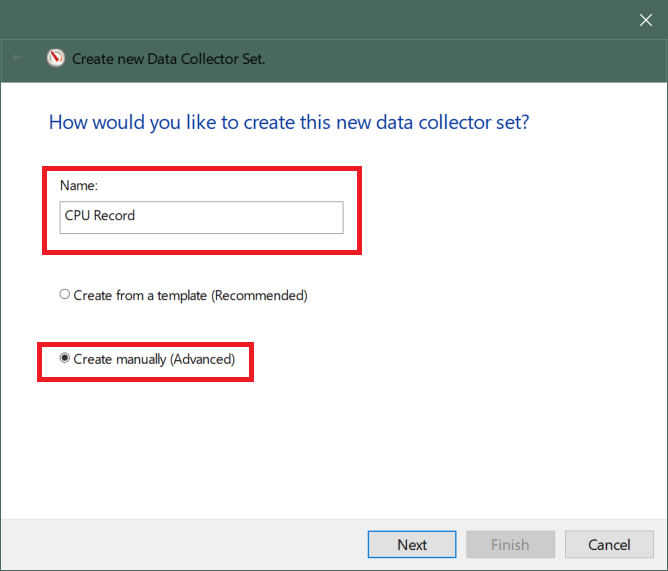
Set a name and choose 'Create manually'
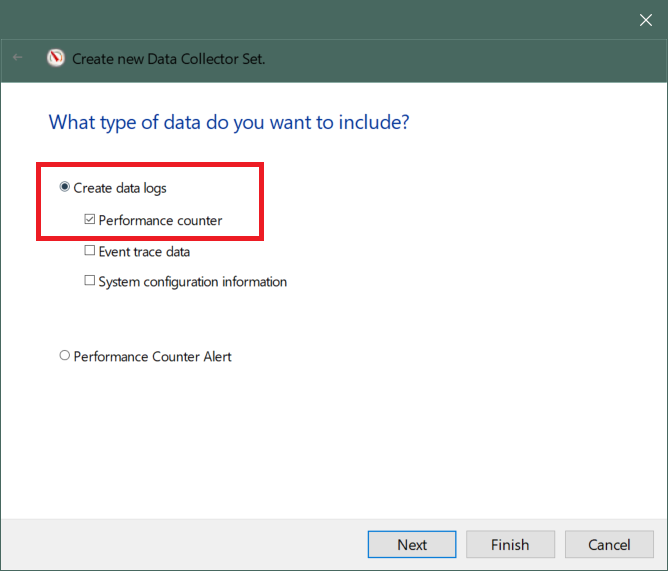
Select 'Create data logs' and check 'Performance counter'
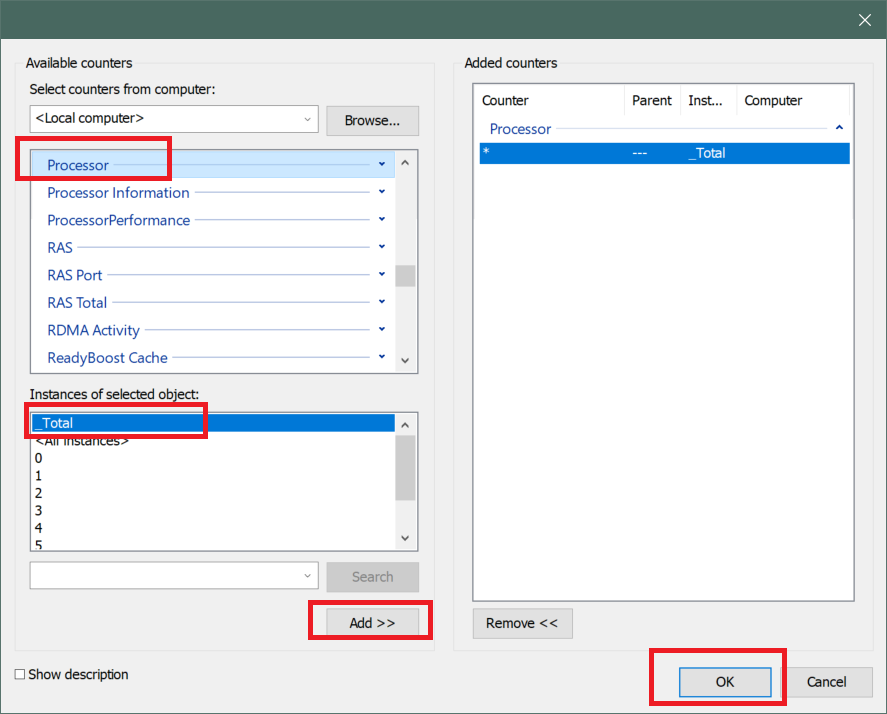
In the following 'Create new Data Collector Set' dialog, click 'New', select 'Processor' in 'Available counters', choose '_Total' in 'Instance of selected object', click 'Add', and then click 'Ok'.
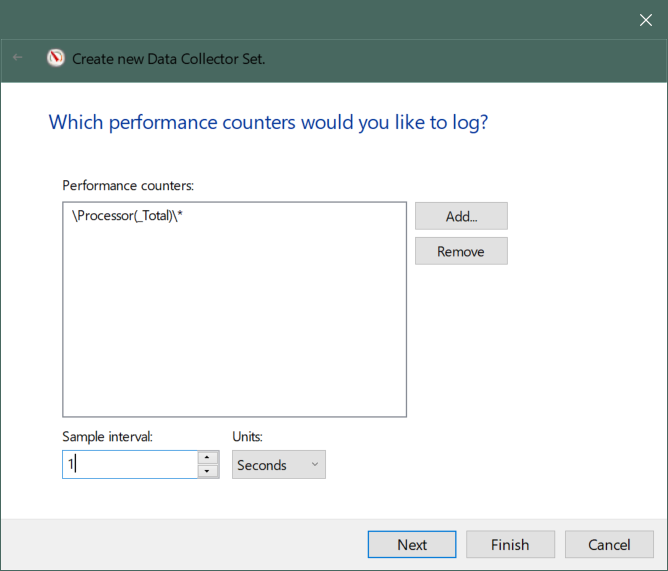
Set the sampling interval, like 1 second
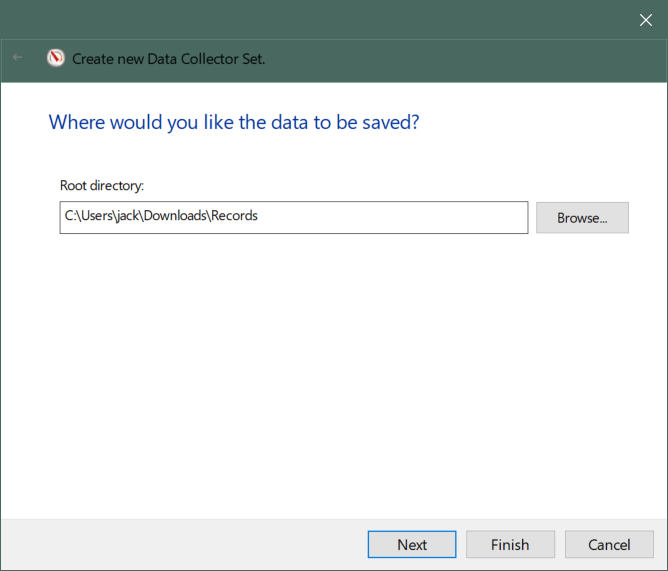
Set up a data output directory
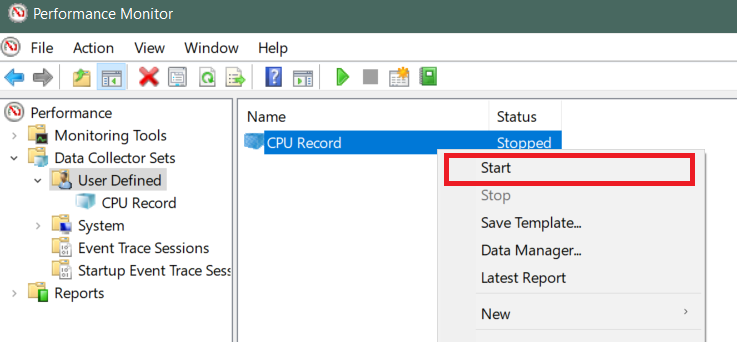
After setting it up, you can see the custom data collector, and you can right-click to run or stop it.
I started monitoring while recording the game. After stopping the monitoring, you can see files like DataCollector01.blg in the output directory. If you click to open it, you can directly see the CPU usage, and % Processor Time is the CPU usage.