To record video on a Windows system using ffmpeg through dshow, first download a tool: on screen capture recorder. Its SourceForge address is: https://sourceforge.net/projects/screencapturer/files/
screen-capture-recorder is a free and open-source Windows screen capture tool. It can create a virtual DirectShow device on Windows, allowing programs that support DirectShow, like FFmpeg and VLC, to read your desktop as if it were a "camera", making screen recording possible.
After the download is complete, just install it, then open cmd and type a command to check the dshow devices.
ffmpeg -list_devices true -f dshow -i dummy
[dshow @ 06d93b00] DirectShow video devices (some may be both video and audio devices)
[dshow @ 06d93b00]  "screen-capture-recorder"
[dshow @ 06d93b00]     Alternative name "@device_sw_{860BB310-5D01-11D0-BD3B-00A0C911CE86}\{4EA6930A-2C8A-4AE6-A561-56E4B5044439}"
[dshow @ 06d93b00] DirectShow audio devices
[dshow @ 06d93b00]  "Microphone (Realtek High Definition Audio)"
[dshow @ 06d93b00]     Alternative name "@device_cm_{33D9A762-90C8-11D0-BD43-00A0C911CE86}\wave_{1364308A-E2AF-41B7-A3F2-6E2BC1157937}"
[dshow @ 06d93b00]  "virtual-audio-capturer"
[dshow @ 06d93b00]     Alternative name "@device_sw_{33D9A762-90C8-11D0-BD43-00A0C911CE86}\{8E14549B-DB61-4309-AFA1-3578E927E935}"
"screen-capture-recorder" and "virtual-audio-capturer" are virtual devices installed by the on-screen-capture-recorder in the system, which can be called in ffmpeg to capture system video and audio.
You can check the video resolution options supported by "screen-capture-recorder".
ffmpeg -f dshow -list_options true -i video="screen-capture-recorder"
[dshow @ 00903b40] DirectShow video device options (from video devices)
[dshow @ 00903b40]  Pin "Capture" (alternative pin name "1")
[dshow @ 00903b40]   pixel_format=bgr0  min s=1x1 fps=0.02 max s=1600x900 fps=60.0002
[dshow @ 00903b40]   pixel_format=bgr0  min s=1x1 fps=0.02 max s=1600x900 fps=60.0002
[dshow @ 00903b40]   pixel_format=bgr24  min s=1x1 fps=0.02 max s=1600x900 fps=60.0002
[dshow @ 00903b40]   pixel_format=rgb555le  min s=1x1 fps=0.02 max s=1600x900 fps=60.0002
[dshow @ 00903b40]   pixel_format=rgb555le  min s=1x1 fps=0.02 max s=1600x900 fps=60.0002
[dshow @ 00903b40]   pixel_format=rgb8  min s=1x1 fps=0.02 max s=1600x900 fps=60.0002
[dshow @ 00903b40]   pixel_format=yuv420p  min s=1x1 fps=0.02 max s=1600x900 fps=60.0002
It lists a limited set of resolution options, and at first you might only have 1280x720 available. To change them, you need to run the modification script it provides from the program menu.
configure by setting specific screen capture numbers Screen Capturer Recorder.bat
Running this script requires JRE8, so you need to install JRE8 first. It can't be a higher version, or the script will fail to run. You can find JRE8 at the following links.
https://www.java.com/en/download/manual.jsp
https://adoptium.net/temurin/releases
https://www.oracle.com/java/technologies/downloads/archive/
After installing JRE8, running the script will let you set things like video width and height, starting position, maximum frame rate, and so on.
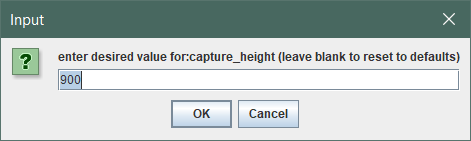
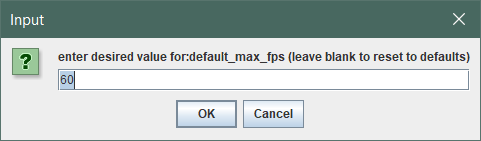
This way, when you check the resolution options again, the ones you set will appear. And ffmpeg will use the resolution you set when recording.
ffmpeg video recording command
ffmpeg -f dshow -framerate 30 -i video="screen-capture-recorder" -f dshow -i audio="virtual-audio-capturer" -c:v libx264 -b:v 4M -preset ultrafast -pix_fmt yuv420p -c:a aac -b:a 196k -shortest output.mp4
-framerate 30is the frame rate, and it can't exceed the maximum frame rate set in your script.-c:v libx264 -b:v 4Mare the video encoding parameters.-c:a aac -b:a 196kare the audio encoding parameters.-pix_fmt yuv420puses the yuv420p pixel format; without this, some players might not be compatible.-shortestends the entire output immediately if any of the input streams finishes first.