I used to use dynv6.com's DDNS service. Although it's lightweight and offers free subdomains, I found that sometimes it just wouldn't work. The browser would instantly return an error.
Server Not Found

Firefox can’t connect to the server at xxxx.com
This error might go away in a day. For a stable DDNS service, I’ve decided to stop using dynv6.com.
I decided to try Cloudflare. Although Cloudflare doesn’t offer a DDNS feature, you can use a script to call its API to make it work. The idea is: create an API Token in Cloudflare, then run a program on your device that regularly checks your public IP and automatically updates the DNS records.
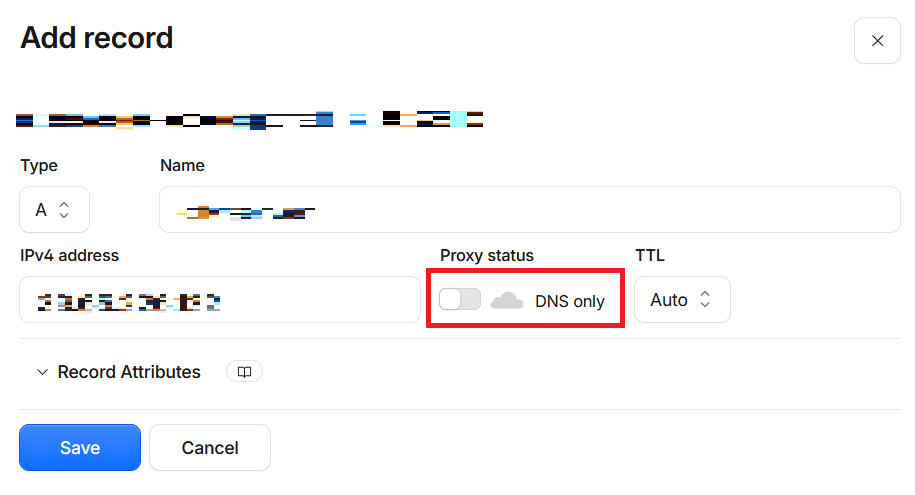
First, add an A record in Cloudflare's DNS records (for example: home.yourdomain.com)
You can set the IPV4 address to anything since it will update automatically later. You need to set this record's Proxy status to 'DNS Only' (gray cloud).
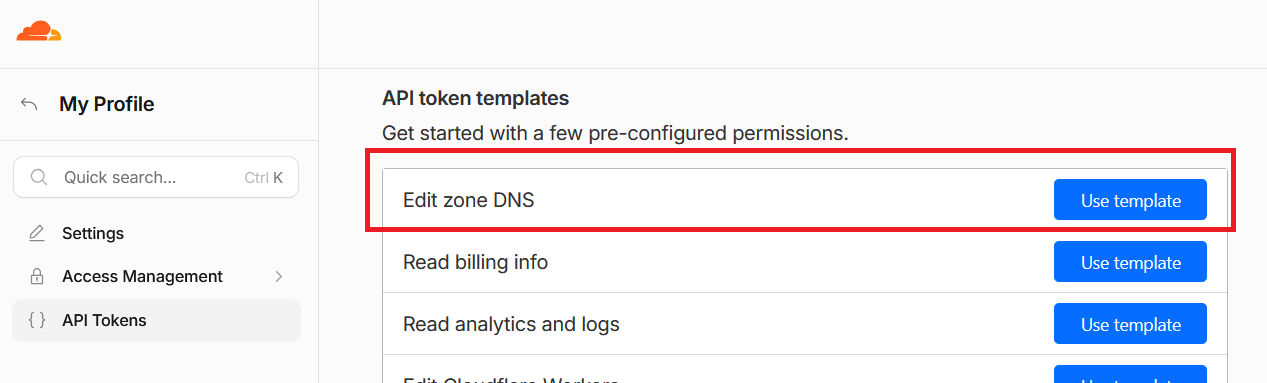
Next, you need to get an API Token: this is the credential that lets the script have permission to modify your DNS records. On your Cloudflare profile page, go to API Tokens and use the 'Edit zone DNS' template to create a Token.
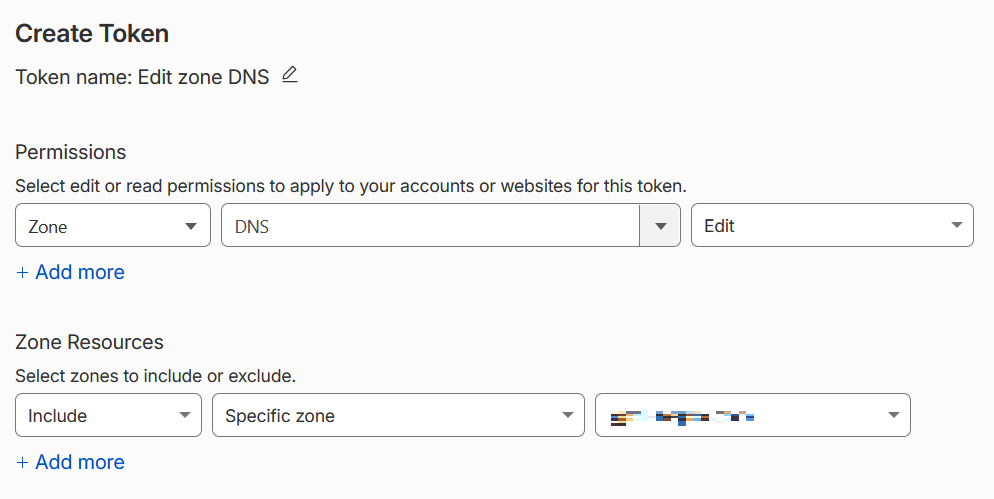
Go to Permissions → Zone → DNS → Edit, and specify the exact domain you want to update.
A token has been generated, it will only be shown once, so make sure to save it.
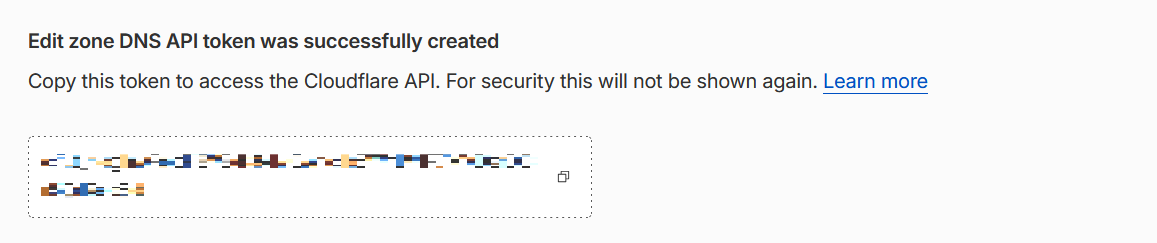
You need to download a Powershell script, its GitHub address is: https://github.com/fire1ce/DDNS-Cloudflare-PowerShell
After downloading, unzip it, and there will be 2 script files: update-cloudflare-dns.ps1 and update-cloudflare-dns_conf.ps1. Now you need to configure the update-cloudflare-dns_conf.ps1 file.
At least fill in the following few:
$what_ip = "external"
$dns_record = "home.yourdomain.com"
$zoneid = "xxxxxxxxxxxx"
$cloudflare_zone_api_token = "yyyyyyyyyyyyyyyyyyyyyyyyy"
$proxied = $false
- what_ip: Use a public or private IP (external or internal). In most cases, you'll need to use your public IP (external) for updates.
- dns_record: The DNS record you want to update, which is the DNS A record you added before.
- zoneid: Your Zone ID.
- cloudflare_zone_api_token: The API Token you got earlier.
- proxied: Whether to enable the proxy; it's recommended to set it to false.
You can find the Zone ID on Cloudflare's domain overview page
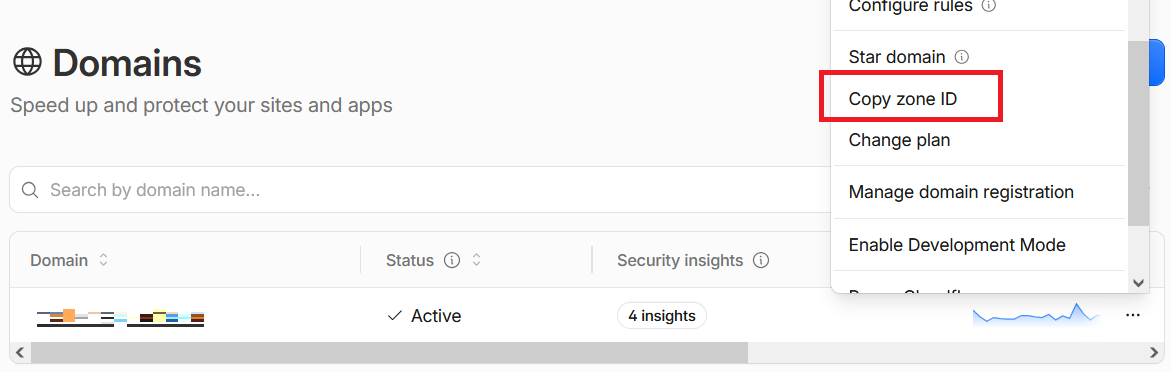
Once you've finished filling it out, you can run the update-cloudflare-dns.ps1 script to test it and check the output to see if it ran successfully.
powershell.exe -ExecutionPolicy Bypass -File D:\DDNS-Cloudflare-PowerShell\update-cloudflare-dns.ps1

==> 2026/09/11 20:29:45
==> Internal IP is 123.123.123.123
==> DNS record of home.yourdomain.com is: 111.222.111.222. Trying to update...
==> Success!
==> home.yourdomain.com DNS Record Updated To: 123.123.123.123, ttl: 120, proxied: False
If it runs successfully, the next step is to get it to run regularly and provide DDNS service. Open Task Scheduler and create a task.
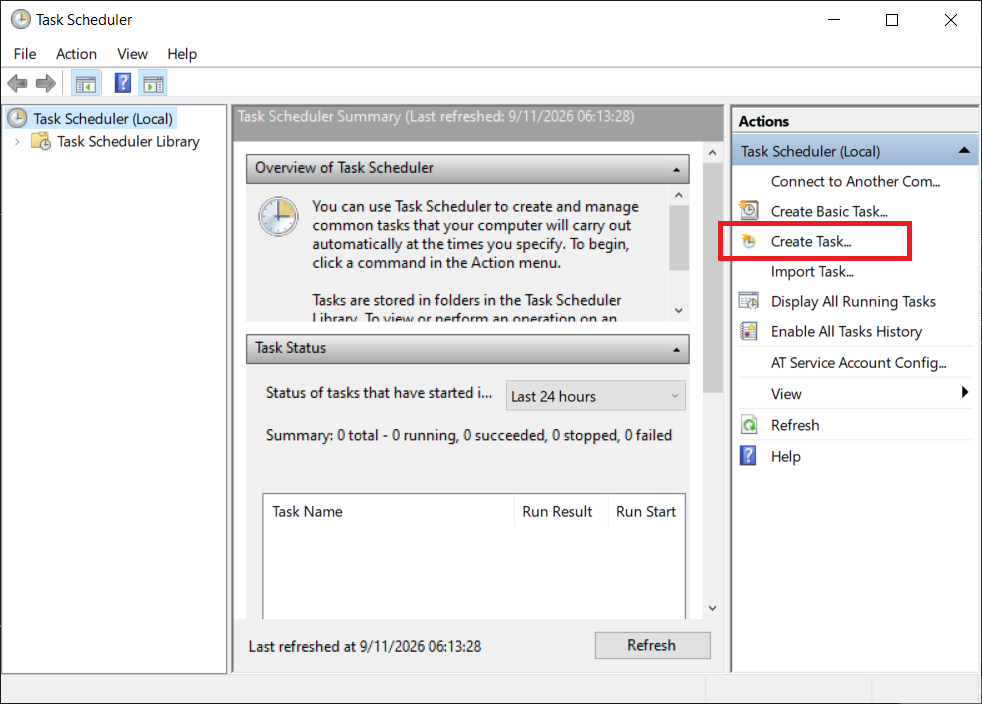
On the General tab, set a task name
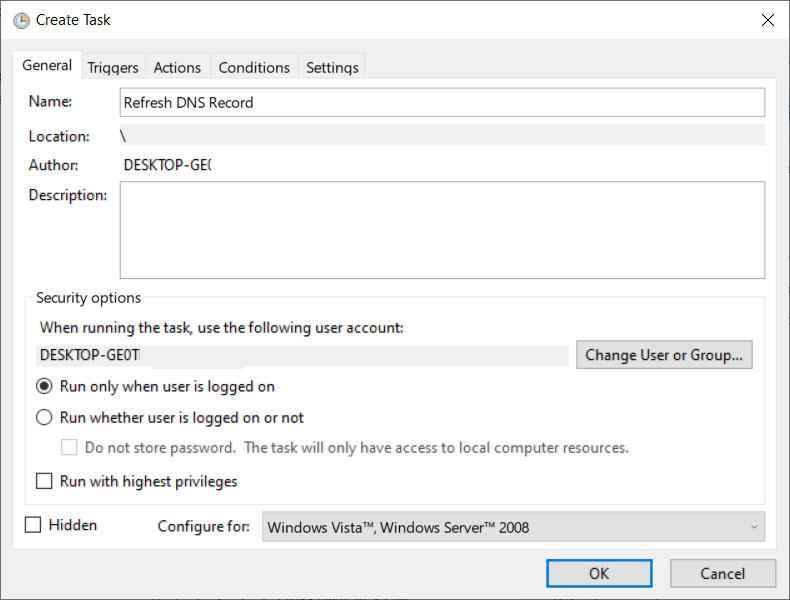
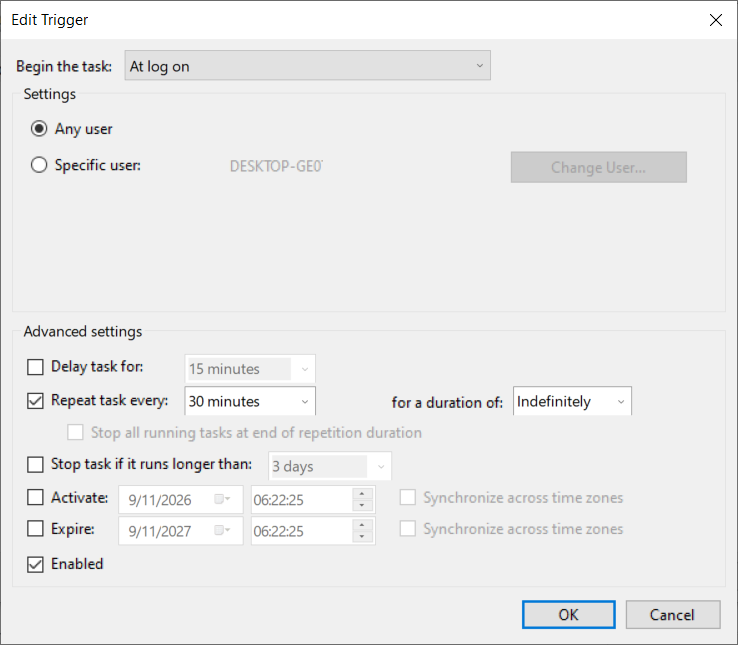
In the Trigger tab, create a new trigger and set the start time and repeat frequency according to your needs.
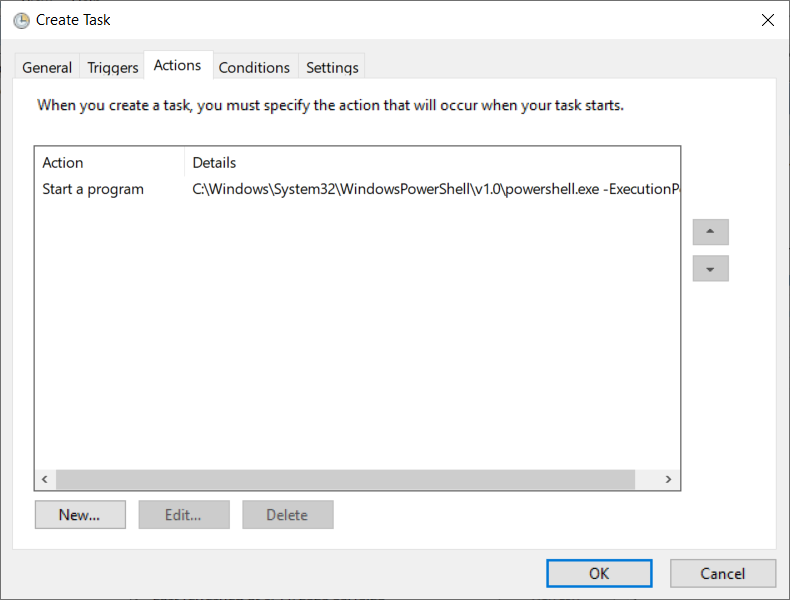
In the Action tab, create a new Action
- Start program: C:\Windows\System32\WindowsPowerShell\v1.0\powershell.exe
- Add parameter: -ExecutionPolicy Bypass -File D:\DDNS-Cloudflare-PowerShell\update-cloudflare-dns.ps1
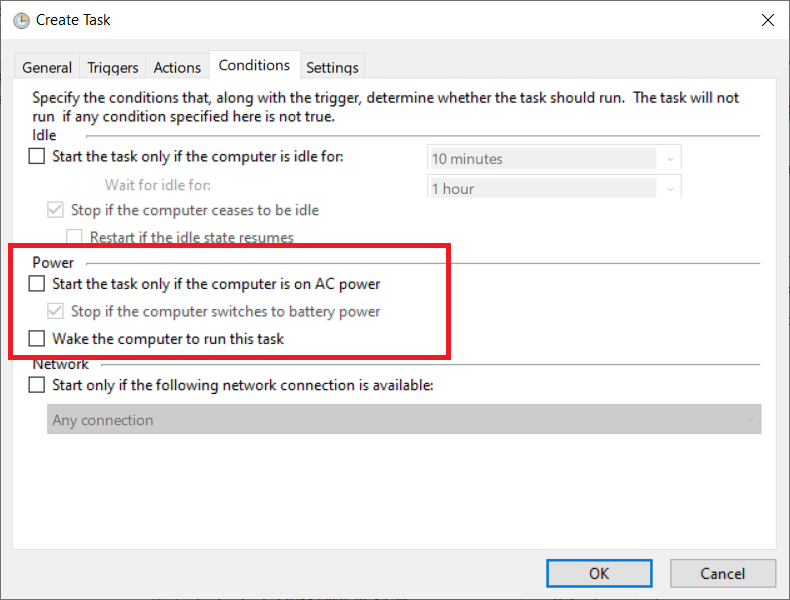
You might also need to change the power options.
Finally, you can save it. Once you log into the system, this script will run automatically and periodically update the DNS records, providing a DDNS service.