Using an Android Virtual Device (AVD), you can run a Google official, clean Android virtual machine on a Windows system. It's suitable for testing how Android apps run. This article explains how to download and install AVD offline without bundling it with Android Studio.
First, you need to install JRE on your computer, which is the foundation for AVD to run. For example, you can use an open-source version of JRE—OpenJDK. Its official website is: https://openjdk.org/index.html. I installed this version: OpenJDK11U-jre_x64_windows_hotspot_11.0.29_7
After that, you need to download the four parts and manually put them together in one folder:
cmdline-tools: Let you manage the entire SDK from the terminal
emulator: A program that actually runs Android virtual devices
platform-tools: Core tools for communicating with Android devices (real or emulator) and flashing firmware
system-images: Store the full system images for each Android version
emulator
Official main index file: https://dl.google.com/android/repository/repository2-3.xml
In the XML file, search for <remotePackage path="emulator">, and you'll find a lot of structures like this.
<remotePackage path="emulator">
    <type-details xsi:type="generic:genericDetailsType"/>
    <revision>
      <major>37</major>
      <minor>2</minor>
      <micro>9</micro>
    </revision>
    <display-name>Android Emulator</display-name>
    <uses-license ref="android-sdk-preview-license"/>
    <channelRef ref="channel-2"/>
    <archives>
      <archive>
        <complete>
          <size>353755112</size>
          <checksum type="sha1">fadd2b669640e56da18fad7d685e9a316ca7d14c</checksum>
          <url>emulator-linux_x64-16322952.zip</url>
        </complete>
        <host-os>linux</host-os>
        <host-arch>x64</host-arch>
      </archive>
      <archive>
        <complete>
          <size>492729321</size>
          <checksum type="sha1">a37ddfbb8850b3e3ee5452564ba535f6bf02ba0f</checksum>
          <url>emulator-darwin_x64-16322952.zip</url>
        </complete>
        <host-os>macosx</host-os>
        <host-arch>x64</host-arch>
      </archive>
      <archive>
        <complete>
          <size>419818182</size>
          <checksum type="sha1">61694f70fef3a731527ca783dd5a42ed35a000ea</checksum>
          <url>emulator-darwin_aarch64-16322952.zip</url>
        </complete>
        <host-os>macosx</host-os>
        <host-arch>aarch64</host-arch>
      </archive>
      <archive>
        <complete>
          <size>459116330</size>
          <checksum type="sha1">8d389509a0ec6f72f8f7d9446e35f7aeeb8278d0</checksum>
          <url>emulator-windows_x64-16322952.zip</url>
        </complete>
        <host-os>windows</host-os>
        <host-arch>x64</host-arch>
      </archive>
    </archives>
  </remotePackage>
Choose according to your system and the version you need, then append the file name to https://dl.google.com/android/repository/ to get the download link, for example:
https://dl.google.com/android/repository/emulator-windows_x64-16322952.zip
cmdline-tools
Official main index address:
https://dl.google.com/android/repository/repository.xml
https://dl.google.com/android/repository/repository2-1.xml
https://dl.google.com/android/repository/repository2-2.xml
https://dl.google.com/android/repository/repository2-3.xml
You usually only need to download this file: repository2-3.xml
Open the main index XML file and search for '<remotePackage path="cmdline-tools; ' You will find structures like this:
<remotePackage path="cmdline-tools;17.0">
    <type-details xsi:type="generic:genericDetailsType"/>
    <revision>
      <major>17</major>
      <minor>0</minor>
    </revision>
    <display-name>Android SDK Command-line Tools</display-name>
    <uses-license ref="android-sdk-license"/>
    <channelRef ref="channel-0"/>
    <archives>
      <archive>
        <complete>
          <size>163426701</size>
          <checksum type="sha1">da3424ea38b72d85258174a76aa286b7d4e0b700</checksum>
          <url>commandlinetools-linux-12700392_latest.zip</url>
        </complete>
        <host-os>linux</host-os>
      </archive>
      <archive>
        <complete>
          <size>142285185</size>
          <checksum type="sha1">625e146cf61d6b4fbdfdd9ad34105af23b0486c2</checksum>
          <url>commandlinetools-mac-12700392_latest.zip</url>
        </complete>
        <host-os>macosx</host-os>
      </archive>
      <archive>
        <complete>
          <size>141848100</size>
          <checksum type="sha1">4a0902fb473afb7ce90a0ff6181d997138a15d9c</checksum>
          <url>commandlinetools-win-12700392_latest.zip</url>
        </complete>
        <host-os>windows</host-os>
      </archive>
    </archives>
  </remotePackage>
Choose according to your system and the version you need, then append the file name to https://dl.google.com/android/repository/ to get the download link, for example:
https://dl.google.com/android/repository/commandlinetools-win-12700392_latest.zip
Platform Tools
Download link for Platform Tools (this link doesn't have a fixed version number, it always points to the latest version): https://dl.google.com/android/repository/platform-tools-latest-windows.zip
If you need older versions, you can check the official Releases page: https://developer.android.com/tools/releases/platform-tools
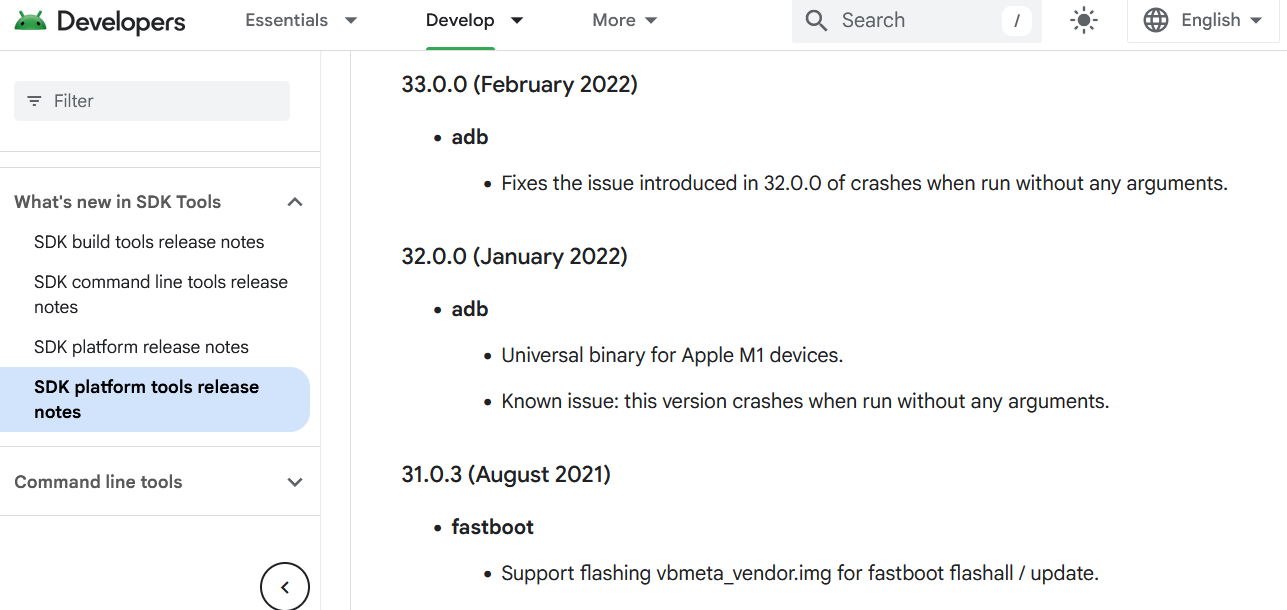
Append the version number you need to download to these addresses
Windows:  https://dl.google.com/android/repository/platform-tools_[version]-windows.zip
macOS: https://dl.google.com/android/repository/platform-tools_[version]-darwin.zip
Linux:  https://dl.google.com/android/repository/platform-tools_[version]-linux.zip
For example, the download link for the Windows version 30.0.3 is:
https://dl.google.com/android/repository/platform-tools_r30.0.3-windows.zip
system-images
Index file address:
https://dl.google.com/android/repository/sys-img/google_apis/sys-img.xml
https://dl.google.com/android/repository/sys-img/android/sys-img2-1.xml
You can download this file sys-img.xml, You'll see a lot of structures like this
    <sdk:system-image>
        <!--Generated from bid:4875369, branch:jb-emu-release-google-apis-x86-->
        <sdk:api-level>16</sdk:api-level>
        <sdk:description>Google APIs Intel x86 Atom System Image</sdk:description>
        <sdk:revision>6</sdk:revision>
        <sdk:archives>
            <sdk:archive>
                <!--Built on: Thu Feb 21 12:44:21 2019.-->
                <sdk:size>186388811</sdk:size>
                <sdk:checksum type="sha1">b57adef2f43dd176b8c02c980c16a796021b2071</sdk:checksum>
                <sdk:url>x86-16_r06.zip</sdk:url>
            </sdk:archive>
        </sdk:archives>
        <sdk:uses-license ref="android-sdk-license"/>
        <sdk:abi>x86</sdk:abi>
        <sdk:tag-id>google_apis</sdk:tag-id>
        <sdk:tag-display>Google APIs</sdk:tag-display>
    </sdk:system-image>
You can see the details of each version, and by appending the name in the corresponding <sdk:url> to https://dl.google.com/android/repository/sys-img/google_apis/, you get the download link, for example
https://dl.google.com/android/repository/sys-img/google_apis/x86-21_r30.zip
If you downloaded this file sys-img2-1.xml, You need to replace the prefix address with https://dl.google.com/android/repository/sys-img/android/ to get the corresponding download link.
https://dl.google.com/android/repository/sys-img/android/x86_64-30_r11.zip
Put them together into a directory
I downloaded these four files:
commandlinetools-win-9477386_latest.zip
emulator-windows_x64-16322952.zip
platform-tools_r28.0.3-windows.zip
x86-21_r30.zip
After unzipping them all, create an AVD directory as the root directory and put the four unzipped folders into it. Below is the final directory structure. The names and structure cannot be changed.
C:\Android\sdk\
├── cmdline-tools\
│   └── latest\
│       └── bin\
│           ├── sdkmanager.bat
│           └── avdmanager.bat
├── emulator\
│   └── emulator.exe
├── platform-tools\
│   └── adb.exe
└── system-images\
    └── android-34\
        └── google_apis\
            └── x86_64\
                ├── system.img
                └── source.properties
To match the structure of this file directory, you might need to manually change some folder names:
- After extracting commandlinetools, you might need to manually create a
latestfolder and put it in there. - After extracting the Android system image, you need to rename the system image directory to the format android-[api version], then create a google_apis directory, and place the folder named by the architecture inside
In short, you need to put these parts into one folder and keep their names and hierarchy correct.
Go into the cmdline-tools folder and run sdkmanager.bat --list in cmd to test it
sdkmanager.bat --list
Warning: Failed to connect to host: https://dl.google.com/android/repository/addons_list-5.xml
Warning: Failed to connect to host: https://dl.google.com/android/repository/addons_list-4.xml
Warning: Failed to connect to host: https://dl.google.com/android/repository/addons_list-3.xml
Warning: Failed to connect to host: https://dl.google.com/android/repository/addons_list-2.xml
Warning: Failed to connect to host: https://dl.google.com/android/repository/addons_list-1.xml
Warning: Failed to download any source lists!
Warning: IO exception while downloading manifest
Warning: IO exception while downloading manifest[===========                            ] 29% Fetch remote repository...
Warning: Still waiting for package manifests to be fetched remotely.
[=======================================] 100% Computing updates...
Installed packages:
  Path                                     | Version | Description                             | Location
  -------                                  | ------- | -------                                 | -------
  emulator                                 | 35.1.20 | Android Emulator                        | emulator
  platform-tools                           | 28.0.3  | Android SDK Platform-Tools 28.0.3       | platform-tools
  system-images;android-21;google_apis;x86 | 30      | Google APIs Intel x86 Atom System Image | system-images\android-21\google_apis\x86
I deliberately cut off the network to execute the command so it would run offline. It ran successfully. It recognized 3 packages: emulator, platform-tools, and system-images. That's the correct result; if it didn't recognize all the packages, you would need to check the folder structure again.
Create an AVD instance
Go into the cmdline-tools folder and use avdmanager to create a device:
avdmanager create avd -n MyDevice -k "system-images;android-21;google_apis;x86"
Something went wrong
[=======================================] 100% Fetch remote repository...
Auto-selecting single ABI x86
Do you wish to create a custom hardware profile? [no]
Error: "emulator" package must be installed!
null
Since I manually unzipped it offline, it’s missing an emulator/package.xml descriptor file, which made it mistakenly think I hadn’t installed the emulator. Now I need to manually complete the emulator/package.xml file.
Create a package.xml file under the emulator directory, edit it, and make sure the revision version matches the emulator version you're using.
<?xml version="1.0" encoding="UTF-8" standalone="yes"?>
<ns2:repository xmlns:ns2="http://schemas.android.com/repository/android/common/02" xmlns:ns3="http://schemas.android.com/repository/android/app-data/01" xmlns:ns4="http://schemas.android.com/repository/android/generic/02" xmlns:ns5="http://schemas.android.com/sdk/manifest/02" xmlns:ns6="http://schemas.android.com/repository/android/sys-img/200/02" xmlns:ns7="http://schemas.android.com/sdk/m2/repository/200/02">
    <localPackage path="emulator" revision="35.1.20">
        <type-details xmlns:xsi="http://www.w3.org/2001/XMLSchema-instance" xsi:type="ns4:genericDetailsType"/>
        <revision>
            <major>35</major>
            <minor>1</minor>
            <micro>20</micro>
        </revision>
        <display-name>Android Emulator</display-name>
    </localPackage>
</ns2:repository>
Then it worked when I tried again
avdmanager create avd -n MyDevice -k "system-images;android-21;google_apis;x86"
Start the Android emulator
Switch to the emulator directory, open cmd, and use the emulator -list-avds command to list the names of the virtual devices you created before.
emulator -list-avds
MyDevice
Run virtual device
emulator -avd MyDevice
An error occurred at startup, it didn't use hardware acceleration correctly.
ERROR        | x86 emulation currently requires hardware acceleration!
CPU acceleration status: Android Emulator hypervisor driver is not installed on this machine
More info on configuring VM acceleration on Windows:
https://developer.android.com/studio/run/emulator-acceleration#vm-windows
General information on acceleration: https://developer.android.com/studio/run/emulator-acceleration.
You need to do 2 steps to solve this problem:
Step 1
First, you need to make sure CPU virtualization is enabled in the BIOS/UEFI: press Ctrl + Shift + Esc to open Task Manager. Switch to the Performance -> CPU page.
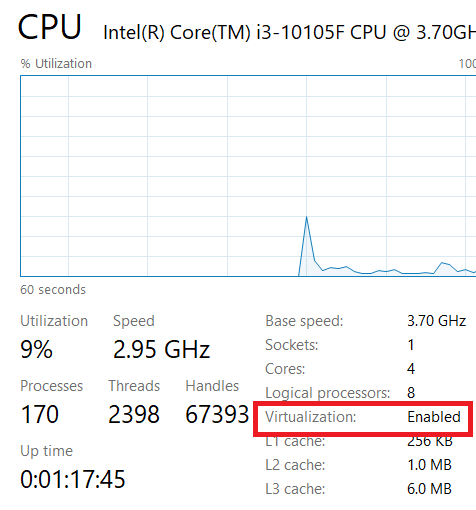
Check the “Virtualization” status in the bottom right corner: if it shows Enabled, it means CPU virtualization is already turned on. If it shows Disabled, you'll need to restart your computer, go into the BIOS/UEFI, and set Intel Virtualization Technology (VT-x) or AMD-V to Enabled.
Step 2
There are 2 options to choose from for the operation:
A: Use Google's official driver
Visit this address to download the AEHD (Android Emulator Hypervisor Driver) driver: https://github.com/google/android-emulator-hypervisor-driver/releases
The driver is only about 150KB. After downloading, extract it and then just click silent_install.bat to install.
B: Turn on Windows native Hyper-V / WHPX acceleration
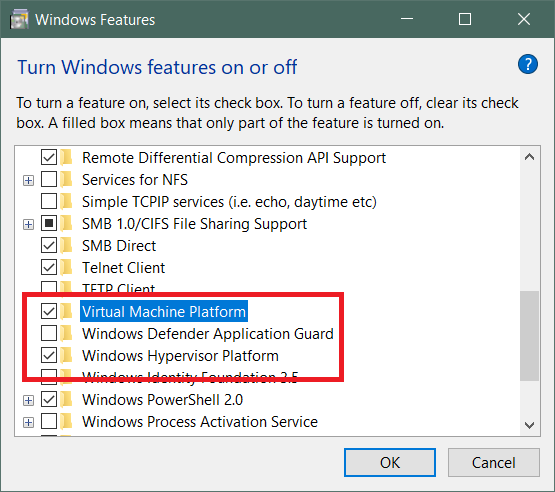
If your computer has Hyper-V, WSL2, or Docker enabled, you can just turn on the built-in Windows Virtual Machine Platform:
- Press Win + R, type optionalfeatures, and hit Enter.
- Check "Virtual Machine Platform" and "Windows Hypervisor Platform".
- Click OK and restart your computer.
Restart again
emulator -avd MyDevice
Successfully started the Android 5.0 system
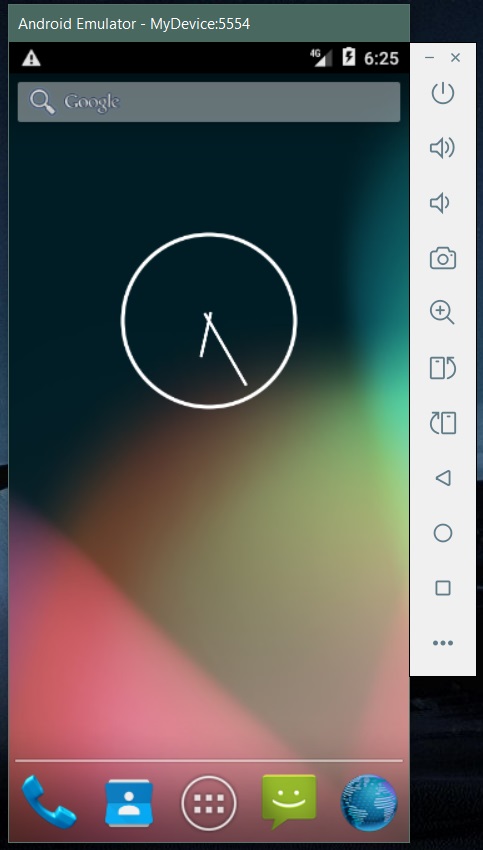
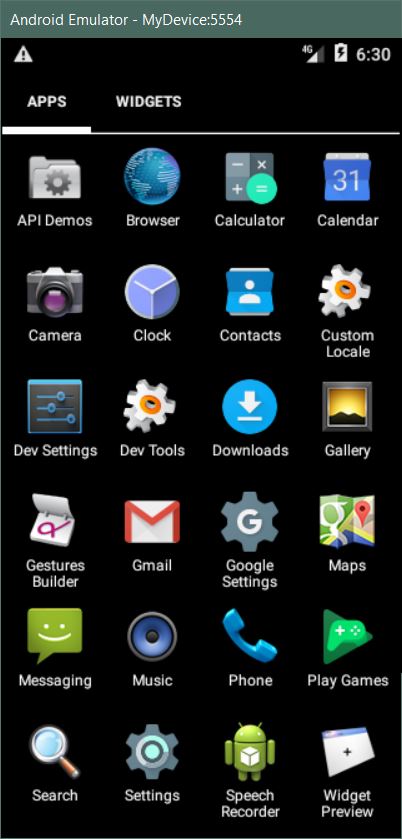
Some settings
In Windows, the virtual machine devices you create are located in C:\Users\username\.android.
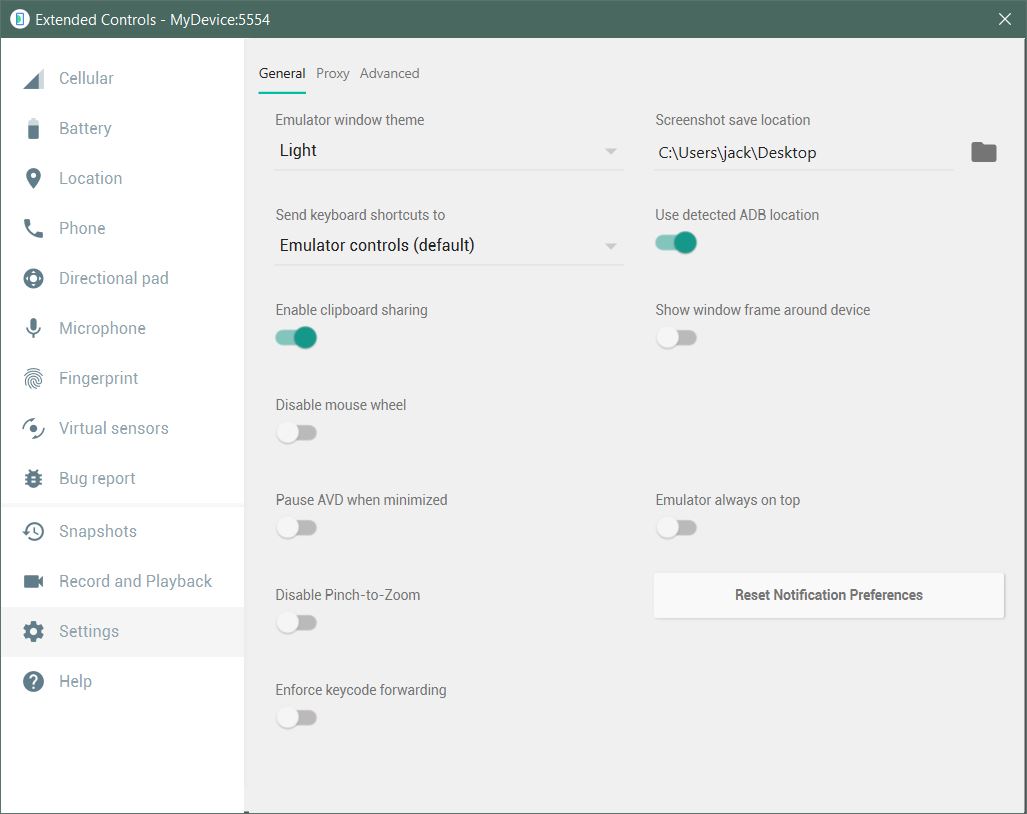
You can adjust some settings for it using the menu button on the right side of the virtual machine window.
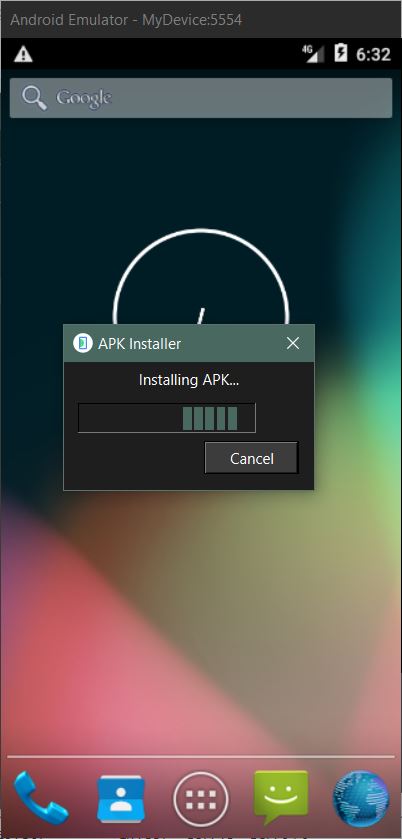
To transfer files to the Android system, you just need to drag and drop them in. For APK files, it will install automatically.
The virtual machine you created doesn't have any storage. You can create an SD card using the built-in command of the emulator. Run the command in the emulator folder:
mksdcard 512M sdcard.img
This will create a 512MB SD card file.
Then mount it at startup:
emulator -avd MyDevice -sdcard sdcard.img
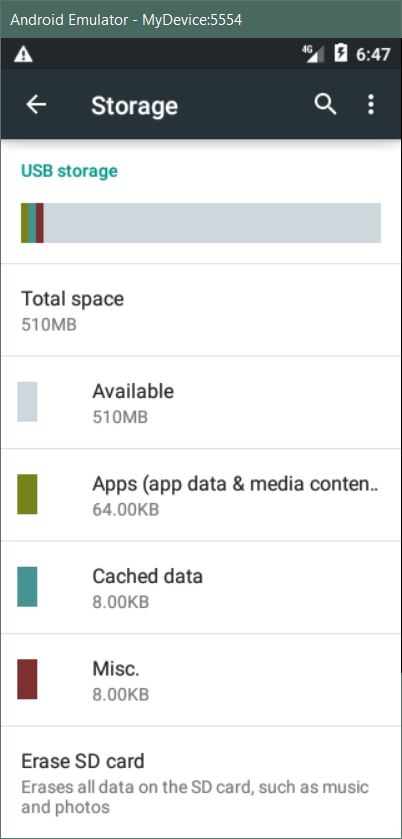
Later when you check the storage, there will be 512MB of USB storage space.