Mingw Version: 7.3.0
Cmake Version: 3.16.9
OS: Windows 10 1909
FLTK Version: 1.4.4
A lot of open-source libraries compile the MinGW version by having you use CMake with MSYS2 to simulate a Linux environment for compilation. Actually, since you're using CMake to generate the makefiles, you don't need MSYS2. Mingw comes with a make program (called mingw32-make.exe), so once you have the makefile, you can just run make in the cmd to build the project. If you weren't using CMake, you'd need to run the configure file to generate the makefile, and then MSYS2 would be necessary. That's why this article didn't use MSYS2 when compiling the FLTK library.
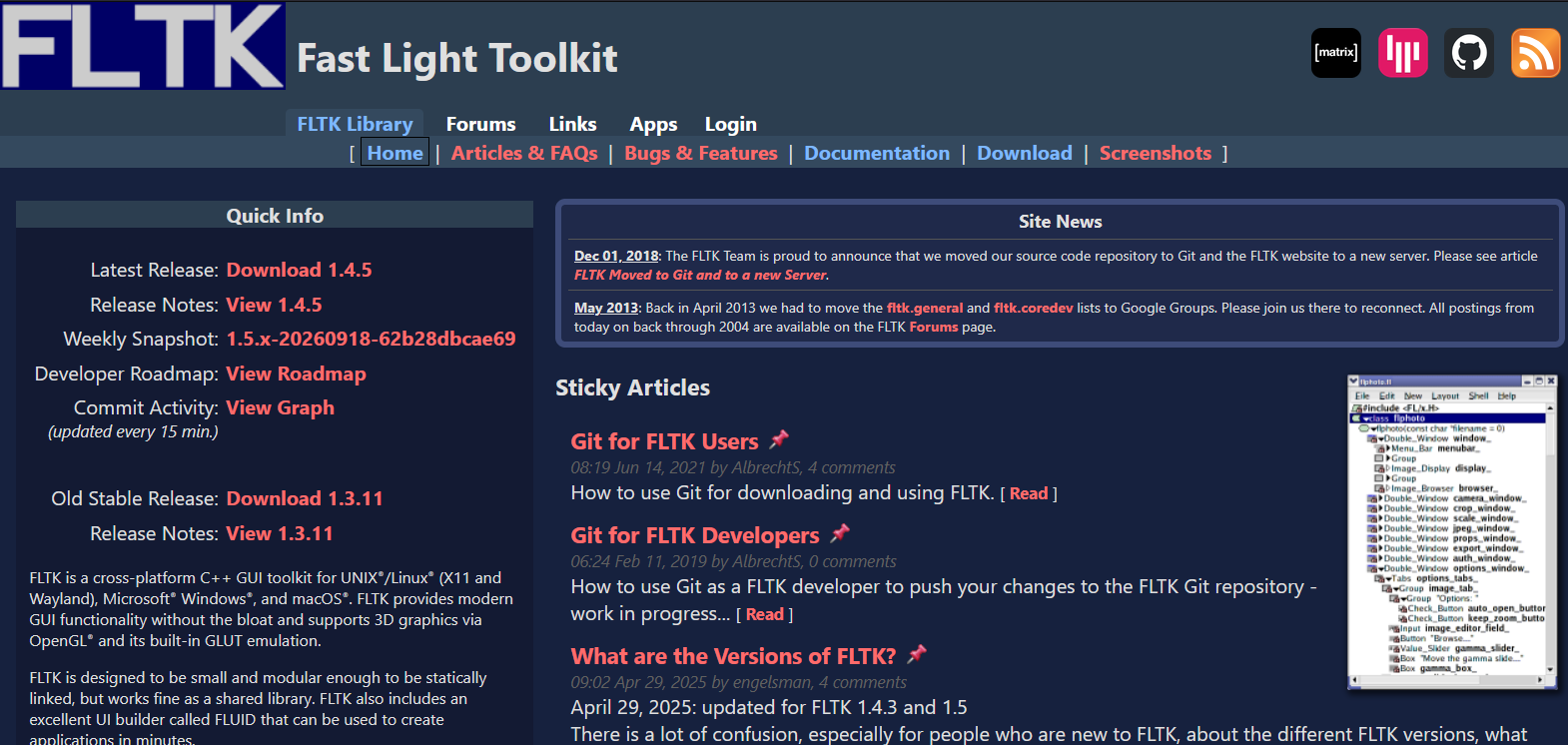
You need to download the FLTK library source code. The official website for the FLTK library is: https://www.fltk.org/
Download CMake, official website: https://cmake.org/
Download and install mingw, official website: https://www.mingw-w64.org/
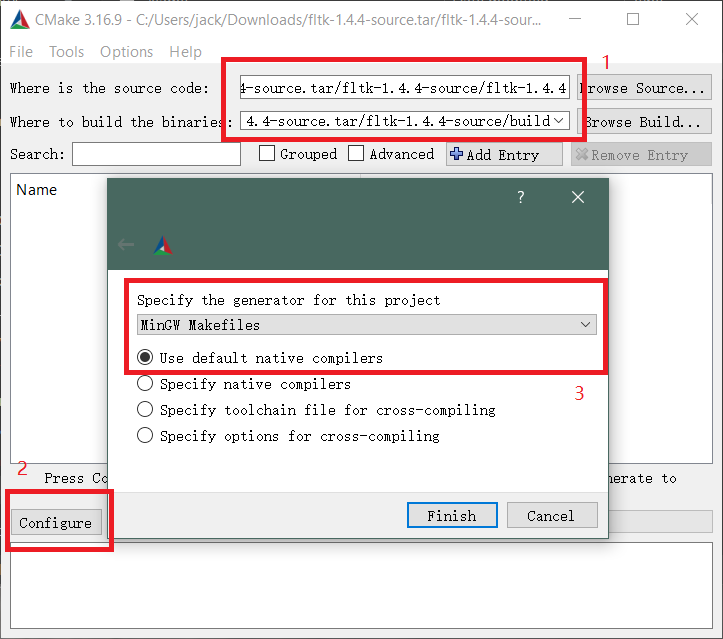
Unzip the source code and create a build directory to store the files generated by cmake. Open cmake-gui.exe, fill in the source code location and the build directory you created. Then click configure and select Mingw Makefiles.
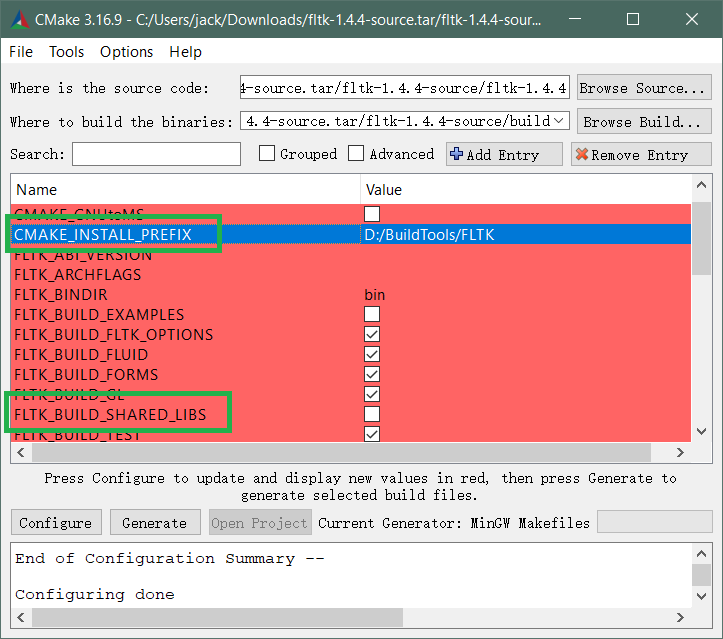
After finishing the configuration, you can set the default installation directory and change options to generate either a static library or a dynamic library. Here, I chose to generate a static library, and the installation directory is D:/BuildTools/FLTK/.
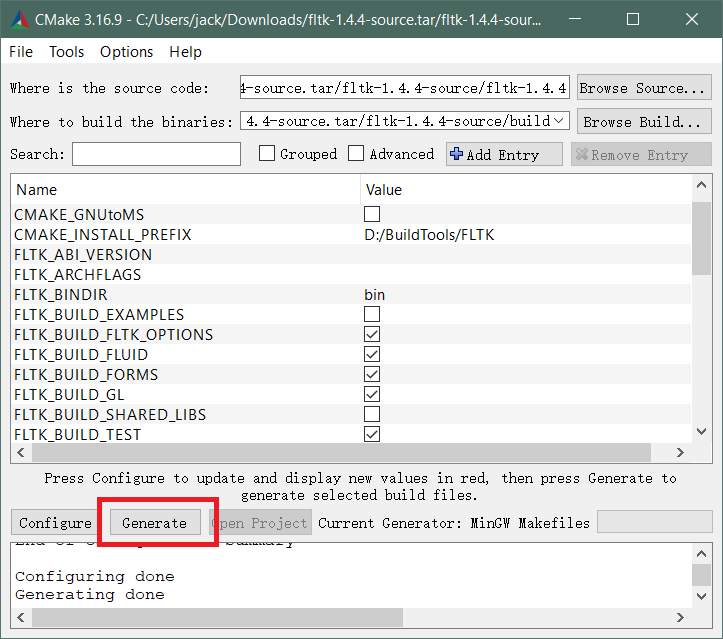
Then click configure again, wait for the entries to turn to the normal color, and then click Generate to create the makefile.
Then navigate to the previously created build directory. This is where the cmake-generated files are. Open a cmd here and run make. You need to make sure mingw64 is correctly installed and the environment variables are set up.
mingw32-make
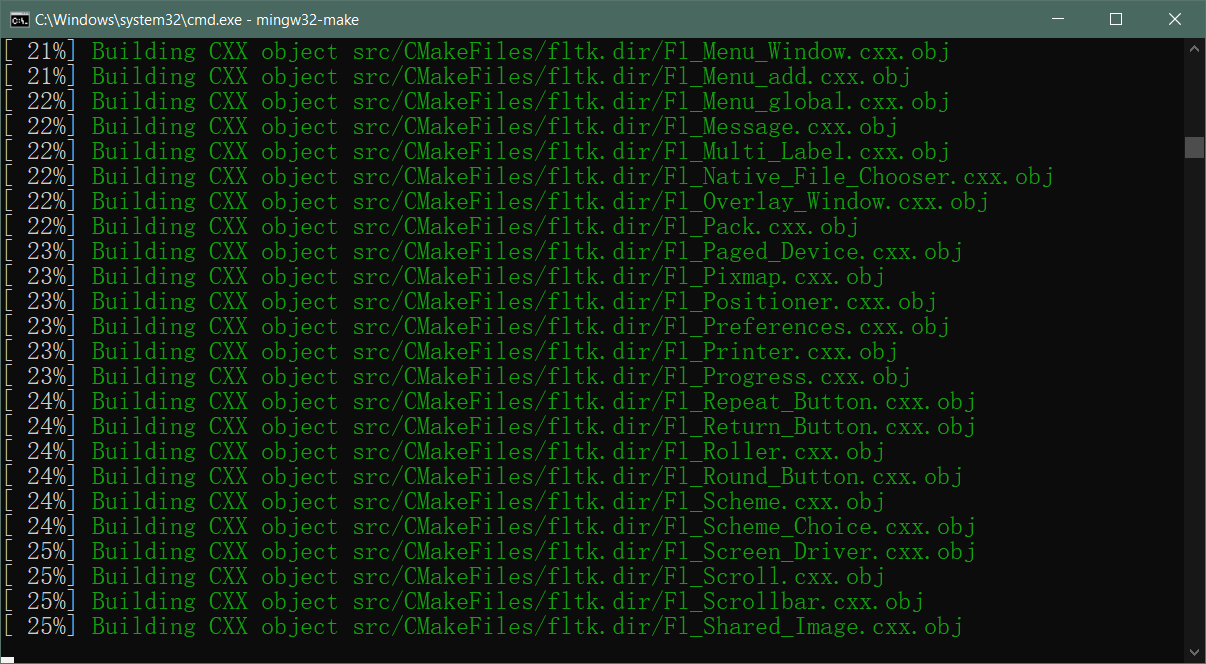
Run the installation after compilation is complete
mingw32-make install
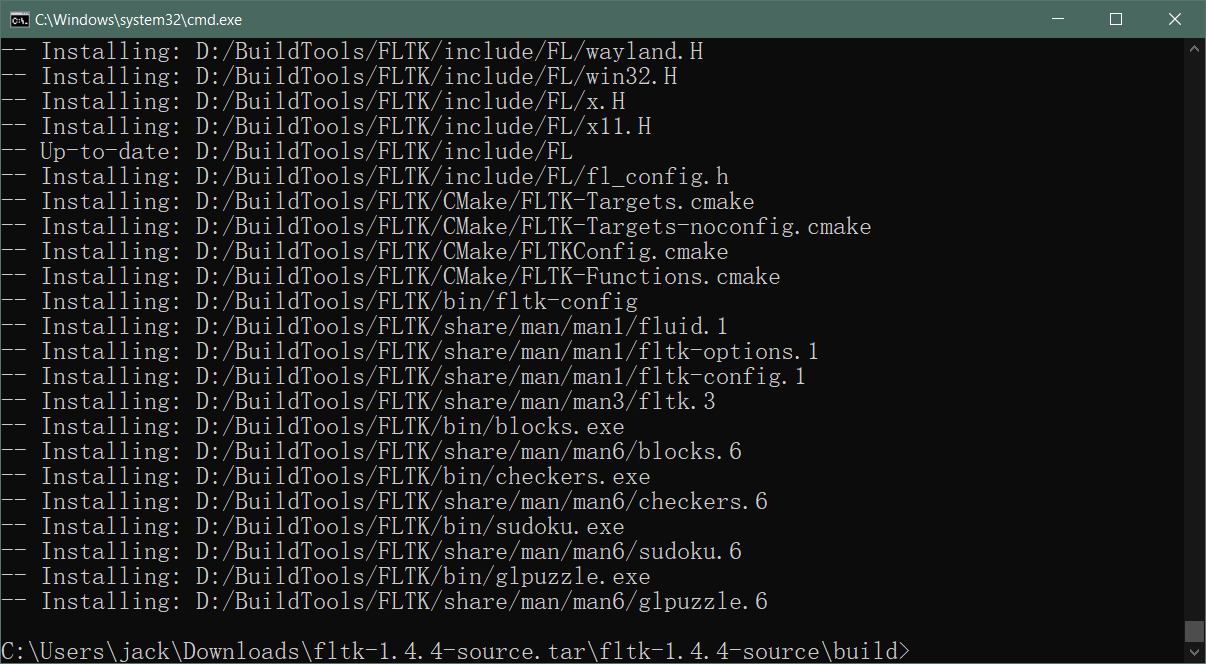
After the installation is complete, open the installation directory you set earlier and you can see that the library files have been generated.
├─bin
├─CMake
├─include
│  └─FL
│      └─images
├─lib
└─share
    └─man
        ├─man1
        ├─man3
        └─man6
Write a simple test FLTK program
test.cpp
#include <FL/Fl.H>
#include <FL/Fl_Window.H>
#include <FL/Fl_Button.H>
#include <FL/Fl_Box.H>


void button_callback(Fl_Widget* widget, void* data) {
    Fl_Box* box = (Fl_Box*)data;
    box->label("you clicked button!");
    box->redraw();
}

int main(int argc, char** argv) {

    Fl_Window* window = new Fl_Window(400, 300, "FLTK Demo");

    Fl_Box* box = new Fl_Box(100, 50, 200, 50, "Hello FLTK!");
    box->box(FL_UP_BOX);
    box->labelfont(FL_BOLD + FL_ITALIC);
    box->labelsize(18);

    Fl_Button* button = new Fl_Button(150, 150, 100, 40, "Click Me!");
    button->callback(button_callback, box);

    window->end();
    window->show(argc, argv);

    return Fl::run();
}
Compile command:
g++ test.cpp -ID:\BuildTools\FLTK\include -LD:\BuildTools\FLTK\lib -lfltk -lfltk_forms -lfltk_gl -lfltk_images -lfltk_jpeg -lfltk_png -lfltk_z -lws2_32 -lole32 -lcomctl32 -lgdi32 -luser32 -luuid -lgdiplus -lwinspool -lcomdlg32
Because I generated the static library version of FLTK, I need to add these Windows system libraries to the link parameters, otherwise I'll get a lot of 'symbol not found' errors during linking.
-lws2_32 -lole32 -lcomctl32 -lgdi32 -luser32 -luuid -lgdiplus -lwinspool -lcomdlg32
If it's a generated dynamic library version of FLTK, when you compile your program, you might only need to link the FLTK library itself. That's because when the dynamic library is built, it already has the dependency information recorded in its import table.
g++ test.cpp -ID:\BuildTools\FLTK\include -LD:\BuildTools\FLTK\lib -lfltk -lfltk_forms -lfltk_gl -lfltk_images -lfltk_jpeg -lfltk_png -lfltk_z
run
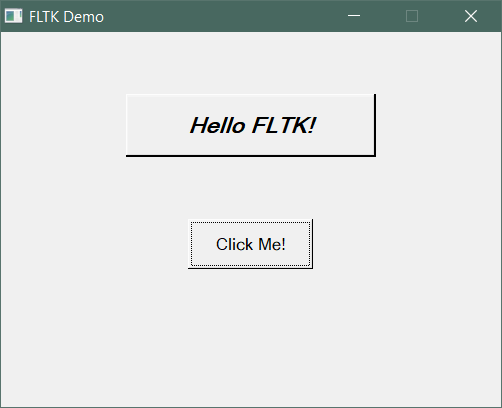
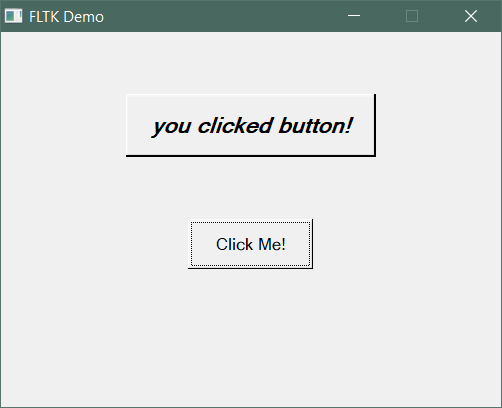
FLTK has a few theme styles, and you can set them using this code.
#include <FL/Fl.H>

// Set to Base style (default)
Fl::scheme("base");

// Set to GTK style
Fl::scheme("gtk+");

// Set to Gleam style
Fl::scheme("gleam");

// Plastic style
Fl::scheme("plastic");

// Oxy style
Fl::scheme("oxy");